Select
the table and columns
Now you select the table and the columns to use in the DataWindow
object.
-
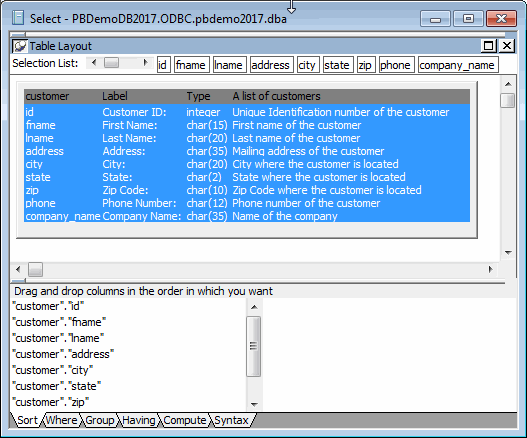
Select customer in the list of tables and click Open.
The Select painter displays the customer table and its
columns.Alternative method
If you double-click the customer table instead of selecting
it and clicking Open, the Select Tables dialog box remains open.
In this case, you must click Cancel to continue. -
Right-click the header area in the Table Layout view.
Choose Select All from the pop-up menu.
The column names appear in the Selection List area above the
table.The columns appear in the order in which you selected them.
Because you selected all the columns at once, the original order of
the columns in the database is used. You change the column
presentation order later.
You can also see the selection order in the Syntax view: click the
Syntax tab at the bottom of the stack of tabbed panes to display the
generated Select statement.