Searching targets, libraries, and objects
Global search of targets
You can search a target to locate where a specified text string is
used. For example, you could search for:
-
All scripts that use the SetTransObject function
-
All windows that contain the CommandButton cb_exit (all
controls contained in a window are listed in the window definition’s
source form in the library so they can be searched for as
text) -
All DataWindow objects accessing the Employee table in the
database
Working with targets
To see the pop-up menu that lets you perform operations on a
target, such as search, build, and migrate, you must set the root of
the System Tree or the view in the Library painter to the current
workspace.
Searching selected libraries and
objects
You can also select a library or one or more PowerBuilder objects
to search. The following procedure applies whatever the scope of your
search is.
To search a target, library, or object for a text
string:
-
Select the target, library, or objects you want to
search.You can select multiple objects in the List view using
Shift+click and Ctrl+click. -
Select Search from the pop-up menu or the PainterBar.
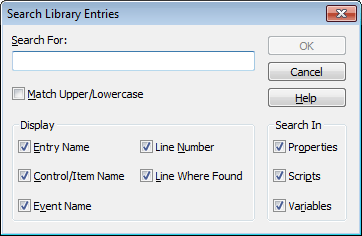
The Search Library Entries dialog box displays.
-
Enter the string you want to locate (the search string) in the
Search For box.The string can be all or part of a word or phrase used in a
property, script, or variable. You cannot use wildcards in the
search string. -
In the Display group box, select the information you want to
display in the results of the search. -
In the Search In group box, select the parts of the object
that you want PowerBuilder to inspect: properties, scripts, and/or
variables. -
Click OK.
PowerBuilder searches the libraries for matching entries. When
the search is complete, PowerBuilder displays the matching entries
in the Output window.For example, the following screen displays the results of a
search for the string garbagecollect:
From the Output window, you can:
-
Jump to the painter in which an entry was created
To do this, double-click the entry or select it and then
select Edit from the pop-up menu. -
Print the contents of the window
-
Copy the search results to a text file