Saving data in an external file
While previewing, you can save the data retrieved in an external
file. Note that the data and headers (if specified) are saved. Information
in the footer or summary bands is not saved unless you are saving
as PDF or as a PSR file.
 To save the data in a DataWindow object in an external
file:
-
Select File>Save Rows As from
the menu bar.The Save As dialog box displays.
-
Choose a format for the file from the Save As
Type drop-down list.If you want the column headers saved in the file, select a
file format that includes headers (such as Excel With Headers).
When you select a with headers format, the
names of the database columns (not the column labels) are also saved
in the file.When you choose a format, PowerBuilder supplies the appropriate
file extension. -
For TEXT, CSV, SQL, HTML, and DIF formats, select
an encoding for the file.You can select ANSI/DBCS, Unicode LE (Little-Endian),
Unicode BE (Big-Endian), or UTF8. -
Name the file and click Save.
PowerBuilder saves all displayed rows in the file; all columns
in the displayed rows are saved. Filtered rows are not saved.
The rest of this section provides more information
about saving data in PDF, HTML, and Powersoft Report (PSR) formats.
For more information about saving data as
XML, see Chapter 29, “Exporting and Importing
XML Data.”
Saving the data as PDF
PowerBuilder provides two ways to save a DataWindow object or DataStore
in Portable Document Format (PDF).
Using Ghostscript
By default, when you select File>Save Rows As and
select PDF as the file type, the data is printed to a PostScript
file and automatically distilled to PDF using Ghostscript. This
option provides a robust solution that can save most types of DataWindow objects.
 Installing Ghostscript For licensing reasons, Ghostscript is not installed with PowerBuilder.
You (and your users) must download and install it before you can
use this technique. See “System requirements for
the distill method”.
Using XSL-FO and Java printing
Building on the ability to save data as XML, PowerBuilder can
also save the DataWindow object’s data and presentation to PDF
by generating XSL Formatting Objects (XSL-FO). This option provides
a platform-independent solution by rendering the DataWindow using
a Java process rather than the Microsoft GDI. It also offers the
possibility of customizing the PDF file at the XSL-FO stage. Saving
as PDF using XSL-FO is particularly useful if you want to
print DataWindow objects in EAServer on
a UNIX operating system by using Java printing. The Ghostscript
method is not supported on UNIX.
The XSL (Extensible Stylesheet Language) W3C Recommendation
has two parts, XSLT and XSL-FO. XSLT provides the transformation
typically used to present XML documents as HTML in a browser. XSL-FO
provides extensive formatting capabilities that are not dependent
on the output format.
For more information about XSL, see the latest version of
the Extensible Stylesheet Language (XSL)
.
Limitations
The Ghostscript method currently does not support OLE and
RichText DataWindow objects. The XSL-FO method currently does not support OLE, RichText, graph,
and composite DataWindow objects.
Saving as PDF using the distill method
If you want to save to PDF using the distill method, you do
not need to change any properties. The distill method is used by
default when you select Save Rows As from the File menu in the DataWindow painter and
select PDF as the file type, or when you use the SaveAs method
with PDF! as the file type.
PowerBuilder uses a PostScript printer driver specifically designed
for distilling purposes to configure the PDF output. You can choose
to use a different PostScript printer driver if you want to customize
your PostScript settings for generating PDF.
In the DataWindow painter
To use a custom PostScript printer driver, you must set some
properties.
To save customized distilled PDF output in the DataWindow painter:
-
Select the Data Export tab in the Properties
view for the DataWindow object. -
Select PDF from the Format to Configure drop-down
list, select Distill! from the Method drop-down list, and select
the Distill Custom PostScript check box. -
Select the Print Specifications tab and specify
the name of the printer whose settings you want to use in the Printer
Name box. -
Save the DataWindow object, then select File>Save
Rows As, select PDF as the Save As Type, specify a file name, and
click Save.
In a script
The properties you set in the DataWindow painter are saved
with the DataWindow object and are used by default when your application
runs, but for more control, specify the properties in a script before
saving the DataWindow object. To specify a custom printer driver
in a script, set the Export.PDF.Distill.CustomPostScript property
to Yes and specify a printer with the DataWindow.Printer property:
|
1 |
int li_ret<br /> <br />dw_1.Object.DataWindow.Export.PDF.Method = Distill!<br />dw_1.Object.DataWindow.Printer = "\prntsrvrpr-6"<br />dw_1.Object.DataWindow.Export.PDF. &<br /> Distill.CustomPostScript="Yes"<br /> <br />li_ret = dw_1.SaveAs("custom.PDF", PDF!, true) |
System requirements for
the distill method
Users must have administrative privileges to create a PDF
file.
To support saving as PDF using Ghostscript, you must download
and install Ghostscript files on your system as described in the Installation
Guide
. The default PostScript printer
driver and related files are installed in SybaseSharedPowerBuilderdrivers.
When you deploy applications that use the ability to save
as PDF with the distill method, you must make sure your users have
installed Ghostscript and have access to the drivers directory.
See the chapter on deployment in Application Techniques
for
more information about redistributing these files.
Saving as PDF using XSL-FO
If you want to save to PDF using XSL-FO, you must set
one or more properties before saving.
In the DataWindow painter
In the DataWindow painter, you set PDF export properties on the Data
Export page in the Properties view.
To save PDF output using XSL-FO in the DataWindow painter:
-
Select the Data Export tab in the Properties
view for the DataWindow object. -
Select PDF from the Format to Configure drop-down
list and select XSLFOP! from the Method drop-down list. -
(Optional) If you want simultaneously to send
the output directly to a printer using the Java printing option
of the Apache FOP processor, select the Print Using XSLFOP check
box.
-
Save the DataWindow object, then select File>Save
Rows As, select PDF as the Save As Type, specify a file name, and
click Save.PowerBuilder saves the data in the DataWindow object to the file you specified.
If you selected the Print Using XSLFOP check box, it also sends the
PDF file to the default printer for your system.
In a script
In a script, set the Export.PDF.Method property to XSLFOP!
before saving the DataWindow object as PDF using the SaveAs method
with the SaveAsType PDF!. To send the PDF file directly to the default
printer, set the Export.PDF.XSLFOP.Print property to Yes before
saving:
|
1 |
int li_ret<br />dw_1.Modify("Export.PDF.Method = XSLFOP! ")<br />dw_1.Modify("Export.PDF.xslfop.print='Yes'")<br />li_ret = dw_1.SaveAs("printed.pdf", PDF!, true) |
Saving as XSL-FO
You can also save a DataWindow object as XSL-FO, then use the processor
of your choice to convert the XSL-FO string to the format you want,
applying your own customizations to the conversion. Processors such
as the Apache XSL Formatting Objects processor (FOP) can convert
XSL-FO documents into several output formats including PDF, PCL,
and AWT.
In the DataWindow painter, select File>Save Rows As and select
XSL-FO as the file type. In a script, you can use the SaveAs method
with the SaveAsType XSLFO!.
For a DataWindow named dwemp, the following
command lines show the FOP syntax for producing a PDF, a print preview
rendered on screen (-awt),
and printable output rendered and sent to a printer (-print):
|
1 |
Fop dwemp.fo dwemp.pdf<br />Fop dwemp.fo -awt<br />Fop dwemp.fo -print |
For more information
about using FOP, see the FOP page of the Apache XML Project Web site
.
System requirements for XSL-FO
The Apache XSL Formatting Objects processor (FOP) and JDK
1.4 are installed with PowerBuilder to support saving as XSL-FO, saving
as PDF using XSL-FO, and Java printing. FOP is installed in SybaseSharedPowerBuilderfop-0.20.4.
JDK 1.4 is installed in SybaseSharedPowerBuilderjdk14.
When you deploy applications that use XSL-FO or Java printing,
you must deploy the fop-0.20.4 directory and
the Java Runtime Environment (the JRE is available in a subdirectory
of jdk14) with your application. These directories must
be deployed in the same directory as the PowerBuilder runtime files.
For more information, see the chapter on deploying your applications
in Application Techniques.
On Windows DBCS platforms, you also need to install a file
that supports DBCS characters to the Windows font directory, for
example, C:WINNTfonts. To
use these fonts, the userconfig.xml file in
the directory SharedPowerBuilderfop-0.20.4conf must
be modified to give the full path name of the files you use, for
example:
|
1 |
<font metrics-file="C:Program%20FilesSybaseShared<br />PowerBuilderfop-0.20.4confcyberbit.xml"<br />kerning="yes"embed-file="C:WINNTFontsCyberbit.ttf"> |
For more information about configuring fonts, see the Apache Web site
.
Saving the data in HTML Table format
HTML Table format is one of the formats in which you can choose
to save data. When you save in HTML Table format, PowerBuilder saves
a style sheet along with the data. If you use this format, you can
open the saved file in a browser such as Internet Explorer or Netscape.
Once you have the file in HTML Table format, you can continue to
enhance the file in HTML.
About the results
Some presentation styles translate better into HTML than others.
The Tabular, Group, Freeform, Crosstab, and Grid presentation styles
produce good results. The Composite, RichText, OLE 2.0, and Graph
presentation styles and nested reports produce HTML tables based
on the result set (data) only and not on the presentation style. DataWindows
with overlapping controls in them might not produce the results
you want.
To save a report as an HTML table:
-
Open a DataWindow object.
-
Open the Preview view if it is not already open.
-
Select File>Save Rows As from the menu bar.
-
Choose the HTML Table format for the file from the Save
As Type drop-down list. -
Name the file.
PowerBuilder creates a file using the name you supplied and
the extension htm. -
Open a browser such as Netscape or Internet Explorer.
-
Use the browser’s file open command to open
the HTML file.
For more information about working with DataWindow objects
and HTML, see the DataWindow Programmer’s Guide
.
Working with PSR files
A PSR file is a special file with the extension PSR created
by PowerBuilder, InfoMaker, or DataWindow Designer. PSR stands for
Powersoft report.
Windows and PSR files When PowerBuilder is installed, the PSR file type is registered
with Windows.
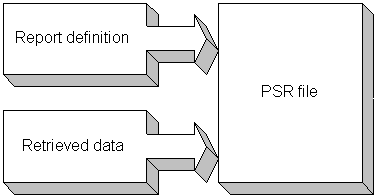
A PSR file contains a report definition (source and object)
as well as the data contained in the report when the PSR file was
created.
About reports A report is the same as a nonupdatable DataWindow object. For
more information, see “Reports versus DataWindow
objects”.
You can use a PSR file to save a complete report (report design
and data). This can be especially important if you need to keep
a snapshot of data taken against a database that changes frequently.
PowerBuilder creates a PSR file when you save data in the Powersoft
report file format. See “Saving data in an external
file”. PSR files are used primarily
by InfoMaker, a reporting tool. When an InfoMaker user opens a PSR
file, InfoMaker displays the report in the Report painter. If InfoMaker
is not already running, opening a PSR file automatically starts
InfoMaker.