Reverse-engineering a PowerBuilder target
Reverse-engineering is the process of examining and recovering
data or source code that is then used to build or update an OOM.
You can reverse-engineer PowerBuilder objects to obtain a diagram
of the class structure of those objects.
The Reverse Engineer dialog box
After you enable the PowerDesigner plug-in, the Reverse Engineer
menu item is added to pop-up menus for targets. If you select this
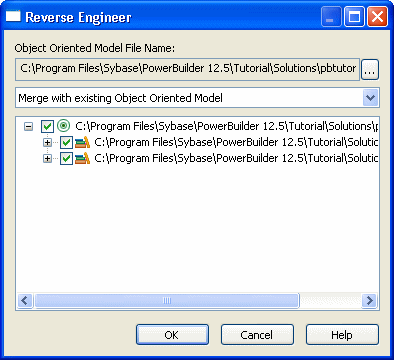
menu item, the Reverse Engineer dialog box prompts you to select
PowerBuilder libraries and objects from the current target. After
you click OK in this dialog box, the objects you select are abstracted
as classes in a UML class diagram. Figure 4-3 shows the Reverse Engineer dialog
box.
Figure 4-3: Reverse Engineer dialog box
When objects in a PowerBuilder target are reverse-engineered
for the first time, the target is linked with a generated class
diagram and OOM file. By default, the generated OOM file name has
the same name as the target file, but with an oom extension.
For example, if the PowerBuilder target name is test.pbt,
then the file test.oom is generated in the
same directory as the target file.
If an OOM is already linked with the PowerBuilder target,
you can determine how changes to PowerBuilder objects will affect
the linked OOM when you reverse-engineer the target. The options
you can select from are:
-
Merge with existing
Object Oriented Model (default) -
Replace existing Object Oriented Model
-
Replace selected packages and classes
-
Replace selected classes
If the target is not currently linked with an OOM, the only
selection is:
-
Create a new Object Oriented
Model
Changing the OOM file name
Before you create an OOM file from a PowerBuilder target through
reverse engineering, you can change the name of the file and its
directory, and you can decide whether to overwrite or merge the
contents of the OOM with an existing OOM file.
 To change the OOM file name linked to the target
-
In the Reverse Engineer dialog box for
the PowerBuilder target, click the ellipsis button next to the Object
Oriented Model File Name field.The Plug-in Attributes of Target dialog box displays.
-
Modify the path and name of the oompath attribute
and click OK.If you select an existing file name, the Delete Existing Object
Oriented Model File check box in the Reverse Engineer dialog box
is not grayed. -
(Optional) Select a reverse-engineering option
from the drop-down list.If an OOM is already linked to the PowerBuilder target and
you leave the default selection, new packages, classes, and attributes
will be merged with existing packages, classes, and attributes in
the linked OOM file. This means that other classes and attributes
in the existing OOM file will not be overwritten or deleted when
you reverse-engineer the PowerBuilder target.Other selections allow you to merge the packages while replacing
selected classes and their attributes; replace selected packages
and classes without replacing nonselected packages and their classes;
or replace the entire OOM file. -
Click OK to reverse-engineer the target.