Putting a DataWindow object into a control
The DataWindow control is a container for DataWindow objects
in an application. It provides properties, methods, and events for
manipulating the data and appearance of the DataWindow object. The
DataWindow control is part of the user interface of your application.
You also use DataWindow objects in the nonvisual DataStore
and in child DataWindows, such as dropdown DataWindows and composite
presentation styles. For more information about DataStores, see Chapter 4, “Using DataStore Objects “. For more information
about dropdown DataWindows and composite DataWindows, see the PowerBuilder
User’s Guide
or the DataWindow Builder
User’s Guide
.
To use the DataWindow object in an application, you add a
DataWindow control to a window or form, then associate that control
with the DataWindow object:
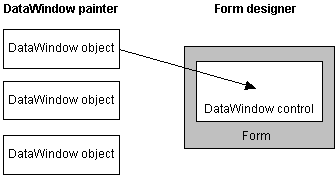
This section has information about:
- Names
for DataWindow controls and objects - Procedures for inserting a control and assigning
a DataWindow object to it in PowerBuilder and PowerJ - Specifying the DataWindow
object during execution
For information about assigning a DataWindow object to a Web
DataWindow control, see Working with Web and JSP Targets
or “Loading the DataWindow object”.
For information about assigning a DataWindow object to a Web
control for ActiveX, see “Specifying a DataWindow
object for the control”.
Names for DataWindow controls and DataWindow objects
There are two names to be aware of when you are working with
a DataWindow:
- The name of the DataWindow
control - The name of the DataWindow object associated with
the control
The DataWindow control name When you place a DataWindow control in a window or form, it
gets a default name. You should change the name to be something
meaningful for your application.
In PowerBuilder, the name of the control has traditionally
had a prefix of dw_. This is a useful convention to observe
in any development environment. For example, if the DataWindow control
lists customers, you might want to name it dw_customer.
 Using the name In code, always refer to a DataWindow by the name of the control
(such
as dw_customer). Do not refer to the DataWindow object
that
is in the control.
The DataWindow object name To avoid confusion, you should use different prefixes for
DataWindow objects and DataWindow controls. The prefix d_ is commonly
used for DataWindow objects. For example, if the name of the DataWindow
control is dw_customer, you might want to name the corresponding
DataWindow object d_customer.
Working with the DataWindow control in PowerBuilder
 To place a DataWindow control in a window:
-
Open the window that will contain the DataWindow
control. -
Select Insert>Control>DataWindow
from the menu bar. -
Click where you want the control to display.
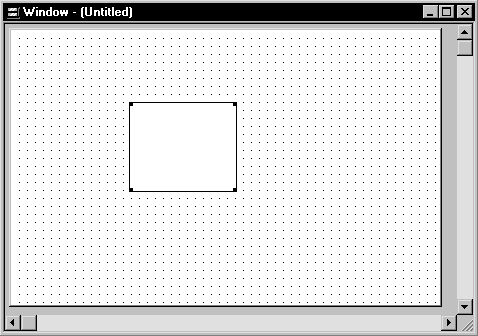
PowerBuilder places an empty DataWindow control in the window:
-
(Optional) Resize the DataWindow control by selecting
it and dragging one of the handles.
Specifying a DataWindow object
After placing the DataWindow control, you associate a DataWindow
object with the control.
To associate a DataWindow object with the control:
-
In the DataWindow Properties view, click
the Browse button for the DataObject property. -
Select the DataWindow object that you want to
place in the control and click OK.The name of the DataWindow object displays in the DataObject
box in the DataWindow Properties view. -
(Optional) Change the properties of the DataWindow
control as needed. Allowing users to move DataWindow controls If you want users to be able to move a DataWindow control
during execution, give it a title and select the Title Bar checkbox.
Then users can move the control by dragging the title bar.
Defining reusable DataWindow controls
You might want all the DataWindow controls in your application
to have similar appearance and behavior. For example, you might
want all of them to do the same error handling.
To be able to define these behaviors once and reuse them in
each window, you should create a standard user object based on the
DataWindow control: define the user object’s properties
and write scripts that perform the generic processing you want,
such as error handling. Then place the user object (instead of a
new DataWindow control) in the window. The DataWindow user object
has all the desired functionality predefined. You do not need to
respecify it.
For more information about creating and using
user objects, see the PowerBuilder User’s Guide
.
Editing the DataWindow object in the control
Once you have associated a DataWindow object with a DataWindow
control in a window, you can go directly to the DataWindow painter
to edit the associated DataWindow object.
To edit an associated DataWindow object:
-
Select Modify DataWindow from the DataWindow
control’s popup menu.PowerBuilder opens the associated DataWindow object in the DataWindow
painter.
Working with the DataWindow control in PowerJ
To
place a DataWindow control on a form in PowerJ:
-
Open the form design window for the form
that is to contain the DataWindow control. -
On the DataWindow page of the Component palette,
click the button representing the DataWindow control. -
In the form design window, click and drag to set
the position and size of the DataWindow control.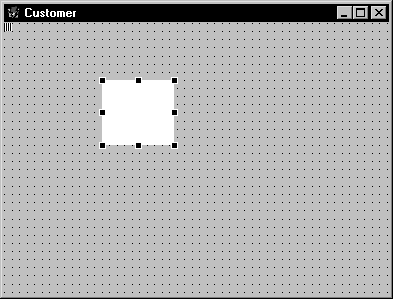
-
(Optional) Resize the DataWindow control by selecting
it and dragging one of the handles. -
Right-click the control and choose Properties.
On the property sheet, change the name of the control and other
properties, if you want.If the Object Inspector displays, select Tools>Options
and on the Environment tab, select Property sheets as the default
display for properties.
To associate a DataWindow object with the control:
-
On the DataWindow property sheet (see step
5 above), select the DataWindow Source tab.
-
Click the Browse button.
The Open dialog box displays, enabling you to select the library
(PBL file) or runtime library (PBD file) that contains the DataWindow
object you want to use: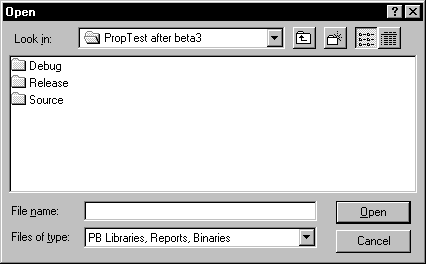 Using a PSR file If want to put a PSR (Powersoft report) file into your DataWindow
control instead of a DataWindow object, select the PSR file from
the Open dialog box instead of selecting a library or runtime library. -
Click the List button and select a DataWindow
object from the library. (Skip this step if you are using a PSR
file.)
-
(Optional) Change other properties of the DataWindow
control as needed. -
Click OK.
The DataWindow object or PSR file displays in the control.
Editing the DataWindow object
You can edit a DataWindow object in DataWindow Builder after
you have added it to the PowerJ form. To display your changes in
PowerJ, close the form and reopen it.
Specifying the DataWindow object during execution
The way to change the DataWindow object depends on the environment:
- PowerBuilder Set the DataObject property to one of the DataWindow objects
built into the application - Web ActiveX and JavaBeans component Set the SourceFileName and DataWindowObject properties to
select a new library file and DataWindow
Setting the transaction object when you change the
DataWindow object When you change the DataWindow object during execution, you
may need to call setTrans or setTransObject again.
For more information, see “Setting the transaction
object for the DataWindow control”.
Dynamically creating a DataWindow object You can also create a new DataWindow object during execution
and associate it with a control.
For more information, see Chapter 3, “Dynamically Changing DataWindow
Objects “.
Changing the DataWindow in PowerBuilder
When you associate a DataWindow object with a control in the
window, you are setting the initial value of the DataWindow control’s DataObject property.
During execution, this tells your application to create an
instance of the DataWindow object specified in the control’s
DataObject property and use it in the control.
Setting the DataObject property in code
In addition to specifying the DataWindow object in the Window
painter, you can switch the object that displays in the control
during execution by changing the value of the DataObject property
in code.
For example: to display the DataWindow object d_emp_hist
from the library emp.pbl in the DataWindow control dw_emp,
you can code:
|
1 |
dw_emp.DataObject = "d_emp_hist" |
The DataWindow object d_emp_hist was created
in the DataWindow painter and stored in a library on the application
search path. The control dw_emp is contained in the window
and is saved as part of the window definition.
Preventing redrawing You can use the SetRedraw method to turn off redrawing in
order to avoid flicker and reduce redrawing time when you are making
several changes to the properties of an object or control. Dynamically
changing the DataWindow object at execution time implicitly turns
redrawing on. To turn redrawing off again, call the SetRedraw method
every time you change the DataWindow object:
|
1 |
dw_emp.DataObject = "d_emp_hist" |
|
1 |
dw_emp.SetRedraw(FALSE) |
Using PSR files
To put a PSR file into a DataWindow control at execution time,
change the control’s DataObject property to specify that
PSR filename.
Changing the DataWindow in the Web ActiveX and JavaBeans
component
When you associate a DataWindow object with a DataWindow control,
you are setting the initial value of the DataWindow control’s SourceFileName and DataWindowObject properties.
During execution, this tells your application to:
- Look for DataWindow objects
in the library (PBL file) or runtime library (PBD file) specified
in the control’s SourceFileName property. - Create an instance of the DataWindow object specified
in the control’s DataWindowObject property (which must
be in the specified library) and use it in the control.
Setting the SourceFileName and DataWindowObject properties
in code
In addition to specifying the DataWindow object in the Window
painter, you can switch the object that displays in the control
during execution by changing the value of the SourceFileName and
DataWindowObject properties in code.
You might simply change the DataWindowObject property to use
a different DataWindow object from the same library, or you might
change both properties to use a DataWindow object from some other
library.
For information about URLs for SourceFileName,
see “Specifying a DataWindow
object for the control”.
For more information about the SourceFileName
and DataWindowObject properties, see the DataWindow Reference
.
Using PSR files If you want to dynamically put a PSR file into a DataWindow
control at execution time, change the control’s SourceFileName property
to specify the PSR filename.
The control’s DataWindowObject property is ignored
when the SourceFileName property specifies a PSR file.
Examples
These examples show the code to set the properties in both
JavaScript and Java. The code changes the DataWindow object in dw_emp,
a DataWindow control in a form or Web page. Dw_emp is saved
as part of the form or Web page definition. The value for DataWindowObject
is d_emp_hist; it was created in the DataWindow
painter and is stored in the library named emp.pbl, the value for
SourceFileName.
PowerJ In Java, the DataWindow control provides methods that you
can code to change these property values:
- setSourceFileName
- setDataWindowObject
To display the DataWindow object d_emp_hist
from the library emp.pbl in the DataWindow control dw_emp,
you can code:
|
1 2 |
dw_emp.<i>setSourceFileName</i> ("dwlibs/emp.pbl"); |
|
1 2 |
dw_emp.<i>setDataWindowObject</i> ("d_emp_hist"); |
Web ActiveX For the Web ActiveX on a Web page, you set the SourceFileName
and DataWindowObject properties directly.
To display the DataWindow object d_emp_hist
from the library emp.pbl in the DataWindow control dw_emp,
you can code:
|
1 2 |
dw_emp.<i>SourceFileName</i> = "dwlibs/emp.pbl"; |
|
1 2 |
dw_emp.<i>DataWindowObject</i> = "d_emp_hist"; |