Publishing an application for the first time
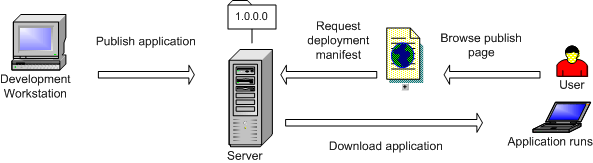
When you are ready to deploy an application to users, you
publish it to the server. Users can then download the application,
usually from a publish page that contains a link to the server.
You need to:
Create a project and set publishing properties
After you develop a PowerBuilder application that will be
published as a .NET Windows Forms application with intelligent update
capabilities, if you did not create a project when you built the
application, select the .NET Windows Forms Application wizard or
project icon on the Project page of the New dialog box to build
a project.
To specify that the application uses intelligent update, select
the check box on the Specify Support for Smart Client page in the
wizard. Selecting this check box enables additional pages in the
wizard:
- On the Specify Application Running
Mode page, specify whether the application can be used both online
and offline (the default), or online only. - On the Specify How Application Will be Installed
page, specify whether the user installs the application from a Web
site, a shared path, or from a CD or DVD. - On the Specify Application Update Mode page, specify
whether the application checks for updates before starting, after
starting, or neither. For more information, see “Updating the application”.
You can also select the Publish as a Smart Client Application
check box on the General page in the Project painter. Selecting
the check box enables the tab pages in the dialog box where you
set publishing properties. You can set additional properties in
the Project painter. For example, if you want to publish the application
to an FTP site, select that option and specify details on the Publish
page.
Locations for publish, install, and update
The publish location, specified on the Publish page in the
Project painter, determines where the application files are generated
or copied to when you publish the application. It can be an HTTP
address, an FTP site, or a UNC address.
The install location, specified on the Install/Update
page, determines where the end user obtains the initial version
of the application. It can be an HTTP address or UNC address, by
default the same address as the publish location specified in the
wizard, or a CD or DVD. The install location does not need to be
the same as the publish location. For example, you can publish the application
to an FTP site, but specify that users get the application and updates from
a Web site.
The update location, also specified on the Install/Update
page, determines where the user obtains updated versions of the
application. If the install location is an HTTP address or UNC address,
the update location is always the same as the install location.
If the application was installed from a CD or DVD, updates must
be obtained from an HTTP or UNC address.
Digital certificates
About digital certificates
A digital certificate is a file that contains a cryptographic
public/private key pair, along with metadata describing
the publisher to whom the certificate was issued and the agency
that issued the certificate.
Digital certificates are a core component of the Microsoft
Authenticode authentication and security system. Authenticode is
a standard part of the Windows operating system. To be compatible
with the .NET Framework security model, all PowerBuilder .NET applications
must be signed with a digital certificate, regardless of whether
they participate in Trusted Application Deployment. For more information
about Trusted Application Deployment, see the Microsoft Web site
.
Signing manifests with digital certificates
You can select a digital certificate from a certificate store
or from a file browser. to sign your smart client application manifests.
You make the selection on the Sign page of the Project painter by
selecting the Sign the manifests check box in the Certificate group
box.
Table 10-1 describes
the fields in the Intelligent Updater group box on the Sign page
of the Windows Forms Project painter. These fields are grayed out
when the Publish as Smart Client Application check box on the General
tab of the Project painter has not been selected.
| Intelligent Updater field | Description |
|---|---|
| Sign the manifests | Select this check box to enable the Select from Store and Select from File buttons. Use the buttons to select a certificate from a certificate store or from your file system. If you select a valid certificate, its details display in the multiline edit box under the check box. If you do not specify a certificate, PowerBuilder attaches a test certificate automatically. Use test certificates for development only. |
| Select from Store | Click this button to view the certificates available in the local certificate store. Select a certificate from the Select a Certificate dialog box, then click View Certificate if you want to view its details, and click OK to select it. |
| Select from File | Click this button to view the certificates available in the local file system. Select a certificate with the .snk extension from the Select File dialog box and click Open. |
Use the Select from Store or Select from File buttons to select
a certificate from a certificate store or from your file system.
If the certificate requires a password, a dialog box displays so
that you can enter it. When you select a valid certificate, detailed
information displays in the Project painter.
If you do not specify a certificate, PowerBuilder signs the
published manifest file with the default test certificate, mycert.fx.
This test certificate is installed by the PowerBuilder setup program
in the PowerBuilder DotNetpbiucommands directory.
However, when you are ready to publish a production application,
you should not sign it with the test certificate.
For information about application manifests required on the
Vista operating system, see “Security requirements”.
Full trust requirement
When you deploy and run an application from a network path
(either a path on a mapped drive or a UNC path), the .NET Framework
on the computer must be configured to have Full Trust permissions
at runtime.
To set these permissions, select Administrative Tools>Microsoft
.NET Framework 2.0 Configuration from the Windows Control Panel.
In the .NET Framework Configuration tool, expand My Computer and
select Runtime Security Policy>Machine>Code Groups>All_Code>LocalIntranet_Zone. Select
Properties from the pop-up menu and select FullTrust in the Permission set
drop-down list on the Permission Set tab page.
Publish the application
After you set publish properties, click the Publish button
on the toolbar in the Project painter to publish the application
to the server.
PowerBuilder checks whether your publish settings are valid
and prompts you to correct them if necessary. If the application
is not up to date, PowerBuilder rebuilds and redeploys it before
publishing it to the server. The files that the application needs
at runtime are then published to the server. If you select the defaults
in the wizard, the application is deployed to a subdirectory of
the IIS root directory on your local computer, usually C:Inetpubwwwroot.
If you encounter problems when publishing the application,
see “Troubleshooting tips for
Windows Forms applications”.
The following additional files are created on the server:
- The application manifest is
an XML file that describes the deployed application, including all
the files included in the deployment, and is specific to a single
version of the application. The file is named appname.exe.manifest,
where appname is the name of your Windows Forms
application. This file is stored in a version-specific subdirectory
of the application deployment directory. - The deployment manifest is
an XML file that describes an intelligent update deployment, including
the current version and other deployment settings. The file is named appname.application,
where appname is the name of your Windows Forms
application. It references the correct application manifest for
the current version of the application and must therefore be updated
when you make a new version of the application available. The deployment
manifest must be strongly named. It can contain certificates for
publisher validation. - If you specified any prerequisites for the application,
such as the .NET Framework or database drivers, PowerBuilder uses
a bootstrapper program to collect the details in a configuration
file called configuration.xml and adds the
prerequisites to a setup.exe program. For more
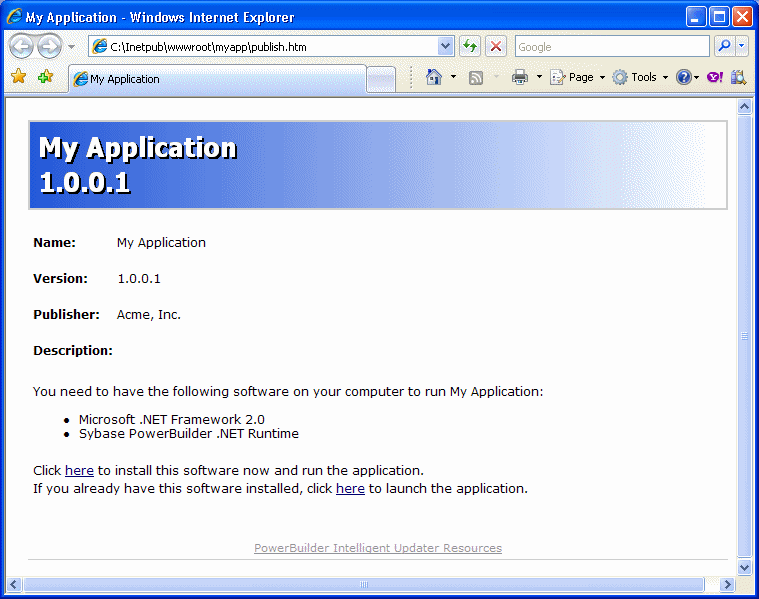
information, see “Using the bootstrapper”. - The publish.htm file is a Web
page that is automatically generated and published along with the
application. The default page contains the name of the application
and links to install and run the application and, if you specified
any, a button to install prerequisites.
By default, the application name is the same as the name of
the target and the company name is Sybase, Inc. In this publish
page, both have been changed by setting the Product name and Company
name properties on the Version tab page in the Project painter.
If you supply a Publish description on the Publish tab page in the
Project painter, it displays on the publish.htm page.Figure 10-2: Publish page with prerequisites