Opening the Application object
When you open an Application object, you enter the Application
painter.
 To open the Application object:
-
Click the Open button in the PowerBar.
or
Select File>Open from the menu bar.
-
In the Open dialog box, select Applications from
the Object Type dropdown list, then the library or libraries you
want to look in, and then the Application object to open.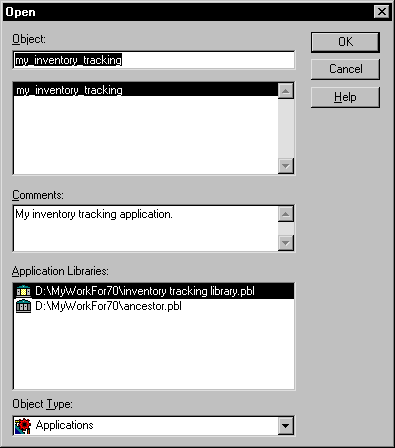
 Displaying objects from many libraries To find an object more easily, you can select more than one
library in the Application Libraries listbox. Use ctrl+click to
toggle selected libraries and shift+click to
select a range. -
Click OK.
The Application painter opens. Here you set properties and
write scripts for the Application object. For information, see “About the Application painter”.
Quickly accessing recently opened objects You can quickly open recently opened objects by selecting
File>Recent Objects from the menu bar. The Recent Objects
list includes the eight most-recently-opened objects. You can include
up to 36 objects on the list: select Window>System Options.