OLE controls and insertable objects
The OLE control contains an insertable OLE object. You can
change the object in the control in the painter or in a script.
You specify what is allowed in the control by setting PowerBuilder properties.
Setting up the OLE control
When you create an OLE control and insert an object, PowerBuilder activates the
server application to allow you to modify the object. After you
deactivate it (by clicking outside the object’s borders
in the Layout view), you can use the control’s property
sheets to set up the control.
 To specify the control’s appearance and
behavior:
-
Double-click the control.
or
Select Properties from the control’s popup
menu. -
In the Properties view, give the control a name
that is relevant to your application.You will use this name in scripts. The default name is ole_ followed
by a number. -
Specify a value for Display Name for use by the
OLE server. The OLE server may use this name in window title bars. -
Specify the control’s appearance and
behavior by choosing appropriate settings in the Properties view.In addition to the standard Visible, Enabled, Focus Rectangle,
and Border properties, which are available for most controls, there
are several options that control the object’s interaction
with the server:Option Meaning Activation How the user activates the control. Choices
are:- Double Click — When
the user double-clicks the control, the server application is activated - Get Focus — When the user clicks or tabs
to the control, the server is activated. If you also write a script
for the GetFocus event, do not call MessageBox or any function that
results in a change in focus - Manual — The control can be activated only
programmatically with the Activate function
The control can always be activated programmatically, regardless
of the Activation settingDisplay Type What the control displays. You can choose: - Contents — Display
a representation of the object, reduced to fit within the control - Icon — Display the icon associated with
the data. This is usually an icon provided by the server application - ActiveX document — Display as an ActiveX
document. ActiveX documents fill the space of the container and
have access to all the features of the server application
Contents What the user can insert in the
control at runtime. Values are:- Any — The
user can insert either a linked or embedded object - Embedded — The user can insert an embedded
object - Linked — The user can insert a linked object
Setting Contents changes the value of the ContentsAllowed
propertyLink Update When the object in the control is linked,
the method for updating link information. Choices are:- Automatic — If
the link is broken and PowerBuilder cannot find the linked file, it
displays a dialog box in which the user can specify the file - Manual — If the link is broken, the object
cannot be activated. You can re-establish the link in a script using
the LinkTo or UpdateLinksDialog function
Setting Link Update changes the value of the LinkUpdateOptions property
Size Mode How the object is displayed in the container.
Choices are:- Clip –The
object’s image displays full size. If it is larger than
the OLE control, it is clipped by the control’s borders - Stretch — The object’s image is
resized to fit into and fill the OLE control (default)
- Double Click — When
Activating the object in the painter
The object in the OLE control needs to be activated so that
the server application can manipulate it. For the user, double-clicking
is the default method for activating the object. You can choose
other methods by setting the control’s Activation property,
as described in the preceding table. During development, you activate
the object in the Window painter.
To activate an OLE object in the Window painter:
-
Select Open from the control’s
popup menu.If the control is empty, Open is unavailable. You must select
Insert to assign an object to the control first.PowerBuilder invokes the server application and activates the
object offsite. - Use the server application to modify the object.
-
When you have finished, deactivate the object
by clicking outside its hatched border.You can also choose Exit or Return on the server’s
File menu, if available.
Changing the object in the control
In the painter, you can change or remove the object in the
control.
To delete the object in the control:
-
Select Delete from the
control’s popup menu.The control is now empty and cannot be activated. Do not select
Clear–it deletes the control from the window.
To insert a different object in the control:
-
Select Insert from the
control’s popup menu.PowerBuilder displays the Insert Object dialog box.
-
Select Create New and select a server application.
or
Select Create from File and specify a file, as you did
when you defined the control. - Click OK.
During execution
You can insert a different object in the control by calling
the InsertObject, InsertFile, InsertClass, or LinkTo function. You
can delete the object in the control by calling Cut or Clear.
How the user interacts with the control
When the window containing the OLE control opens, the data
is displayed using the information stored with the control in the
PBL (or PBD or EXE file if the application has been built).
When the object is activated, either because the user double-clicks
or tabs to it or because a script calls Activate, PowerBuilder starts
the server application and enables in-place editing if possible.
If not, it enables offsite editing.
As the user changes the object, the data in the control is
kept up to date with the changes. This is obvious when the object
is being edited in-place, but it is also true for offsite editing.
Because some server applications update the object periodically,
rather than continually, the user may only see periodic changes
to the contents of the control. Most servers also do a final update
automatically when you end the offsite editing session. However,
to be safe, the user should select the server’s Update
command before ending the offsite editing session.
Linking versus embedding
An OLE object can be linked or embedded in your application.
The method you choose depends on how you want to maintain the data.
Embedding data
The data for an embedded object is
stored in your application. During development, it is stored in
your application’s PBL. When you build your application,
it is stored in the EXE or PBD file. This data is a template or
a starting point for the user. Although the user can edit the data
during a session, the changes cannot be saved because the embedded
object is stored as part of your application.
Embedding is suitable for data that will not change (such
as the body of a form letter) or as a starting point for data that
will be changed and stored elsewhere.
To save the data at runtime, you can use the SaveAs and Open
functions to save the user’s data to a file or OLE storage.
Linking data
When you link an object, your application
contains a reference to the data, not the data itself. The application
also stores an image of the data for display purposes. The server
application handles the actual data, which is usually saved in a
file. Other applications can maintain links to the same data. If
any application changes the data, the changes appear in all the
documents that have links to it.
Linking is useful for two reasons:
- More than one application
can access the data - The server manages the saving of the data, which
is useful even if your PowerBuilder application is the only one using
the data
Maintaining link information The server, not PowerBuilder, maintains the link information.
Information in the OLE object tells PowerBuilder what server to start
and what data file and item within the file to use. From then on,
the server services the data: updating it, saving it back to the
data file, updating information about the item (for example, remembering
that you inserted a row in the middle of the range of linked rows).
Fixing a broken link Because the server maintains the link, you can move and manipulate
an OLE object within your application without worrying about whether
it is embedded or linked.
If the link is broken because the file has been moved, renamed,
or deleted, the Update setting of the control determines how the
problem is handled. When Update is set to Automatic, PowerBuilder displays
a dialog box that prompts the user to find the file. You can call
the UpdateLinksDialog function in a script to display the same dialog
box. You can establish a link in a script without involving the
user by calling the LinkTo function.
PowerBuilder displays a control with a linked object with the
same shading that is used for an open object.
Offsite or in-place activation
During execution, when a user activates the object in the
OLE control, PowerBuilder tries to activate an embedded object in
place, meaning that the user interacts with the object
inside the PowerBuilder window. The menus provided by the server application
are merged with the PowerBuilder application’s menus. You
can control how the menus are merged in the Menu painter (see “Menus for in-place
activation”).
When the control is active in place, it has a wide hatched
border:
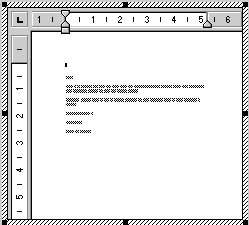
Offsite activation means that the server
application opens and the object becomes an open document in the
server’s window. All the server’s menus are available.
The control itself is displayed with shading, indicating that the
object is open in the server application.
 Limits to in-place activation The server’s capabilities determine whether PowerBuilder can
activate the object in place. OLE 1.0 objects cannot be activated
in place. In addition, the OLE 2.0 standards specify that linked
objects are activated offsite, not in place.
From the Window painter, the object is always activated offsite.
Changing the default behavior
You can change the default behavior in a script by calling
the Activate function and choosing whether to activate an object
in place or offsite. If you set the control’s Activation
setting to Manual, you can write a script that calls the Activate
function for the DoubleClicked event (or some other event):
|
1 |
ole_1.Activate(Offsite!) |
When the control will not activate You cannot activate an empty control (a control that doesn’t
have an OLE object assigned to it). If you want the user to choose
the OLE object, you can write a script that calls the InsertObject
function.
If the object in the control is linked and the linked file
is missing, the user cannot activate the control. If the Update
property is set to Automatic, PowerBuilder displays a dialog box so
that the user can find the file.
If the Update property is set to Manual, a script can call
the UpdateLinksDialog function to display the dialog box, or call
the LinkTo to replace the contents with another file.
Menus for in-place activation
When an object is activated in place, menus for its server
application are merged with the menus in your PowerBuilder application.
The Menu Merge Option settings in the Menu painter let you control
how the menus of the two applications are merged. The values are
standard menu names, as well as the choices Merge and Exclude.
To control what happens to a menu in your application
when an OLE object is activated:
- Open the menu in the Menu painter.
-
Select a menu item that appears on the menu bar.
Menu Merge Option settings apply only to items on the menu bar,
not items on dropdown menus. -
On the Style property page, choose the appropriate
Menu Merge Option setting:You can choose Meaning Source of menu in resulting menu bar File The menu from the container application (your PowerBuilder application)
that will be leftmost on the menu bar. The server’s File
menu never displaysContainer Edit The menu identified as Edit never displays.
The server’s Edit menu displaysServer Window The menu from the container application that
has the list of open sheets. The server’s Window menu never
displaysContainer Help The menu identified as Help never displays.
The server’s Help menu displaysServer Merge The menu will be displayed after the
first menu of the server applicationContainer Exclude The menu will be removed while the object
is active -
Repeat steps 2 and 3 for each item on the menu
bar.
Standard assignments for standard menus
In general, you should assign the File, Edit, Window, and
Help Menu Merge options to the File, Edit, Window, and Help menus.
Because the actual menu names may be different in an international
application, you use the Menu Merge Option settings to make the
correct associations.
Resulting menu bar for activated object
The effect of the Menu Merge Option settings is that the menu
bar displays the container’s File and Window menus and
the server’s Edit and Help menus. Any menus that you label
as Merge are included in the menu bar at the appropriate place.
The menu bar also includes other menus that the server has decided
are appropriate.
Modifying an object in an OLE control
When an OLE object is displayed in the OLE control, the user
can interact with that object and the application that created it
(the server). You can also program scripts that do the same things
the user might do. This section describes how to:
- Activate the OLE object
and send general commands to the server - Change and save the object in the control
- Find out when data or properties have changed via
events
For information about automation for the control,
see “OLE objects in scripts “.
Activating the OLE object
Generally, the OLE control is set so that the user can activate
the object by double-clicking. You can also call the Activate function
to activate the object in a script. If the control’s Activation
property is set to Manual, you have to call Activate to start a
server editing session:
|
1 |
ole_1.Activate(InPlace!) |
You can initiate general OLE actions by calling the DoVerb
function. A verb is an integer value that
specifies an action to be performed. The server determines what
each integer value means. The default action, specified as 0, is
usually Edit, which also activates the object.
For example, if ole_1 contains a Microsoft Excel
spreadsheet, the following statement activates the object for editing:
|
1 |
ole_1.DoVerb(0) |
Check the server’s documentation to see what verbs
it supports. OLE verbs are a relatively limited means of working
with objects; automation provides a more flexible interface. OLE
1.0 servers support verbs but not automation.
Changing the object in an OLE control
PowerBuilder provides several functions for changing the object
in an OLE control. The function you choose depends on whether you
want the user to choose an object and whether the object should
be linked or embedded:
| When you want to | Choose this function |
|---|---|
| Let the user choose an object and, if the control’s Contents property is set to Any, whether to link or embed it |
InsertObject |
| Create a new object for a specified server and embed it in the control |
InsertClass |
| Embed a copy of an existing object in the control |
InsertFile |
| Link to an existing object in the control | LinkTo |
| Open an existing object from a file or storage. Information in the file determines whether the object is linked or embedded |
Open |
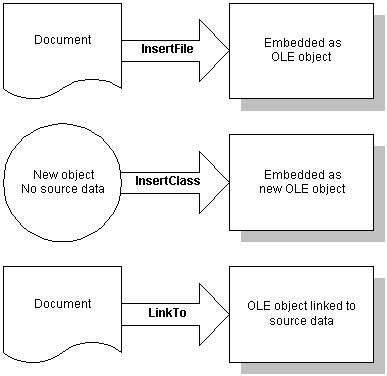
The following figure illustrates the behavior of the three
functions that do not allow a choice of linking or embedding:
You can also assign OLE object data stored in a blob to the
ObjectData property of the OLE control:
|
1 |
blob myblob<br /> ... // Code to assign OLE data to the blob<br /> ole_1.ObjectData = myblob |
The Contents property of the control specifies whether the
control accepts embedded and/or linked objects. It determines
whether the user can choose to link or embed in the InsertObject
dialog box. It also controls what the functions can do. If you call
a function that chooses a method that the Contents property does
not allow, the function will fail.
OLE information in the Browser
Use the Browser to find out the registered names of the OLE
server applications installed on your system. You can use any of
the names listed in the Browser as the argument for the InsertClass
function, as well as the ConnectToObject and ConnectToNewObject
functions (see “Programmable OLE Objects “).
For more information about OLE and the Browser,
see “OLE information in the Browser “.
Using the clipboard
Using the Cut, Copy, and Paste
functions in menu scripts lets you provide clipboard functionality
for your user. Calling Cut or Copy for the OLE control puts the
OLE object it contains on the clipboard. The user can also choose
Cut or Copy in the server application to place data on the clipboard.
(Of course, you can use these functions in any script, not just
those associated with menus.)
There are several Paste functions that can insert an object
in the OLE control. The difference is whether the pasted object
is linked or embedded:
| When you want to | Choose this function |
|---|---|
| Embed the object on the clipboard in the control |
Paste |
| Paste and link the object on the clipboard | PasteLink |
| Allow the user to choose whether to embed or link the pasted object |
PasteSpecial |
If you have a general Paste function, you can use code like
the following to invoke PasteSpecial (or PasteLink) when the target
of the paste operation is the OLE control:
|
1 |
graphicobject lg_obj<br /> datawindow ldw_dw<br /> olecontrol lole_ctl<br /> <br /> // Get the object with the focus<br /> lg_obj = GetFocus()<br /> <br /> // Insert clipboard data based on object type<br /> CHOOSE CASE TypeOf(lg_obj)<br /> CASE DataWindow!<br /> ldw_dw = lg_obj<br /> ldw_dw.Paste()<br /> ...<br /> CASE OLEControl!<br /> lole_ctl = lg_obj<br /> lole_ctl.PasteSpecial()<br /> END CHOOSE |
Saving an embedded object
If you embed an OLE object when
you are designing a window, PowerBuilder saves the object in the library
with the OLE control. However, when you embed an object during execution,
that object cannot be saved with the control because the application’s
executable and libraries are read-only. If you need to save the
object, you save the data in a file or in the database.
For example, the following script uses SaveAs to save the
object in a file. It prompts the user for a filename and saves the
object in the control as an OLE data file, not as native data of
the server application. You can also write a script to open the
file in the control in another session:
|
1 |
string myf<br /> ilename, mypathname<br /> integer result<br /> GetFileSaveName("Select File", mypathname, &<br /> myfilename, "OLE", &<br /> "OLE Files (*.OLE),*.OLE")<br /> result = ole_1.SaveAs(myfilename) |
When you save OLE data in a file, you will generally not be
able to open that data directly in the server application. However,
you can open the object in PowerBuilder and activate the server application.
When you embed an object in a control, the actual data is
stored as a blob in the control’s ObjectData property.
If you want to save an embedded object in a database for later retrieval,
you can save it as a blob. To transfer data between a blob variable
and the control, assign the blob to the control’s ObjectData property
or vice versa:
|
1 |
blob myblob<br /> myblob = ole_1.ObjectData |
You can use the embedded SQL statement UPDATEBLOB to put the
blob data in the database (see the PowerScript Reference
).
You can also use SaveAs and Save to store OLE objects in PowerBuilder’s OLEStorage
variables (see “Opening and saving
storages”).
When the user saves a linked object in the server, the link
information is not affected and you do not need to save the open
object. However, if the user renames the object or affects the range
of a linked item, you need to call the Save function to save the
link information.
Events for the OLE control
There are several events that let PowerBuilder know when actions
take place in the server application that affect the OLE object.
Events for data
Events that have to do with data are:
- DataChange The data has been changed
- Rename The object has been renamed
- Save, SaveObject The data has been saved
- ViewChange The user has changed the view of the data
When these events occur, the changes are reflected automatically
in the control. If you need to perform additional processing when
the object is renamed, saved, or changed, you can write the appropriate
scripts.
Because of the architecture of OLE, you often cannot interact
with the OLE object within these events. Trying to do so can generate
a runtime error. A common workaround is to use the PostEvent function
to post the event to an asynchronous event handler. You do not need
to post the SaveObject event, which is useful if you want to save
the data in the object to a file whenever the server application
saves the object.
Events for properties
If the server supports property notifications, then when values
for properties of the server change, the PropertyRequestEdit and
PropertyChanged events will occur. You can write scripts that cancel
changes, save old values, or read new values.
For more information about property notification,
see “Creating hot links”.