Monitoring
pipeline progress
Testing the Start function’s return value is not the only way to
monitor the status of pipeline execution. Another technique you can use
is to retrieve statistics that your supporting user object keeps
concerning the number of rows processed. They provide a live count
of:
-
The rows read by the pipeline from the source tables
-
The rows written by the pipeline to the destination table or
to the error DataWindow control -
The rows in error that the pipeline has written to the error
DataWindow control (but not to the destination table)
By retrieving these statistics from the supporting user object,
you can dynamically display them in the window and enable users to watch
the pipeline’s progress.
To display pipeline row statistics:
-
Open your supporting user object in the User Object
painter.The User Object painter workspace displays, enabling you to
edit your user object. -
Declare three instance variables of type StaticText:
12statictext ist_status_read, ist_status_written, &ist_status_errorYou will use these instance variables later to hold three
StaticText controls from your window. This will enable the user
object to manipulate those controls directly and make them
dynamically display the various pipeline row statistics. -
In the user object’s PipeMeter event script, code statements
to assign the values of properties inherited from the pipeline
system object to the Text property of your three StaticText instance
variables.123ist_status_read.text = string(RowsRead)ist_status_written.text = string(RowsWritten)ist_status_error.text = string(RowsInError) -
Save your changes to the user object, then close the User
Object painter. -
Open your window in the Window painter.
-
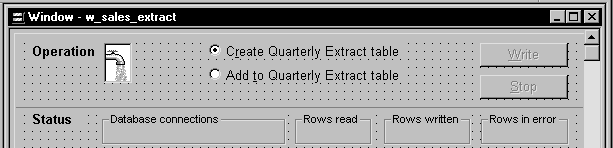
Insert three StaticText controls in the window:
One to display the RowsRead value
One to display the RowsWritten value
One to display the RowsInError value
-
Edit the window’s Open event script (or some other script that
executes right after the window opens).In it, code statements to assign the three StaticText controls
(which you just inserted in the window) to the three corresponding
StaticText instance variables you declared earlier in the user
object. This enables the user object to manipulate these controls
directly.In the sample order entry application, this logic is in a user
event named uevent_pipe_setup (which is posted from the Open event
of the w_sales_extract window):12345iuo_pipe_logistics.ist_status_read = st_status_readiuo_pipe_logistics.ist_status_written = &st_status_writteniuo_pipe_logistics.ist_status_error = &st_status_error -
Save your changes to the window. Then close the Window
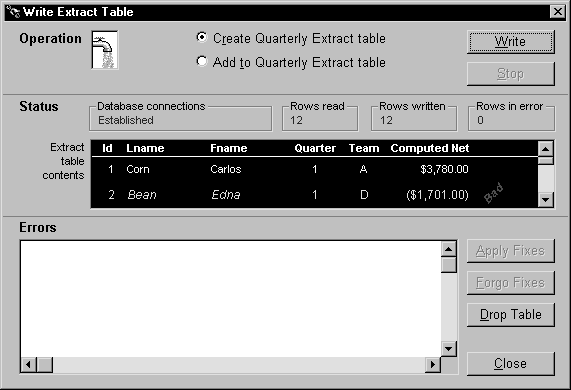
painter.When you start a pipeline in the w_sales_extract window of the
order entry application, the user object’s PipeMeter event triggers
and executes its code to display pipeline row statistics in the
three StaticText controls: