Migrating targets
When you upgrade to a new version of PowerBuilder, your existing
targets need to be migrated to the new version. Typically, when
you open a workspace that contains targets that need to be migrated,
or add a target that needs to be migrated to your workspace, PowerBuilder
prompts you to migrate the targets. However, there are some situations
when you need to migrate a target manually. For example, if you
add a library that has not been migrated to a target’s
library list, you will not be able to open objects in that library
until the target has been migrated.
You cannot migrate a target that is not in your current workspace
and you must set the root of the System Tree or the view in the
Library painter to the current workspace.
Before you migrate
There are some steps you should take before you migrate a
target:
- Use the Migration Assistant to check
for obsolete syntax or the use of reserved words in your code - Check the release notes for migration issues
- Make backup copies of the target and libraries
- Make sure that the libraries you will migrate are
writable
 Always back up your PBLs before migrating Make sure you make a copy of your PBLs before migrating. After
migration, you cannot open them in an earlier version of PowerBuilder.
The Migration Assistant is available on the Tool page of the
New dialog box. For help using the Migration Assistant, click the
Help (?) button in the upper-right corner of the window
and click the field you need help with, or click the field and press
F1. If the Migration Assistant finds obsolete code, you can fix
it in an earlier version of PowerBuilder to avoid errors when you migrate
to the current version.
PowerBuilder libraries and
migration
PowerBuilder libraries (PBLs) contain a header, source code
for the objects in the PBL, and binary code. There are two differences
between PowerBuilder 10 and later PBLs and PBLs developed in earlier
versions of PowerBuilder:
- The source code in
PowerBuilder 10 and later PBLs is encoded in Unicode (UTF-16LE,
where LE stands for little endian) instead of DBCS (versions 7,
8, and 9) or ANSI (version 6 and earlier). - The format of the header lets PowerBuilder determine
whether it uses Unicode encoding. The header format for PowerBuilder
10 is the same as that used for PUL files in PowerBuilder 6.5 and
for PKL files in PocketBuilder. These files do not need to be converted
to Unicode when they are migrated to PowerBuilder 10 or later.
When PBLs are migrated
Before opening a PBL, PowerBuilder checks its header to determine
whether or not it uses Unicode encoding. PBLs are not converted
to Unicode unless you specifically request that they be migrated.
You cannot expand the icon for a PBL from PowerBuilder 9 or
earlier in the Library painter. To examine its contents, you must
migrate it to PowerBuilder 10 or later.
When you attempt to open a workspace that contains targets
from a previous release in PowerBuilder, the Targets to be Migrated
dialog box displays. You can migrate targets from this dialog box,
or clear the No Prompting check box to open the Migrate Application
dialog box.
PowerBuilder dynamic libraries If you plan to reference a PowerBuilder dynamic library (PBD)
that was encoded in ANSI formatting (for example, if it was created
in PowerBuilder 9 or earlier), you must regenerate the PBD to use
Unicode formatting. Dynamic libraries that you create in PowerBuilder
10 or later use Unicode formatting exclusively.
For information on creating PBDs, see “Creating runtime libraries”.
The Migrate Application
dialog box
The Migrate Application dialog box lists each PBL that will
be migrated and lets you choose the type of messages that display
during the migration process.
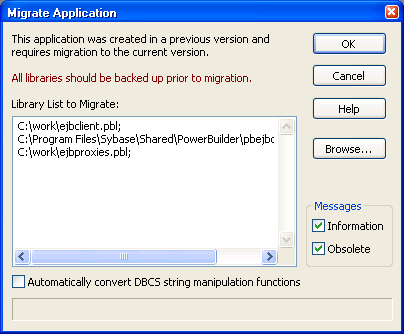
If you click OK, each PBL is first migrated to the new version
of PowerBuilder. If necessary, PowerBuilder converts source code
from DBCS to Unicode. PowerBuilder performs a full build and saves
the source code back to the same PBL files. Changes to scripts display
in informational messages in the Output window and are written to
a log file for each PBL so that you can examine the changes later.
Recommended changes are also written to the log file.
Migration from DBCS versions The migration process automatically converts multibyte strings
in DBCS applications to unicode strings. You do not need to select
the Automatically Convert DBCS String Manipulation Functions check
box for this conversion. If the migration encounters an invalid
multibyte string, it sets the invalid string to a question mark
and reports the error status. You can modify question marks in the
Unicode output string after the migration.
The following two lines from a log file indicate that the FromAnsi function
is obsolete and was replaced with the String function,
and that an encoding parameter should be added to an existing instance
of the String function:
|
1 |
2006/01/27 08:20:11 test.pbl(w_main).cb_1.clicked.4: Information C0205: Function 'FromAnsi' is replaced with function 'String'.<br /> |
|
1 |
2006/01/27 08:20:11 test.pbl(w_main).cb_2.clicked.4: Information C0206: Append extra argument 'EncodingAnsi!' to function 'String' for backward compatibility. |
The log file has the same name as the PBL with the string _mig appended
and the extension .log and is created in the
same directory as the PBL. If no changes are made, PowerBuilder
creates an empty log file. If the PBL is migrated more than once,
output is appended to the existing file.
PowerBuilder makes the following changes:
- The FromUnicode function
is replaced with the String function and the second
argument EncodingUTF16LE! is added - The ToUnicode function is replaced
with the Blob function and the second argument
EncodingUTF16LE! is added - The FromAnsi function is replaced
with the String function and the second argument
EncodingAnsi! is added - The ToAnsi function is replaced
with the Blob function and the second argument
EncodingAnsi! is added - An Alias For clause with the following format is
appended to declarations of external functions that take strings,
chars, or structures as arguments or return any of these datatypes:1ALIAS FOR "<i>functionname</i>;ansi"
If the declaration already has an Alias For clause, only the
string ;ansi is appended.
DBCS users only If you select the Automatically Convert DBCS String Manipulation
Functions check box, PowerBuilder automatically makes appropriate
conversions to scripts in PowerBuilder 9 applications. For example,
if you used the LenW function, it is converted
to Len, and if you used the Len function,
it is converted to LenA. The changes are written
to the Output window and the log file. This box should be selected
only in DBCS environments.
Adding PBLs to a PowerBuilder target
When you add PBLs from a previous release to a PowerBuilder
target’s library list, the PBLs display in the System Tree.
The PBLs are not migrated when you add them to the library list.
Their contents do not display because they have not yet been converted.
To display their contents, you must migrate the target.
You can migrate a target from the Workspace tab of the System
Tree by selecting Migrate from the pop-up menu for the target. You
can also migrate targets in the Library painter if they are in your
current workspace.
 To migrate a target in the Library painter:
-
Select the target you want to migrate and
select Entry>Target>Migrate from the menu bar.The Migrate Application dialog box displays.
-
Select OK to migrate all objects and libraries
in the target’s path to the current version.