Managing server redirection
4GL Web page navigation
4GL
Web pages provide added support for navigation between pages. Server redirection
is the navigation style of choice when a parameter value passed
to another page relies on user input, or when you want to validate
user input. The 4GL Web page generates the server script that specifies
the target page and the values that get passed to parameters on
the target page.
A server redirection can initiate a link to another page from
anywhere in a server script. Typically you add a Redirect call
in a ServerAction event for a command or picture button, or in the
AfterAction event for the psPage object or a Web DataWindow control
that you place on the page.
All server data is available for parameter binding, because
the redirection occurs in the server script. The page gets processed
by the server, enabling the page to take advantage of all variables
available there. Because the ASP object model does not support 4GL
functionality, server redirection is not available for ASP targets.
The following drawing illustrates how parameters get processed
in a 4GL JSP application when a server redirection displays another
page. Parameters are passed the same way for JSP targets, except
for the application server name. Also, the target and linking pages
in a JSP application would typically have .jsp extensions
instead of the .htm extensions displayed in
the drawing:

Setting up a server redirection
You can set up a server redirection from the integrated Script
editor by selecting a server event, then specifying the target page
and the parameters to pass to that page. The script is created for
you.
 To set up a server redirection from the integrated
Script editor:
-
In a server script or in the script for
a control with a server action event selected in the events list,
right-click in the Script editor. - Select Insert Redirect from the pop-up menu.
-
In the Redirect Properties dialog box, specify
the target file or URL. -
Specify the target page parameters, the type of
binding for each parameter, and the value you want to bind to the
parameter.If the target page exists with input parameters identified
for it, these parameters appear in the list of parameters on the
Redirect page. You can edit these parameters and add new ones.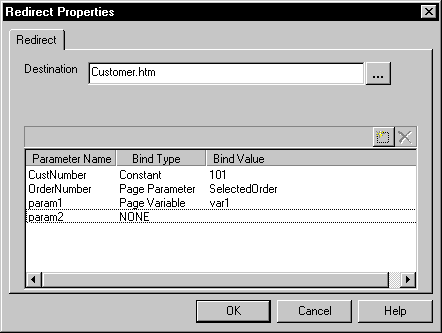
-
When you finish setting the Redirect Properties,
click OK.The Script editor inserts a block of code. You can modify
or remove this block of code using the pop-up menu.
Changing parameter bindings
You can change the binding for parameters from the Redirect
Properties dialog box.
To change parameter bindings or parameter values
for a server redirection:
-
Right-click in the Redirect code in the
integrated Script editor. - Select Edit Redirect from the pop-up menu.
-
In the Redirect Properties dialog box, make any
changes needed to the parameter definitions.