Integrating with EAServer
EAServer is a middle-tier
component transaction server that hosts executable business objects
called components. You can access components on EAServer from your Web applications.
EAServer can host
various types of components including PowerBuilder objects and Java
classes or beans. Although these components have different origins,
they have several things in common. They:
- Encapsulate
business logic that one or more applications need to execute - Shift processing to the middle-tier EAServer server, enabling application clients
to remain thin - Are stored in packages and contain methods that
clients can call to perform specific operations
Developers typically create components using tools such as PowerJ or PowerBuilder.
These tools enable developers to build classes or objects and deploy
them directly to EAServer as
components. For more information about EAServer,
see the EAServer Programmer’s Guide
.
Access to components
You can take advantage of the Web Target user interface to
access EAServer components
by using:
- 4GL JSP pages to help you create server scripts that access EAServer components.
- Web DataWindow DTCs to let you access Web DataWindow server components available
on EAServer. The Web DataWindow
retrieves, processes, and displays data on a page, and EAServer manages the database
connection.
4GL JSP pages
4GL JSP pages give you quick access to EAServer components by:
- Letting you bind page controls to EAServer component properties
- Giving your scripts access to EAServer components as represented
by variables - Providing drag-and-drop programming access to methods
of EAServer components
For more information about 4GL JSP pages see Chapter 9, “Developing 4GL JSP Pages”
Web DataWindow DTC
The Web DataWindow DTC provides a design-time interface that
lets you select the DataWindow objects to include on a Web page.
It also permits you to override certain settings of the DataWindow
object before the Web DataWindow displays in the client browser.
4GL Web pages also provide enhancements for Web DataWindow
objects available through EAServer.
A server representation of a Web DataWindow object (the PSWebDataWindowClass
object) allows you to write server-side scripts for DataWindow events
and methods. For more information about the Web DataWindow DTC,
see Chapter 11, “Using the Web DataWindow Design-Time
Control”
Accessing components
Before you can view information about or include an EAServer component on your Web
page, you must make sure a profile exists for the server that contains a
component you want to use. A connection from a Web target to EAServer uses the Internet Inter-ORB
Protocol (IIOP). You must make sure the EAServer has
an IIOP listener configured before you set up a connection for your
Web target.
With a connection to the server established, you can:
- View a list of accessible servers from the Components
tab page of the System Tree - Display the packages, components, and methods installed
on EAServer - Get information about a component or method
You can drag and drop an EAServer component
from the System Tree to a 4GL Web page that is open in the Page
view of the HTML editor. This opens the Page Properties dialog box
to the EAServer page and
adds the component to the list of components available to the Web
page.
 To define an EAServer connection
profile:
-
Select Tools>EAServer Profile from the PowerBuilder menu
or
Right-click anywhere in the Components tab page of the
System Tree and select EAServer Servers
from the pop-up menu.The EAServer Server
Profiles dialog box displays.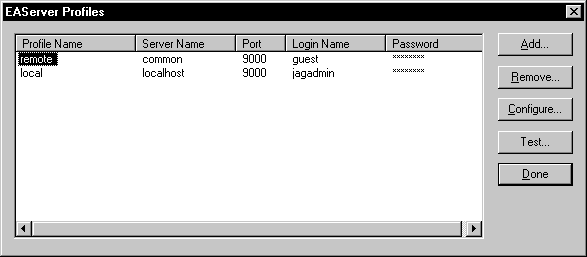
-
Edit the list of EAServer profiles.
You can add, modify (configure), or remove EAServer connections as needed.
You can also select a connection and test it. You should make sure the
server is running before you test the connection. -
Click Done to save your changes.
An item representing the server appears under the EAServer Servers node on the
Components tab page of the System Tree.
Viewing components
After you establish a connection to an EAServer for your Web target,
you can see the components and the methods for those components
installed on the server.
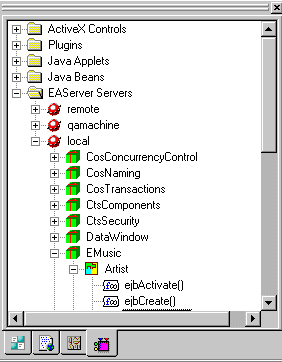
You can view the
list of server components that you have added to a page from the
Page Properties dialog box for 4GL Web pages. When you add a Web DataWindow
DTC to a page, you can select a DataWindow component from the Web
DataWindow DTC Properties dialog box; the DataWindow HTMLGenerator100
component is selected and enabled by default.
Getting information about components and methods
After you define a connection, you can get information about
components and component methods from the System Tree.
To get information about EAServer components
and methods:
-
From the Components tab of the System Tree,
expand the EAServer Servers
branch. -
Expand the appropriate server and package to find
the component you want information about
or
Expand
the appropriate server, package, and component to find the method
you want information about. -
Right-click the component or method and select
Properties from the pop-up menu.The properties dialog box for the selected component or method
displays: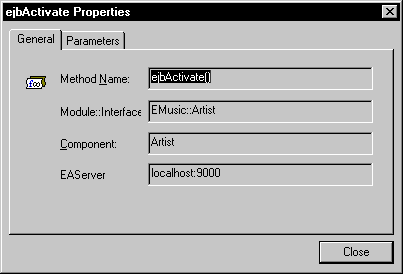
Method properties have a Parameters tab to display the parameters
of the component method. -
(Optional) Click the Parameter tab to see information
about the parameters the method uses.