Input fields
An input field can be either a column or a computed field.
Before you retrieve data, its value is shown as two question marks
(??).
The text can include many copies of a named input field. The
same data will appear in each instance of the input field.
Column input fields
The columns you select for the DataWindow object become input fields
in the rich text. Because the input field’s name matches
the column name, PowerBuilder displays the column’s data
in the input field.
If an input field exists in the text, you can copy and paste
it to create another copy. If you need to recreate a column input
field that you deleted, use this procedure.
 To insert a column input field in the text:
-
Select Insert>Control>Column
from the menu bar. -
Click in the text where you want the column input
field to appear.PowerBuilder displays a list of the columns selected for the DataWindow object.
-
Select a column for the input field.
Properties for input fields
You select an input field by clicking inside it. A computed
input field is selected when the whole field is highlighted.
To set properties for an input field:
-
Click in the input field in Design view.
-
Display the pop-up menu and select Properties.
-
On the Font page, specify text formatting.
-
On the Format page, specify a display format.
-
On the Validation page, specify a validation rule
for the column.
If there are multiple copies of an input field, the validation
and format settings apply to all the copies. Background color on
the Font page applies to all input fields. Other settings on the
Font page apply to individual instances.
The user cannot change the format or validation rule. At runtime,
these pages are not available in the dialog box.
Computed field input fields
When you display the dialog box for a computed field, the
settings are a little different. You can specify the input field name
and its expression on the Compute page and there is no validation.
Data Value in preview
For both columns and computed fields, you see a value in the
Data Value box when you preview the DataWindow object. The user sees a
value in the Data Value box when the current row has a value. For columns,
users can change the value.
Computed fields
Computed fields have an expression that specifies the value
of the computed field. In rich text, they are represented as input
fields, too. You specify a name and an expression. The data value
comes from evaluating the expression and cannot be edited.
To define a computed field:
-
Select Insert>Control>Computed
Field. Predefined computed fields
You can also select one of the predefined computed fields
at the bottom of the menu. PowerBuilder provides several predefined
computed fields, but in a RichText DataWindow object, only the page number
(Page n of n) and today’s date (Today())
are available. -
Click in the text where you want the computed
field to appear.If you do not select a predefined computed field, PowerBuilder displays the
dialog box for the computed field: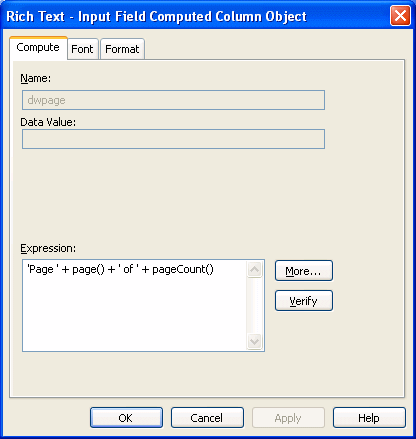
-
On the Compute page, name the computed field and
specify its expression. -
(Optional) On the Font page, specify text formatting.
-
(Optional) On the Format page, specify a display
format.
If there are multiple copies of a computed field input field,
the expression and format settings apply to all the copies. Font
settings apply to individual instances. For more about computed
field expressions and display formats, see Chapter 19, “Enhancing DataWindow Objects .”