Importing and exporting database profiles
Why do this
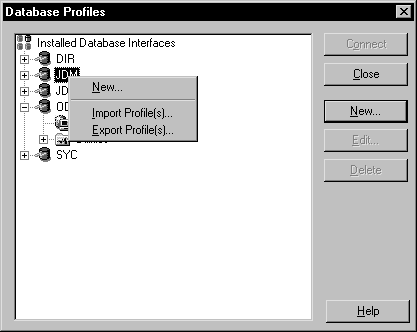
Each database interface now provides an Import Profile(s)
and an Export Profile(s) option. You can use the Import option to
import a previously defined profile for use with an installed database
interface. Conversely, you can use the Export option to export a
defined profile for use by another interface.
The ability to import and export profiles provides a way to
easily move profiles between developers. It also means you no longer
have to maintain a shared initialization file to maintain profiles.
It is ideal for mobile development when you can’t rely
on connecting to a network to share an initialization file. In addition,
the ability to export profiles allows you to build a scaled-down initialization
file for deployment.
What you do
This section describes how to import and export a profile.
 Importing a profile:
-
Highlight a database interface and select
Import Profile(s) from the popup menu. (In the Database painter,
select Import Profile(s) from the File or popup menu.) -
From the Select Profile File dialog box, select
the initialization file whose profiles you want to import and click
Save. -
Select the profile(s) you want to import from
the Import Profile(s) dialog box and click OK.The profiles are copied into your PB.INI file. If a profile
with the same name already exists, you will be asked if you want
to overwrite it.
Exporting a profile:
-
Highlight a database interface and select
Export Profile(s) from the popup menu. (In the Database painter,
select Import Profile(s) from the File or popup menu.) -
Select the profile(s) you want to export from
the Export Profile(s) dialog box and click OK.The Export Profile(s) dialog box lists all profiles defined
in your PB.INI file regardless of the database interface for which
they were defined. By default, the profiles defined for the selected
database interface are marked for export. -
From the Select Profile File dialog box, select
a directory and an initialization file in which to save the exported
profile(s) and click Save.The exported profiles can be saved to a new or existing initialization
file. If saved to an existing initialization file, the profile(s)
are added to the existing profiles. If a profile with the same name
already exists, you will be asked if you want to overwrite it.