How to display Date and Time columns using the Windows Regional
Settings
Symptom
To display a date, datetime or time column in a DataWindow, we use
the properties editMask and format.
For example: If you set the French format “dd/MM/yyyy” for a date
or datetime column, it will display 25/07/2015.
In this case, the format is “hard-coded”. If the application is
deployed on a US machine, you will get the the French format and not the
US format which is MM/dd/yyyy.
The same problem can happen with time columns: some countries are
using 24hours time, others, like US, use 12hours format (ex. 06:30
PM).
Environment
PowerBuilder
Solution
In order to display the local date and time format and use the
Windows Regional Settings:
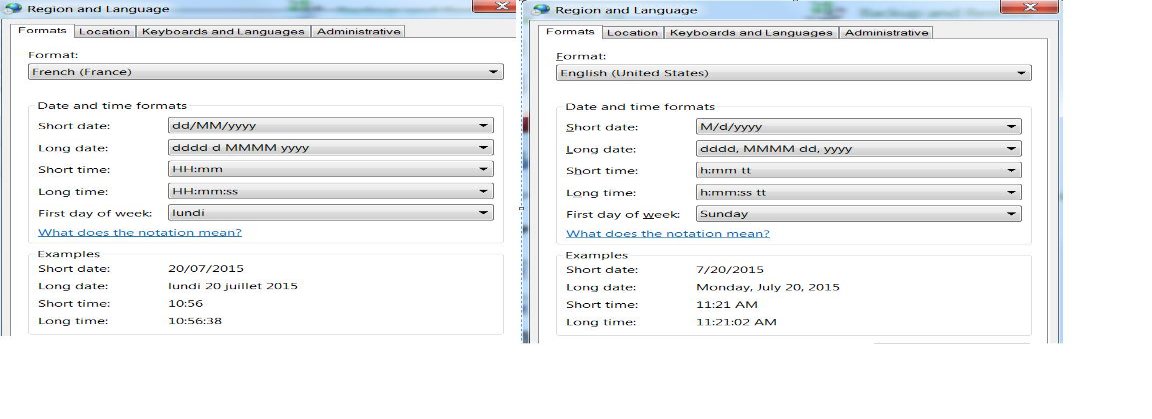
Set the format or mask for a column as this:
For a date column use [date] which will take the Windows format
‘Short Date’ and [longdate] to take the Windows format ‘Long
Date’
For a time column use [time] to take the Windows format ‘Long
Time’ format
For a datetime column use [date] [time]