Exporting to XML
You can export the data in a DataWindow object or DataStore object to
XML using any of the techniques used for exporting to other formats
such as PSR or HTML:
- Using the SaveAs method:
1ds_1.SaveAs("C:TEMPTemp.xml", Xml!, true)
- Using PowerScript dot notation or the Describe method:
1ls_xmlstring = dw_1.Object.DataWindow.Data.XML1ls_xmlstring = dw_1.Describe(DataWindow.Data.XML)
- Using the Save Rows As menu item in the DataWindow painter.
With the Preview view open, select File>Save Rows
As, select XML from the Files of Type drop-down list, provide a
file name, and click Save. You can use this in the development environment
to preview the XML that will be generated at runtime.
When you export data, PowerBuilder uses an export template to
specify the content of the generated XML.
 Default export format If you have not created or assigned an export template, PowerBuilder uses
a default export format. This is the same format used when you create
a new default export template. See “Creating templates”.
OLE DataWindow objects cannot be exported using a template. You must
use the default format.
Setting properties on the Data Export page
The Data Export page in the Properties view lets you set properties
for exporting data to XML.
In addition to the properties that you can set on this page, PowerBuilder provides
two properties that you can use to let the user of an application
select an export template at runtime. See “Selecting templates at
runtime”.
The Use Template property
The names of all templates that you create and save for the
current DataWindow object display in the Use Template drop-down list.
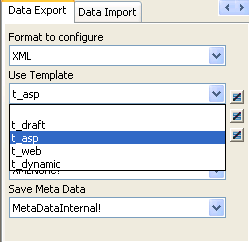
The template you select from the list is used to conform the
XML generated by any of the methods for saving as XML to the specifications
defined in the named template. Selecting a template from the list
box sets the DataWindow object’s Export.XML.UseTemplate property.
You can also modify the value of the UseTemplate property dynamically
in a script. For example, an XML publishing engine would change
templates dynamically to create different presentations of the same
data.
When you open a DataWindow, the Export/Import Template
view displays the template specified in the DataWindow’s
Use Template property. (If the view is not visible in the current
layout, select View>Export/Import Template>XML from
the menu bar.) If the property has not been set, the first saved
template displays or, if there are no saved templates, the default
structured template displays as a basis for editing.
Template used when saving
When the DataWindow is saved as XML, PowerBuilder uses the template specified
in the Use Template property. If the property has not been set, PowerBuilder uses
the default template.
When you are working on a template, you might want to see
the result of your changes. The template specified in the Use Template
property might not be the template currently displayed in the Export/Import
Template view, so you should check the value of the Use template
property to be sure you get the results you expect.
 To save to XML using the current template:
-
Right-click in the Export/Import
template view and select Save or Save As from the pop-up menu to
save the current template. -
On the Data Export page in the properties view,
select the current template from the Use Template drop-down list. -
Select File>Save Rows As, select XML
from the Files of Type drop-down list, enter a file name, and click
Save.
Generating group headers
To generate the contents of the
header section iteratively for each group in a group DataWindow,
check the Iterate Header for Groups check box, or set the Export.XML.HeadGroups
DataWindow property. This property is on by default.
For example, consider a group DataWindow object that includes the
columns sales_order_id and sales_order_order_date.
The following screenshot shows the template for this DataWindow object:
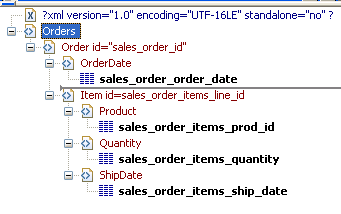
The root element in the Header section of the template, Orders,
has a child element, Order. Order has an id attribute whose value
is a control reference to the column sales_order_id.
Order also has a child element, OrderDate, that contains a column
reference to the sales_order_order_date column.
These elements make up the header section that will be iterated
for each group.
The Detail Start element, Item, has an id attribute whose
value is a control reference to the column sales_order_items_line_id.
It also has three child elements that contain column references
to the line items for product ID, quantity, and ship date.
When the DataWindow is exported with the Iterate Header for
Groups property on, the order ID and date iterate for each group.
The following XML output shows the first three iterations of the
group header:
|
1 |
<?xml version="1.0" encoding="UTF-16LE" standalone="no"?><br /><Orders><br /> <Order id="2001"><br /> <OrderDate>2002-03-14</OrderDate><br /> <Item id="1"><br /> <Product>300</Product><br /> <Quantity>12</Quantity><br /> <ShipDate>2005-09-15</ShipDate><br /> </Item><br /> <Item id="2"><br /> <Product>301</Product><br /> <Quantity>12</Quantity><br /> <ShipDate>2005-09-14</ShipDate><br /> </Item><br /> <Item id="3"><br /> <Product>302</Product><br /> <Quantity>12</Quantity><br /> <ShipDate>2005-09-14</ShipDate><br /> </Item><br /> </Order><br /> <Order id="2002"><br /> <OrderDate>2002-03-18</OrderDate><br /> <Item id="2"><br /> <Product>401</Product><br /> <Qty>24</Qty><br /> <ShipDate>2002-09-18</ShipDate><br /> </Item><br /> <Item id="1"><br /> <Product>400</Product><br /> <Qty>24</Qty><br /> <ShipDate>2002-09-18</ShipDate><br /> </Item><br /> </Order><br /> <Order id="2003"><br /> <OrderDate>2002-03-21</OrderDate><br /> <Item id="3"><br /> <Product>400</Product><br /> <Qty>12</Qty><br /> <ShipDate>2002-09-23</ShipDate><br /> </Item><br /> ... |
For DataWindow objects with more than one group, when you generate
a new default template, each group after the first is identified
with a special icon and a check on the pop-up menu next to the Starts
Group Header item.
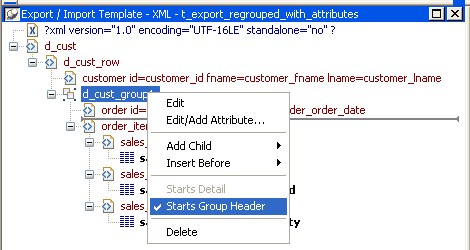
When the Iterate Header for Groups check box is selected,
each XML fragment in the header section between a Group Header element
and the next Group Header element or Detail Start element is iterated.
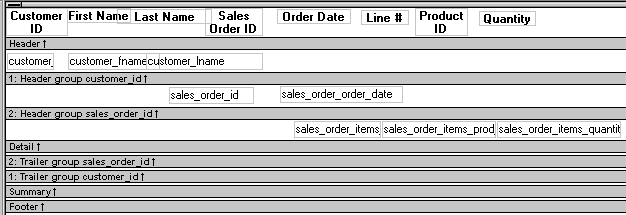
In the template shown in the previous illustration, sales
are grouped by customer ID, then by order ID. The customer group
header has attributes for the customer’s ID and first and
last names. The order group header has attributes for the order
ID and date. The following illustration shows the DataWindow in
the Design view:
The following XML output shows the first iteration of the
customer group header and the first and second iterations of the
order group header:
|
1 |
<?xml version="1.0" encoding="UTF-16LE" standalone="no"?><br /><d_customer><br /> <customer id="101" fname="Michaels" lname="Devlin"><br /> <order id="2001" date="1996-03-14"><br /> <order_item><br /> <sales_order_items_line_id>1</sales_order_items_line_id><br /> <sales_order_items_prod_id>300</sales_order_items_prod_id><br /> <sales_order_items_quantity>12</sales_order_items_quantity><br /> </order_item><br /> <order_item><br /> <sales_order_items_line_id>2</sales_order_items_line_id><br /> <sales_order_items_prod_id>301</sales_order_items_prod_id><br /> <sales_order_items_quantity>12</sales_order_items_quantity><br /> </order_item><br /> <order_item><br /> <sales_order_items_line_id>3</sales_order_items_line_id><br /> <sales_order_items_prod_id>302</sales_order_items_prod_id><br /> <sales_order_items_quantity>12</sales_order_items_quantity><br /> </order_item><br /> </order><br /> <order id="2005" date="1996-03-24"><br /> <order_item><br /> <sales_order_items_line_id>1</sales_order_items_line_id><br /> <sales_order_items_prod_id>700</sales_order_items_prod_id><br /> <sales_order_items_quantity>12</sales_order_items_quantity><br /> </order_item><br /> </order> |
Formatting the exported XML
By default, the XML is exported without formatting. If you
want to view or verify the exported XML in a text editor, check
the Include Whitespace check box or set the Export.XML.IncludeWhitespace
property in a script. Turning this property on causes the export
process to insert tabs, carriage returns, and linefeed characters
into the XML so that it is easier to read. Most of the examples
in this chapter were exported with this property turned on.
Do not import formatted XML You should not try to import XML formatted with white space
characters, because the white space between data element tags is
considered to be part of the element.
Exporting metadata
You can specify
that metadata in the form of a DTD or schema should be exported
when you save the DataWindow object. You can choose to save the metadata
with the XML or in a separate file.
If you export metadata as a schema, you can associate it with
a namespace. See “Associating a namespace
with an exported schema”.
To specify how metadata should be saved, select a value from
the Meta Data Type drop-down list or set the Export.XML.MetaDataType property.
The possible values are:
- XMLNone!—No
metadata is generated - XMLSchema!—An XML schema is generated
- XMLDTD!—A DTD is generated
If the data item for a column is null or an empty
string, an empty element is created. If you select XMLSchema!,
child elements with null data items are created
with the content “xsi:nil=’true'”.
The metadata is saved into the exported XML itself or into
an associated file, depending on the setting in the Save Meta Data
drop-down list or the Export.XML.SaveMetaData property.
The possible values are:
- MetaDataInternal!—The
metadata is saved into the generated XML document or string. To
save metadata using the .Data.XML expression syntax,
you must use this value. - MetaDataExternal!—The metadata is saved
as an external file with the same name as the XML document but with
the extension .xsd (for a schema) or .dtd (for
a DTD). A reference to the name of the metadata file is included
in the output XML document.
Example: internal metadata
For example, if you select XMLDTD! and MetaDataInternal!,
the header and first row of the exported XML would look like this
for a simple grid DataWindow for the contact table
in the EAS Demo DB. The Include Whitespace
property has also been selected and the file name is dtdinternal.xml:
|
1 |
<?xml version="1.0" encoding="UTF-16LE" standalone="yes"?><br /><!DOCTYPE dtdinternal [<!ELEMENT dtdinternal (dtdinternal_row*)><br /><!ELEMENT dtdinternal_row (id, last_name, first_name, title, street, city, state, zip, phone, fax)><br /><!ELEMENT id (#PCDATA)><br /><!ELEMENT last_name (#PCDATA)><br /><!ELEMENT first_name (#PCDATA)><br /><!ELEMENT title (#PCDATA)><br /><!ELEMENT street (#PCDATA)><br /><!ELEMENT city (#PCDATA)><br /><!ELEMENT state (#PCDATA)><br /><!ELEMENT zip (#PCDATA)><br /><!ELEMENT phone (#PCDATA)><br /><!ELEMENT fax (#PCDATA)><br />]><br /><dtdinternal><br /> <dtdinternal_row><br /> <id>1</id><br /> <last_name>Hildebrand</last_name><br /> <first_name>Jane</first_name><br /> <title>ma</title><br /> <street>1280 Washington St.</street><br /> <city>Emeryville</city><br /> <state>MI</state><br /> <zip>94608</zip><br /> <phone>5105551309</phone><br /> <fax>5105554209</fax><br /> </dtdinternal_row> |
Example: external metadata
If you select MetaDataExternal! instead, the generated XML
in dtdexternal.xml looks like this:
|
1 |
<?xml version="1.0" encoding="UTF-16LE"?><br /><!DOCTYPE dtdexternal SYSTEM "dtdexternal.dtd"><br /><dtdexternal><br /> <dtdexternal_row><br /> <id>1</id><br /> <last_name>Hildebrand</last_name><br /> <first_name>Jane</first_name><br /> <title>ma</title><br /> <street>1280 Washington St.</street><br /> <city>Emeryville</city><br /> <state>MI</state><br /> <zip>94608</zip><br /> <phone>5105551309</phone><br /> <fax>5105554209</fax><br /> </dtdexternal_row> |
The DTD is in dtdexternal.dtd:
|
1 |
<?xml version="1.0" encoding="UTF-16LE"?><!ELEMENT dtdexternal (dtdexternal_row*)><br /><!ELEMENT dtdexternal_row (id, last_name, first_name, title, street, city, state, zip, phone, fax)><br /><!ELEMENT id (#PCDATA)><br /><!ELEMENT last_name (#PCDATA)><br /><!ELEMENT first_name (#PCDATA)><br /><!ELEMENT title (#PCDATA)><br /><!ELEMENT street (#PCDATA)><br /><!ELEMENT city (#PCDATA)><br /><!ELEMENT state (#PCDATA)><br /><!ELEMENT zip (#PCDATA)><br /><!ELEMENT phone (#PCDATA)><br /><!ELEMENT fax (#PCDATA)> |
MetaDataExternal! not supported for dot notation The metadata cannot be saved in an external file if you use
dot notation to generate the XML.
Associating a namespace
with an exported schema
If
you export metadata in the form of a schema, you can associate a
namespace with the schema. To do so, right-click the root element
in the Export/Import template view and select Schema Options
from the pop-up menu. In the dialog box, specify the namespace prefix
and URI.
When the Meta Data Type property is XMLSchema! and the Save
Meta Data property is MetaDataInternal!, so that the XML schema
is generated inline, you can specify a name for the root element.
If the root element name is specified, it appears in the generated
XML.
In the following example, the root element name is Contacts,
the namespace prefix is po, and the URI is http://www.example.com/PO1.
The example shows the header and the first row of the generated
XML:
|
1 |
<?xml version="1.0" encoding="UTF-16LE" standalone="no"?><br /><Contacts><br /> <xs:schema xmlns:po="http://www.example.com/PO1"<br /> xmlns:xs="http://www.w3.org/2001/XMLSchema"<br /> targetNamespace="http://www.example.com/PO1"<br /> elementFormDefault="qualified"<br /> attributeFormDefault="unqualified"><br /> <xs:element name="d_contact_list"><br /> <xs:complexType><br /> <xs:sequence><br /> <xs:element ref="d_contact_list_row"<br /> maxOccurs="unbounded" minOccurs="0"/><br /> </xs:sequence><br /> </xs:complexType><br /> </xs:element><br /> <xs:element name="d_contact_list_row"><br /> <xs:complexType><br /> <xs:sequence><br /> <xs:element ref="id"/><br /> <xs:element ref="last_name"/><br /> <xs:element ref="first_name"/><br /> <xs:element ref="city"/><br /> <xs:element ref="state"/><br /> </xs:sequence><br /> </xs:complexType><br /> </xs:element><br /> <xs:element name="id" type="xs:int"/><br /> <xs:element name="last_name" type="xs:string"/><br /> <xs:element name="first_name" type="xs:string"/><br /> <xs:element name="city" type="xs:string"/><br /> <xs:element name="state" type="xs:string"/><br /> </xs:schema><br /> <po:d_contact_list xmlns:po=<br /> "http://www.example.com/PO1" xmlns:xsi=<br /> "http://www.w3.org/2001/XMLSchema-instance"><br /> <po:d_contact_list_row><br /> <po:id>1</po:id><br /> <po:last_name>Hildebrand</po:last_name><br /> <po:first_name>Jane</po:first_name><br /> <po:city>Emeryville</po:city><br /> <po:state>MI</po:state><br /> </po:d_contact_list_row> |
By default, the generated XML is not associated with a namespace.
Selecting templates at runtime
Two DataWindow properties, Export.XML.TemplateCount and Export.XML.Template[ ].Name,
enable you to provide a list of templates from which the user of
the application can select at runtime.
The TemplateCount property gets the number of templates associated
with a DataWindow object. You can use this number as the upper limit
in a FOR loop that populates a drop-down list
with the template names. The FOR loop uses the
Template[ ].Name property.
|
1 |
string ls_template_count, ls_template_name<br />long i<br /> <br />ls_template_count=dw_1.Describe<br /> ("DataWindow.Export.XML.TemplateCount")<br /> <br />for i=1 to Long(ls_template_count)<br /> ls_template_name=<br /> dw_1.Object.DataWindow.Export.XML.Template[i].Name<br /> ddlb_1.AddItem(ls_template_name)<br />next |
Before generating the XML, set the export template using the
text in the drop-down list box.
|
1 |
dw_1.Object.DataWindow.Export.XML.UseTemplate=<br /> ddlb_1.text |