Exporting and importing entries
You can export object definitions to text files. The text
files contain all the information that defines the objects. The
files are virtually identical syntactically to the source forms
that are stored in libraries for all objects.
You may want to export object definitions in the following
situations:
-
You want to store
the objects as text files. -
You want to move objects to another computer as
text files.
Later you can import the files back into PowerBuilder for
storage in a library.
 Caution
The primary use of the Export feature is exporting source
code, modifying the source. You can use the Source editor to modify
the source code of an object directly, but modifying source in an
ASCII text file is not recommended for most users. See “Using the Source editor”.
 To export entries to text files:
-
Select the Library entries you want to
export.You can select multiple entries in the List view.
-
Do one of the following:
-
Select
Export from the pop-up menu. -
Click the Export button on the PainterBar.
-
Select Entry>Library Item>Export
from the menu bar.
The Export Library Entry dialog box displays, showing the
name of the first entry selected for export in the File Name box
and the name of the current directory. The current directory is
the target’s directory or the last directory you selected
for saving exported entries or saving a file using the file editor.PowerBuilder appends the file extension .srx,
where x represents the object type. -
-
Specify the file name and directory for the export
file. Do not change the file extension from the one that PowerBuilder
appended. -
Select the encoding for the exported file.
The HEXASCII export format is used for source-controlled files.
Unicode strings are represented by hexadecimal/ASCII strings
in the exported file, which has the letters HA at the beginning
of the header to identify it as a file that might contain such strings.
You cannot import HEXASCII files into a previous version of PowerBuilder. -
Click OK.
PowerBuilder converts the entry to text, stores it with the
specified name, then displays the next entry you selected for export.If a file already exists with the same name, PowerBuilder
displays a message asking whether you want to replace the file.
If you say no, you can change the name of the file and then export
it, skip the file, or cancel the export of the current file and
any selected files that have not been exported. -
Repeat steps 3 through 5 until you have processed
all the selected entries.If the Library painter is set to display files, you can see
the saved files and double-click them to open them in the File editor.
To import text files to library entries:
-
In the System Tree or Library painter,
select the library into which you want to import an object. -
Select Import from the pop-up menu, or, in the
Library painter only, click the Import button on the PainterBar.The Select Import Files dialog box displays, showing the current
directory and a list of files with the extension .sr* in
that directory. The current directory is the target’s directory
or the last directory you selected for saving exported entries or
saving a file using the file editor.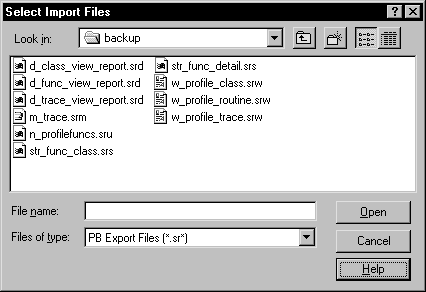
-
Select the files you want to import. Use Shift+click
or Ctrl+click to select multiple files. -
Click Open.
PowerBuilder converts the specified text files to PowerBuilder
format, regenerates (recompiles) the objects, stores the entries
in the specified library, and updates the entries’ timestamps.If a library entry with the same name already exists, PowerBuilder replaces
it with the imported entry. Caution
When you import an entry with the same name as an existing
entry, the old entry is deleted before the import takes place. If
an import fails, the old object will already be deleted.