Example 3: highlighting rows of data
The following DataWindow object is an employee phone list. Out-of-state
(not in Massachusetts) employees are shown in bold and preceded
by two asterisks (**):
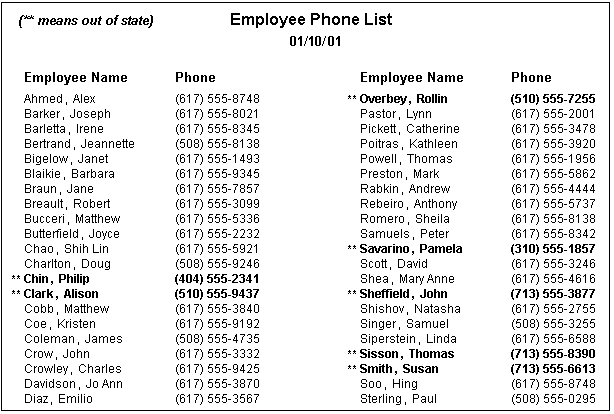
This DataWindow object uses newspaper columns. To
understand how to create this DataWindow object without highlighting data,
see “Printing with newspaper-style
columns”.
In the Design view, the detail band looks like this. It includes
four controls: the employee last name, a comma, the employee first
name, and the phone number:

Making the controls display in bold
To make these controls display in bold if the employee is
not from Massachusetts, you would use the Font property page. To
do this, select Properties from the popup menu of each control and
in the Properties view, click the Font tab. For each control, click
the button next to the Bold property and enter the following expression
in the Modify Expression dialog box:
|
1 |
If(state = 'MA', 400, 700) |
The expression states: If the value of the state column is
MA (if this is true), use 400 as the font weight. This means employees
from Massachusetts will display in the normal font. For false (any
state but MA), use 700 as the font weight. This means all other
employees display in bold font.
 Logic that relies on the state column To use logic that relies on the state column, you need to
include it in the data source. You can add the column after creating
the DataWindow object by modifying the data source. Also notice that the
state column does not actually appear anywhere in the DataWindow object.
Values must be available but do not need to be included in the DataWindow object.
Adding the two asterisks (**)
To insert two asterisks (**) in front of
the employee name if the employee is not from Massachusetts, you
would first add a text control with the two asterisks in bold, exactly
as you want them to display:

Then you use logic on the Visible property of the Text control
(**). To do this, be sure the text control is
still selected. Then click the button next to its Visible property
on the General property page in the Properties view. In the Modify Expression
dialog box that displays, enter the following expression:
|
1 |
If(state = 'MA', 0, 1) |
This expression says: If the state of the employee is MA (the
true condition), the Visible property of the ** control
is off (indicated by 0). If the state of the employee is not MA
(the false condition), the Visible property of the ** control is
on (indicated by 1). The asterisks will be visible next to that
employee’s name.
Tip You can use underlines, italics, strikethrough, borders, and
colors to highlight your information. Experiment to get the effects
you like.