Example 2: rotating controls
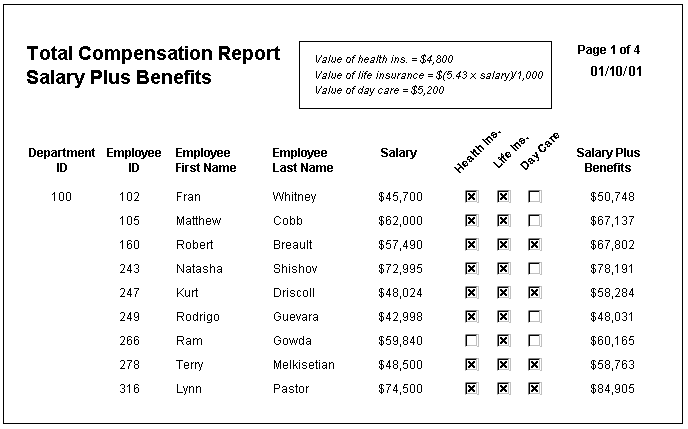
The following DataWindow object shows column headers rotated 45 degrees.
To rotate each of these three text controls, you would select
Properties from the popup menu for each control and make an entry
by clicking the button next to the Escapement property on the Font
property page.

Specifying rotation
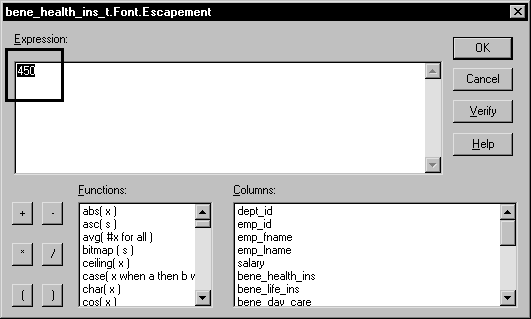
To specify rotation, you would enter the number 450 in the
Modify Expression dialog box displayed by clicking the button next
to the Escapement property. The number 450 means 45 degrees; the
value entered for Font.Escapement is in tenths of degrees:
Notice that you do not have to specify a condition. Typically,
you would not specify a condition for control rotation. When you
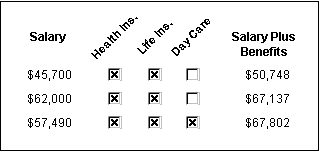
have specified 450 for the three text controls, you end up with
all three controls rotated:
If you try rotation, you may notice that the controls do not
appear to be rotated in the Design view. You see the rotation only
when you run the DataWindow object (which includes the Preview view).