Editing frames and framesets
A Frameset document is an HTML
page with preset frame divisions. These frames can be used to display
the content of other HTML pages. When you open a Frameset file in PowerBuilder,
the file displays in the Frameset editor.
About the Frameset editor
There are four frameset views in the Frameset editor: Frames,
Source, Preview, and No Frames. You can make modifications to the
frames or frameset in the Frames, Source, and No Frames views. No
Frames view displays the page as seen with a Web browser that does
not support frames.
Frames view
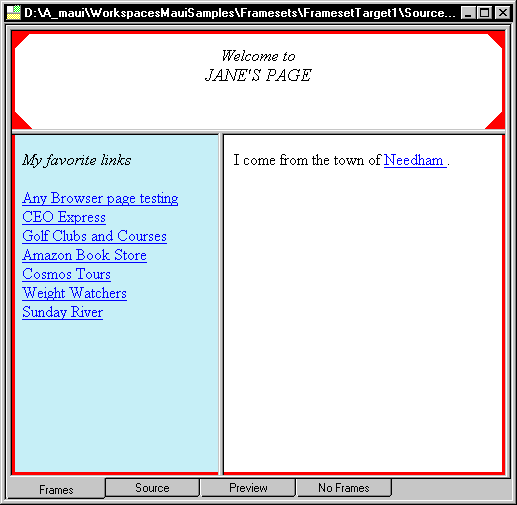
Frames view displays the frames you have defined and the contents
of the pages. Frames view lets you drag and drop Web pages from
your Web target to frame panes in your frameset. You can also modify
the size of the frames by stretching the frame panes. Data cannot
be placed directly in the frame panes.
Source view
Source view lets you edit in the source file. As with Source
view in the rest of the Web target environment, Source view provides
the most flexible editing environment. In Source view you can drag
and drop items from the component or language tab in the System
Tree area.
Preview view
Preview is a display-only view. It shows what the page would
look like when viewed with a Frame-enabled Web browser.
No Frames view
The No Frames view displays the page as it is seen with a
Web browser that does not support frames. No Frames view lets you
add text to the page that is not seen when you switch back to the
Frames view.
Creating a new frameset document
You can use the Frameset wizard to create a new frameset document.
 To create a new frameset document:
-
Right-click a target and select New from
the pop-up menuor
Select File>New from the menu bar.
-
In the New dialog, click the Files tab, then double-click
the Frameset Page icon. -
In the Frameset wizard, specify file information
for the frameset document and click Next. -
Select one of the six layout choices and click
Next.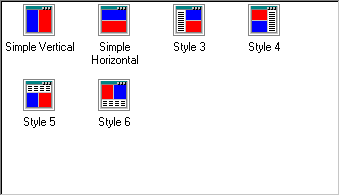
If you want to specify a different frameset pattern with more
than three frame panes, you must do that later from the Source view
of the Frameset editor, or by using the Split Horizontally and Split
Vertically commands from the pop-up menu on frames in the Frames
view. -
Click Finish.
When you complete the entries in the wizard, the editor displays
the frame structure in the Frames view of the Frameset editor.
Modifying a frameset
Formatting a frameset page
The Frameset editor lets you modify the look of your frame
pages and allows you to make connections to other Web pages.
To modify a frameset page format:
-
Open the frameset file in the Frameset
editor. -
In Frames view, right-click a Frame pane and choose
Frameset Properties from the pop-up menuor
In Source view, right-click a Frameset tag and choose
Properties from the pop-up menu.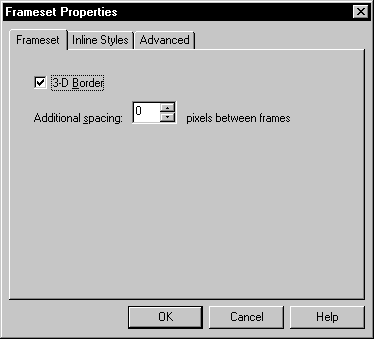
You can use the Frameset page of the dialog box to add or
remove a border between frames of the frameset and to set the spacing
in pixels between the frames. On the Advanced page of this dialog
box, you can add or modify frameset attributes, such as percentage
of the page for frames in ROWS and COLS.For information on the Inline Styles page, see “Using the Inline Styles
editor”.
Modifying frame properties
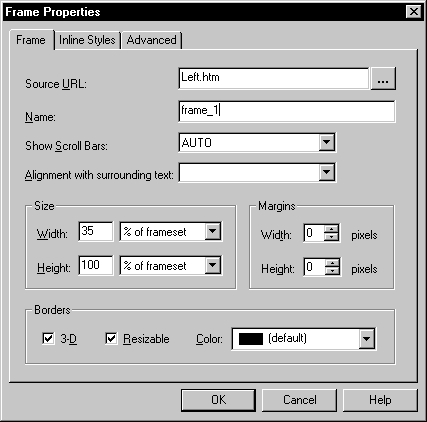
From the Frame Properties dialog box, you can modify the properties
of frames and change or select the URL of a file to be displayed
in a frame. You can modify the sizes, borders, fonts, and other
related format items of the individual frame elements within a frameset.
To modify frame properties:
-
Open the frameset file in the Frameset
editor. -
In Frames view, right-click a Frame pane and choose
Properties from the pop-up menuor
In Source view, right-click a Frame tag and choose Properties
from the pop-up menu.