DirectConnect
This section describes how to use the DirectConnect™ interface
in PowerBuilder.
Using the DirectConnect interface
The DirectConnect interface uses Sybase’s Open Client
CT-Library (CT-Lib) API to access a database through Sybase middleware
data access products such as the DirectConnect for OS/390
component of MainFrame Connect and Open ServerConnect™.
Connecting through the DirectConnect middleware
product
Sybase DirectConnect is a data access server that provides
a standardized middleware interface between your applications and
your enterprise data sources. Data access services to a particular
database are defined in a DirectConnect server. Since a DirectConnect
server can support multiple access services, you can access multiple
databases through a single server. When you use the DirectConnect
interface to connect to a particular database, your connection is
routed through the access service for that database. An access service
consists of a named set of configuration properties and a specific access
service library.
To access DB2 data on an IBM mainframe through a DirectConnect
server, you can use the DirectConnect interface to connect through
either a DirectConnect for MVS access service or a DirectConnect
Transaction Router Service (TRS).
TRS provides fast access to a DB2/MVS database by
using remote stored procedures. The DirectConnect interface supports
both versions of the TRS library: TRSLU62 and TRSTCP.
The DirectConnect server operates in two modes: SQL transformation
and passthrough. The DirectConnect interface for DB2/MVS
uses passthrough mode, which allows your PowerBuilder application
to have direct access to the capabilities of the DB2/MVS
data source.
Connecting through the Open ServerConnect middleware
product
Sybase’s Open ServerConnect supports mainframe applications
that retrieve and update data stored on the mainframe that Sybase
client applications can execute. Client applications can connect
directly to a DB2/MVS database through an Open ServerConnect
application residing on the mainframe, eliminating the need for
an intermediate gateway like DirectConnect. (This type of connection
is also known as a gateway-less connection.)
In addition, an Open ServerConnect application presents mainframe
Remote Procedure Calls (RPCs) as database stored procedures to the
client application.
To access DB2 data on an IBM mainframe through Open ServerConnect,
you can use the DirectConnect interface to connect through Open
ServerConnect for IMS and MVS.
Selecting the type of connection
To select how PowerBuilder accesses the database, use the Choose
Gateway drop-down list on the Connection tab of the DirectConnect
Database Profile Setup dialog box and select one of the following:
- Access Service
- Gatewayless
- TRS
All the DBParm parameters defined for the DirectConnect interface
are applicable to all three connections except the following:
- HostReqOwner applies to Access
Service and Gatewayless only - Request, ShowWarnings, and SystemOwner apply to
Access Service only - UseProcSyntax applies to Gatewayless only
See the online help for the complete list of DBParm parameters
applicable to the DirectConnect interface.
Basic software components for the DirectConnect
interface
Figure 5-6 shows
the basic software components required to access a database using
the DirectConnect interface and the DirectConnect middleware data access
product.
connection using DirectConnect middleware
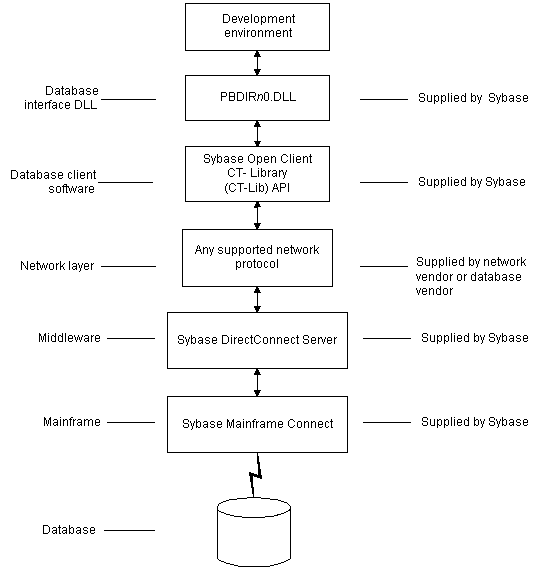
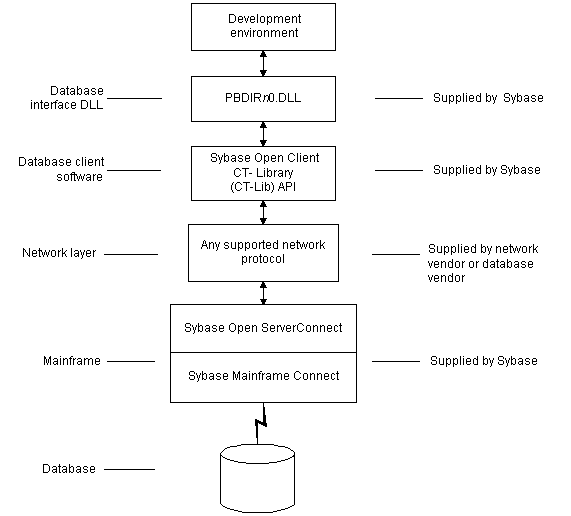
Figure 5-7 shows
the basic software components required to access a database using
the DirectConnect interface and the Open ServerConnect middleware data
access product.
connection using Open ServerConnect middleware
Supported versions for the DirectConnect interface
The DirectConnect interface uses a DLL named PBDIR90.DLL to
access a database through either DirectConnect or Open ServerConnect.
 Required DirectConnect versions To access a DB2/MVS database through the access service,
it is strongly recommended that you use DirectConnect for MVS access
service version 11.1.1p4 or later.
To access a DB2/MVS database through TRS, it is strongly
recommended that you use DirectConnect TRS version 11.1.1p4 or later.
For information on DirectConnect for MVS and
TRS, see your DirectConnect documentation.
Required Open ServerConnect versions To access a DB2/MVS database through Open ServerConnect,
it is strongly recommended that you use Open ServerConnect IMS and
MVS version 4.0 or later.
For information on Open ServerConnect for
MVS, see your Open ServerConnect documentation.
Supported DirectConnect interface datatypes
The DirectConnect interface supports the PowerBuilder datatypes
listed in Table 5-8 in DataWindow objects. and
embedded SQL.
| Char (fewer than 255 characters) |
Long VarChar |
| Char for Bit Data |
Real |
| Date | SmallInt |
| Decimal | Time |
| Double Precision | Timestamp (DateTime) |
| Float | VarChar |
| Integer | VarChar for Bit Data |
Preparing to use the database with DirectConnect
Before you define the interface and connect to a database
through the DirectConnect interface, follow these steps to prepare
the database for use:
- Install and configure the Sybase
middleware data access products, network, and client software. - Install the DirectConnect interface.
- Verify that you can connect to your middleware product
and your database outside PowerBuilder. - Create the extended attribute system tables outside PowerBuilder.
Step 1: Install and configure the Sybase middleware
product
You must install and configure the Sybase middleware data
access product, network, and client software.
 To install and configure the Sybase middleware
data access product, network, and client software:
-
Make sure the appropriate database software
is installed and running on its server.You must obtain the database server software from your database
vendor.For installation instructions, see your database
vendor’s documentation. -
Make sure the appropriate DirectConnect access
service software is installed and running on the DirectConnect server
specified in your database profile.or
Make sure the appropriate Open ServerConnect software
is installed and running on the mainframe specified in your database
profile. -
Make sure the required network software (such
as TCP/IP) is installed and running on your computer and
is properly configured so you that can connect to the DirectConnect
server or mainframe at your site.You must install the network communication driver that supports
the network protocol and operating system platform you are using.For installation and configuration instructions,
see your network or database administrator. -
Install the required Open Client CT-Library (CT-Lib)
software on each client computer on which PowerBuilder is installed.You must obtain the Open Client software from Sybase. Make
sure the version of Open Client you install supports both of
the following:- The operating
system running on the client computer - The version of PowerBuilder that you are running
Required Open Client versions To use the DirectConnect interface, you must install Open
Client.For information about Open Client, see your
Open Client documentation. - The operating
-
Make sure the Open Client software is properly
configured so you can connect to the middleware data access product
at your site.Installing the Open Client software places the SQL.INI configuration
file in the SQL Server directory on your computer.SQL.INI provides information
that SQL Server uses to find and connect to the middleware product
at your site. You can enter and modify information in SQL.INI with
the configuration utility or editor that comes with the Open Client software.For information about editing the SQL.INI file,
see “Editing the SQL.INI file”.
For more information about setting up SQL.INI or
any other required configuration file, see your SQL Server documentation. -
If required by your operating system, make sure
the directory containing the Open Client software is in your system
path. -
Make sure only one copy of each of the following
files is installed on your client computer:- DirectConnect interface DLL
- Network communication DLL (such as NLWNSCK.DLL for
Windows Sockets-compliant TCP/IP) - Open Client DLLs (such as LIBCT.DLL and LIBCS.DLL)
Step 2: Install the interface
In the PowerBuilder Setup program, select the Typical install,
or select the Custom install and select the Direct Connect Interface
(DIR).
Step 3: Verify the connection
Make sure you can connect to the your middleware product and
your database and log in to the database you want to access from
outside PowerBuilder.
Some possible ways to verify the connection are by running
the following tools:
- Accessing the database server Tools such as the Open Client/Open Server Configuration
utility (or any Ping utility) check whether you can reach the database
server from your computer. - Accessing the database Tools such as ISQL or SQL Advantage (interactive SQL utilities)
check whether you can log in to the database and perform database
operations. It is a good idea to specify the same connection parameters
you plan to use in your PowerBuilder database profile to access the
database.
Step 4: Create the extended attribute system
tables
PowerBuilder uses a collection of five system tables to store
extended attribute information. When using the DirectConnect interface,
you must create the extended attribute system
tables outside PowerBuilder to control the access rights and location
of these tables.
Run the DB2SYSPB.SQL script outside PowerBuilder using
the SQL tool of your choice.
For instructions, see “Creating the extended attribute
system tables in DB2 databases”.
Editing the SQL.INI file
Make sure the SQL.INI file provides an
entry about either the access service being used and the DirectConnect
server on which it resides or the Open ServerConnect program being
used and the mainframe on which it resides.
For the server object name, you need to provide the exact
access service name as it is defined in the access service library
configuration file on the DirectConnect server. You must also specify
the network communication DLL being used, the TCP/IP address
or alias used for the DirectConnect server on which the access service
resides, and the port on which the DirectConnect server listens
for requests:
|
1 |
[<i>access_service_name</i>] |
|
1 |
query=<i>network_dll</i>,<i>server_alias,server_port_no</i> |
PowerBuilder users must also specify the access service name
in the SQLCA.ServerName property of the Transaction object.
Defining the DirectConnect interface
To define a connection through the DirectConnect interface,
you must create a database profile by supplying values for at least
the basic connection parameters in the Database Profile Setup –
DirectConnect dialog box. You can then select this profile anytime
to connect to your database in the development environment.
For information on how to define a database profile, see “Using database profiles”.