Developing pages
With 4GL functionality enabled, you can rely on an event-driven
infrastructure to handle many of the details of coding server scripts
for your Web pages. As with other Web target files, you edit 4GL
Web pages in the HTML editor and write scripts in one of the script
editors. The integrated Script editor provides additional support
for some of the features available in 4GL pages.
You can create new 4GL pages or you can modify existing pages
to enable 4GL processing after you add the pages to your Web target.
If you change a non-4GL page to 4GL mode, you must manually remove
any existing FORM tags in Source view. Each 4GL Web page is represented
as a single form–and you cannot use nested FORM tags on
HTML pages.
Creating a new 4GL Web page
You create new 4GL Web pages using the 4GL Web Page wizard.
If you want to change an existing page to 4GL mode, you can enable
4GL mode from a checkbox in the Page Properties dialog box for the
page.
The 4GL Web Page
wizard prompts you for basic design information, options for error
reporting, page parameters, and EAServer components that you want to
use on the page. If you are unsure about values to enter for a particular wizard
field, you can leave the field blank or accept the field default,
then add or change the information later in the Page Properties
dialog box.
 To create a new 4GL Web page:
-
From a Web target select File>New
from the menu bar.or
Right-click a target or target folder in Workspace view
and select New from the popup menu. -
In the New dialog box, click the Web tab, and
then click the 4GL Web Page wizard icon.The 4GL Web Page wizard starts.
-
Click Next. On the Specify New HTML File page,
enter the title and filename for the page you want to create. -
Provide design information for your page in subsequent
wizard pages:Specify this To do this Style sheet Select an existing style sheet for the
pageBackground image Select an image that displays as the
page backgroundScroll image Make the background image scroll with
the pageBackground color Select a color for the page background Header based on title Add a page header that is the same as
the title. This header appears on the printed version of the pageDate created footer Add a page footer that shows the date
the page was created. This footer appears on the printed version
of the page -
Specify options for error reporting and click
Next.4GL Web
pages provide specialized error reporting capabilities:Select this To do this Show runtime errors in alert message
boxDisplay page processing errors in an
alert message boxShow runtime errors as text – at the
top of the pageDisplay page processing errors at the
top of a generated pageShow runtime errors as text – at the
bottom of the pageDisplay page processing errors at the
bottom of a generated pageEnable trace Display detailed information about page processing
during page development -
Specify any page parameters that will provide
input values for the page and click Next.You can add page parameters at a later time from the Page
Properties dialog box for your page. -
Select an EAServer profile, making sure the
EAServer you select is running. Click Next to list the available
components on this server.
or
Select
the Skip EAServer Components checkbox if you want to select components
at a later time. Click Next and skip the next step in this procedure.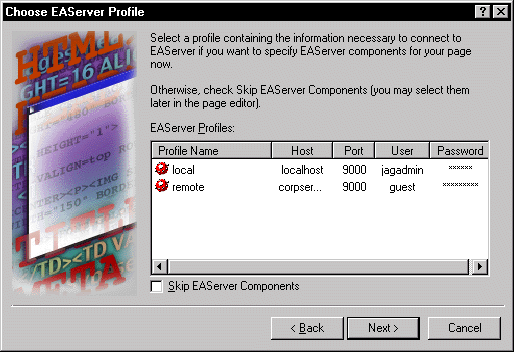
This wizard page lists EAServer profiles already configured
in your development environment. Make sure your EAServer is running If you click Next without selecting the Skip EAServer Components checkbox,
the wizard attempts to connect to the server that is selected in the
Choose EAServer Profile dialog box. -
Select the EAServer components you want your 4GL
Web page to access, and click Next.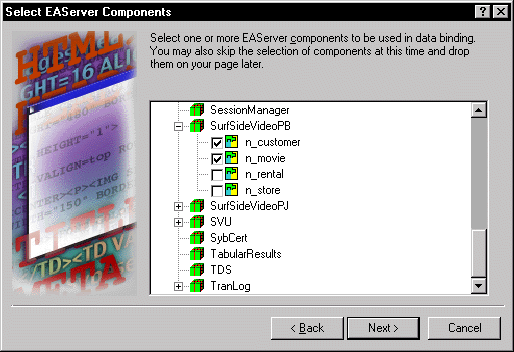
-
On the last wizard page, review the summary of
page properties, and click Finish.
Enabling 4GL mode in an existing page
You
change an existing page in your Web target to 4GL mode by opening
the page in the HTML editor and selecting a checkbox in the Page
Properties dialog box. You can then add other 4GL properties to
the page and access the server-side event model in the integrated
Script editor.
Post-conversion manipulation If you change an existing page to 4GL mode, you must manually
remove any existing FORM tags and you must make sure that each control
on the page has a unique name. If you want to take advantage of
4GL functionality with a control you added before changing the page
to 4GL mode, you must select the Server Side Scriptable checkbox
on the control property sheet (or add the PSSERVERSCRIPTABLE attribute
for the corresponding INPUT or OBJECT tag in Source view).
To enable 4GL mode in an existing page:
- Open the page in the HTML editor.
-
Right-click in the page, then select Page Properties
from the popup menu. -
On the Page page, select Enable 4GL Web Server
Side Event Model. -
Specify properties for the 4GL Web page on the
following property pages:On this page Specify this Page Presentation details for the page Destination A self-link, or a link to a target page
(including parameters and parameter bindings for the target page)Parameters Page parameters for the current page
and default values for those parameters, if anyVariables Variables that your page will use EAServer Variables that represent EAServer components Errors Type of error reporting the page uses Inline Styles Style properties for the page Advanced Additional attributes for the page (some
user interface properties, such as a target page link, are also
listed here)
Adding content to 4GL Web pages
After
you open a new Web page in the HTML editor, you are ready to start developing
the page contents. The Page tab page of System Tree displays information
about any objects and controls that you add to your page.
When you develop a page, you typically add content in a prescribed
order. For example, you define parameters and variables as a first
step, in order to access those values from objects or scripts as
you build the page. The following procedure shows the steps you
will most likely follow to develop 4GL Web pages.
To develop a 4GL Web page:
-
Add page parameters, page variables, and
session variables. - Add access to properties of EAServer components.
-
Insert form controls, and then bind these controls
to parameters, variables, or EAServer component properties already
accessible on your page.See “Adding controls”.
- Set up page navigation.
- Write scripts for the events on your page.