Defining user events
In PowerBuilder, you can define both mapped and unmapped user
events for windows, user objects, controls, menus, and the Application
object.
When you add a new event, a Prototype window displays above
the script area in the Script view. Most of the fields in the Prototype
window are the same as when you define a user-defined function.
They are in the same order as the event’s signature: access
level, return type, and name, then for each parameter, how it is
passed, its data type, and its name, and finally the THROWS clause. The
access level for events is always public.
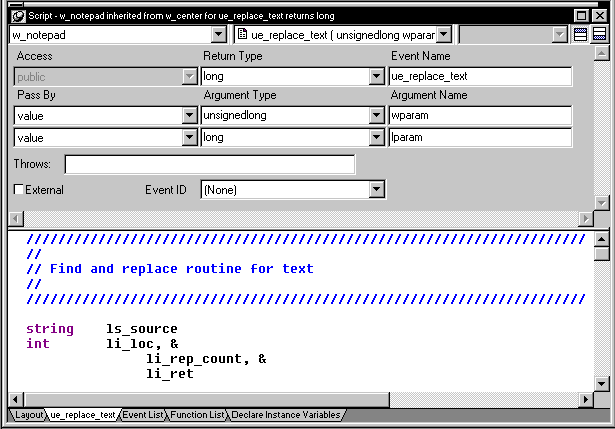
The Prototype window for user events has an additional field
that you use if you want to map the user event to an event ID.
Mapped user events
When a system message occurs, PowerBuilder triggers any user
event that has been mapped to the message and passes the appropriate
values to the event script as arguments. When you define a user
event and map it to an event ID, you must use the return value and
arguments that are associated with the event ID. To see the event
IDs defined by PowerBuilder for each PowerBuilder event, see the Event
List view or the event’s description in the PowerScript Reference
.
Unmapped user events
Unmapped user events are associated with a PowerBuilder activity
and do not have an event ID. When you define an unmapped user event,
you specify the arguments and return data type; only your application
scripts can trigger the user event. For example, if you create an
event called ue_update that updates a database, you might
trigger or post the event in the clicked event of an Update command
button.
 To define a user event:
-
Open the object for which you want to define
a user event. -
If you want to define a user event for a control
on a window or visual user object, double-click the control to select
it. -
Select Insert>Event from the menu bar.
or
In the Event List view, select Add from the popup menu.
The Prototype window opens in the Script view. If you display
the Script view’s title bar, you’ll see (Untitled)
since
you haven’t named the event yet. If there is no open Script
view, a new view opens. -
Select a return type (if you are defining an unmapped
event) and tab to the next field.Defining return types for events is similar to defining them
for functions. See “Defining a return type”. When you can specify return type and arguments If you map the user event to an event ID, you cannot change
its return type or specify arguments. -
Name the event and tab to the next field.
Event names can have up to 40 characters. For valid characters,
see the PowerScript Reference
.To recognize user events easily, consider prefacing the name
with an easily recognizable prefix such as ue_. When you
tab to the next field, the user event is added to the Event List
view. It is saved as part of the object whenever you save the object. -
If you choose to map the user event to a PowerBuilder message
ID, select an ID from the dropdown listbox at the bottom of the
Prototype window. -
If you are defining an unmapped event and it will
take arguments, define arguments for the event.Defining arguments for events is similar to defining them
for functions. See “Defining
arguments” and “Changing the arguments”. -
Optionally enter the name of exceptions that can
be thrown by the event.
External checkbox When you check the External checkbox, PowerBuilder sets the IsExternalEvent property
of the ScriptDefinition object associated with the event to TRUE.
This currently has no effect on your application. The feature is intended
for future use.
To open a user event for editing:
-
In the Event List view, double-click the
event’s name.
To delete a user event:
-
In the Event List view, select the user
event’s name, and then select Delete from the Edit menu
or the popup menu.