Defining hyperlinks on objects in a DataWindow
The
Web DataWindow DTC can pass data in query strings to a target page.
You can use the Link To tab page in the Sybase Web DataWindow DTC
Properties dialog box to generate hyperlinks around headers and
labels, computed fields, and graphical elements in a DataWindow,
or around read-only columns.
Setting links on columns
You can change a column to read-only by setting its tab order
to 0 in the DataWindow painter. Hyperlinks can also be set around
text objects that use DataWindow expressions to display data from
database columns.
When you click in the Link To column next to a DataWindow
object, a browse (…) button displays to the right in the row that
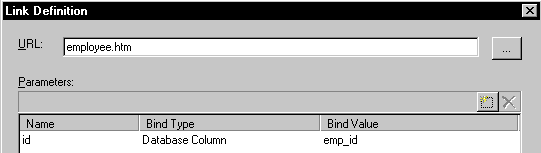
you clicked. The browse button opens the Link Definition dialog
box, where you specify the target page for the link and the data
to bind to target page parameters.
Bind types
The types of values you can pass to the target page from a
DataWindow object are:
- Control Select this to pass the value of any control from the current
page to the target page. Only the initial value of the control is
passed, even if the control is editable at runtime. - Constant Use a constant when you know the value you want to pass to the
target page. Type the value directly in the Bind Value column of
the Link Definition dialog box. - Database column Use a database column when you want to pass data for a column
from the row a user clicks. You can bind column data to any DataWindow
object you select on the Link To tab. If you select a column (label)
as the DataWindow object link, the column value you bind is not restricted
to the column you selected for the link; you can pass data from another
column, such as a column that is not displayed. - DataWindow Expression Use a DataWindow expression to pass a value derived from retrieved
data for the DataWindow. - JavaScript Expression Use a script variable when you want to pass a value that
was calculated in a previously-run server script on the current page,
or that you can specify as an expression. The variable’s
value is not derived from the retrieved data for the DataWindow,
although it could refer to other data you have retrieved. - Page Parameter Use a page parameter when you want to pass on a value that
was passed to the current page, as is, to the target page. The value
is not derived from the retrieved data for the DataWindow. - Page Variable Use a page variable to pass on the value of a variable on the
current page. This is available as a bind type on 4GL pages only.
 To link to parameters on other pages
-
Right-click on
a Web DataWindow DTC and select Sybase Web DataWindow DTC Properties. - Click the Link To tab.
-
Select a DataWindow object to link to (for example,
a header or a picture). -
Click under the Link To column for the object
you selected.An ellipsis button displays in the row where you clicked.
-
Click the ellipsis button.
The Link Definition dialog box displays.
-
Click the browse (…) button to open the Choose
URL dialog box, select a Web page or file to which you want to link,
and click OK.You return to the Link Definition dialog box. The name of
the target page displays in the URL box. Existing parameters on
the target page display under the Name column. You can type in additional
parameters, but you need to define them later on the target page. -
Select a bind type (for one of the target page
parameters) from the Bind Type dropdown listbox.The Bind Value dropdown listbox is automatically populated
for certain bind type selections. -
Select or type a value in the Bind Value dropdown
listbox and click OK.