Defining an executable application project
The Project painter for executable applications allows you
to streamline the generation of executable files and dynamic libraries.
When you build a project object, you specify the following components
of your application:
- Executable
filename - Which of the libraries you want to distribute as
dynamic libraries - Which PowerBuilder resource files (if any) should
be used to build the executable file and the dynamic libraries - Which build options you want to use in your project
- Which code generation options you want to use
If you don’t use the Template Application Project
wizard to create a new application project, you need to define the
project when you create it. Once you’ve created a project,
you may need to update it later if your library list has changed
or you want to change your compilation options.
 To define or modify an executable application
project:
-
Select the Application project icon on
the Project tab in the New dialog box to create a new application
project.or
Select File>Open to open an existing application
project.The Project painter workspace displays.
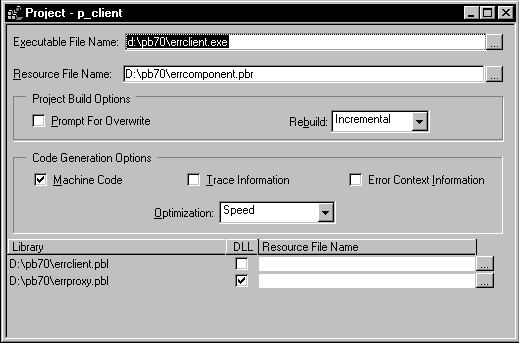
-
Specify or modify options as needed.
If you opened an existing project or a project
created using the wizard, the options already selected display in
the workspace. For information about each option, see “Executable application project
options”. -
When you have finished defining the project object,
save the object by selecting File>Save from the menu bar.PowerBuilder saves the project as an independent object in the
specified library. Like other objects, projects are displayed in
the Library painter.
Executable application project
options
The following table describes each of the options you can
specify in the Project painter for executable applications. You
can also specify most of these options in the Application Project
wizard:
| Option | What you specify |
|---|---|
| Executable File Name | Specify a name for the executable. The name must have the extension EXE on the Windows platform. If you don’t want the executable saved to your current directory, click the button next to the textbox to navigate to a different directory |
| Resource File Name | Specify a PowerBuilder resource file (PBR) for your executable if you dynamically reference resources (such as bitmaps and icons) in your scripts and you want the resources included in the executable file instead of having to distribute the resources separatelyYou can type the name of a resource file in the box or click the button next to the textbox to browse your directories for the resource file you want to includeFor more about PBRs, see “Distributing resources “ |
| Prompt for Overwrite | Select this if you want PowerBuilder to prompt you before overwriting files. PowerBuilder overwrites any files it creates when building your application. |
| Rebuild | Specify either Full or Incremental to indicate whether you want PowerBuilder to regenerate all objects in the application libraries before it creates the executable and dynamic libraries. If you choose Incremental, PowerBuilder only regenerates objects that have changed, and objects referenced by objects that have changed, since the last time you built your applicationIn most cases, as a precaution you will want to regenerate your objects before rebuilding your project |
| Machine Code | Select this if you want to generate compiled code instead of Pcode. For more information about compiled code and Pcode, see Application Techniques Selecting Machine Code enables the other code generation options in the Project painter. They cannot be set in the wizard |
| Trace Information | Select this if you want to create a trace file when you run your compiled code executable. You can use the trace file to troubleshoot or profile your application. For more information on obtaining trace information, see “Tracing execution” |
| Error Context Information | Select this if you want PowerBuilder to display context information (such as object, event, and script line number) for runtime errors. This option is not available on UNIX |
| Optimization |
On Windows Select an optimization level. You can build your application On UNIX You cannot change the level of optimization. PowerBuilder builds |
| PBD or DLL | The label for this checkbox depends on whether you are building a Pcode or machine code executable. Select the checkbox to define a library as a dynamic library to be distributed with your applicationIf you are generating Pcode, you will create PowerBuilder Dynamic Libraries (PBDs). If you are generating machine code, you will create platform-specific dynamic libraries. For more about dynamic libraries, see “Using dynamic libraries “ |
| Resource File Name | Specify a resource file for a dynamic library if it uses resources (such as bitmaps and icons) and you want the resources included in the dynamic library instead of having to distribute the resources separately. The filename cannot be specified in the wizard |
Generating machine code on UNIX
On UNIX, you must have a supported compiler in your path to
generate compiled (machine) code. You also need to add the path
to the compiler’s libraries to your library path environment
variable (LIBPATH on AIX, SHLIB_PATH on HP-UX, or LD_LIBRARY_PATH
on Solaris).
Use the pbchkcom -v command in a shell to find out whether
you have a supported compiler. Supported compilers, including required
patches, are listed in the Release Notes.
Location of temporary files
The machine code generation process will put temporary files
in a temporary directory, such as the TEMP directory on Windows
and /tmp on UNIX. You can specify a different location
in the [PB] section of your PowerBuilder initialization
file with the CODEGENTEMP variable. You may want to do this if you
have limited space on your local system.
For example:
|
1 |
CODEGENTEMP=d:pbtempdir // Windows<br />CODEGENTEMP=/net/big_server/pbtempdir // UNIX |
On UNIX, CODEGENTEMP must be in uppercase.