Defining accelerator keys
You can define accelerator keys for your controls to allow
users to change focus to the control. An accelerator key is usually
referred to as a mnemonic access key on Windows and a mnemonic on
UNIX.

On Windows On Windows, users press alt + the
accelerator key to use an accelerator (mnemonic access key). If
the currently selected control is not an editable control, users
don’t need to press the alt key.
On UNIX On UNIX, users press Meta
and the accelerator
key
to use an accelerator (mnemonic). Meta
is a logical key in the X Window System that can be mapped to an
appropriate physical key on the keyboard. Some keyboards provide
a physical key for Meta (such as [Unmapped Entity: diams ]
on Sun keyboards), but often
Meta is mapped to another physical key, such as alt.
How you define accelerator keys depends on whether the type
of control has displayed text associated with it.
 To define an accelerator key for a CommandButton,
CheckBox, or RadioButton:
-
When defining the text that displays for
the control in the General tab page, precede the accelerator key
with an ampersand character (&).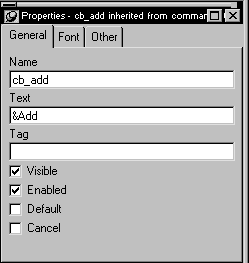
When you perform your next action (such as tab to the next
property or select the window or a control in the Layout view),
the property is set and PowerBuilder displays an underline to indicate
the accelerator key.
To define an accelerator key for a SingleLineEdit,
MultiLineEdit, ListBox, or DropDownListBox:
-
Click the control to display the control’s
properties in the Properties view. -
In the General tab page, type the letter of the
accelerator key in the Accelerator edit box. For example, to make alt+n the
accelerator for the control, type n in
the Accelerator box.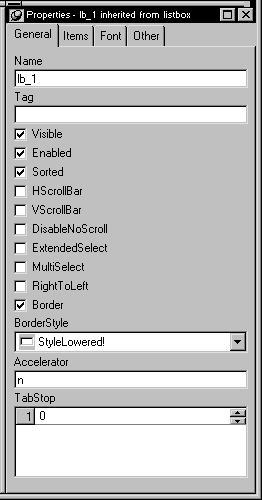
At this point you have defined the accelerator key, but the
user has no way of knowing it. So next you need to label the control. -
Place a StaticText control next to the control
that was assigned the accelerator key.When defining the text for the StaticText control, precede
the accelerator key with an ampersand character (&).When you leave the text property edit box and perform your
next action, the property is set and PowerBuilder displays an underline
to indicate the accelerator key.Now your user knows that there is an accelerator key associated
with the control.