Defining a graph’s properties
This section describes properties of a graph that are used
regardless of whether the graph is in a DataWindow object or in a window. To define the properties of
a graph, you use the graph’s Properties view. For general
information about the property pages, see “Using the graph’s
Properties view”.
Using the General page in the graph’s Properties view
You name a graph and define its basic properties on the General page in
the graph’s Properties view.
 To specify the basic properties of a graph:
-
Select Properties from the graph’s
pop-up menu and then select the General page in the Properties view.
About the model graph in the Design view
As you modify a graph’s properties, PowerBuilder updates
the model graph shown in the Design view so that you can get an
idea of the graph’s basic layout:
- PowerBuilder uses the graph title and axis labels
you specify. - PowerBuilder uses sample data (not data from your DataWindow object) to
illustrate series, categories, and values.
In Preview view, PowerBuilder displays the graph with data.
Naming a graph
You can modify graphs at runtime. To reference a graph in
code, you use its name. By default, the graph is named gr_n.
To name a graph:
-
On the General properties page for the
graph, assign a meaningful name to the graph in the Name box.
Defining a graph’s title
The title displays at the top of the graph.
To specify a graph’s title:
-
On the General properties page for the
graph, enter a title in the Title box.
 Multiline titles You can force a new line in a title by embedding ~n.
For information about specifying properties
for the title text, see “Specifying text properties
for titles, labels, axes, and legends”.
Specifying the type of graph
You can change the graph type at any time in the
development environment (To change the type at runtime, modify a
graph’s GraphType property.)
To specify the graph type:
-
On the General properties page for the
graph, select a graph type from the Graph Type drop-down list.
Using legends
A legend provides a key to your graph’s series.
To include a legend for a series in a graph:
-
On the General properties page for the
graph, specify where you want the legend to appear by selecting
a value in the Legend drop-down list.
For information on specifying text properties
for the legend, see “Specifying text properties
for titles, labels, axes, and legends”.
Specifying point of view in 3D graphs
If you are defining a 3D graph, you can specify the point
of view that PowerBuilder uses when displaying the graph.
To specify a 3D graph’s point of view:
-
On the General properties page for the
graph, adjust the point of view along the three dimensions of the
graph:- To change the perspective, move
the Perspective slider. - To rotate the graph, move the Rotation slider.
- To change the elevation, move the Elevation slider.
- To change the perspective, move
-
Define the depth of the graph (the percent the
depth is of the width of the graph) by using the Depth slider.
Sorting data for series and categories
You can specify how to sort the data for series and categories.
By default, the data is sorted in ascending order.
To specify how to sort the data for series and
categories in a graph:
-
Select Properties from the graph’s
pop-up menu and then select the Axispage in the Properties view.
-
Select the axis for which you want to specify
sorting. -
Scroll to Sort, the last option on the Axis page, and
select Ascending, Descending, or Unsorted.
Specifying text properties for titles, labels, axes, and legends
A graph can have four text elements:
- Title
- Labels for the axes
- Text that shows the values along the axes
- Legend
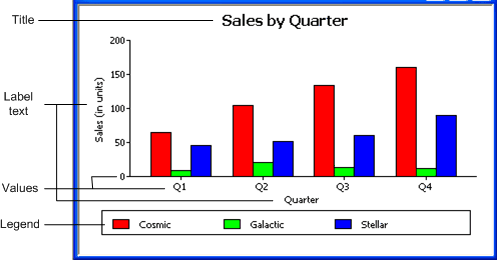
You can specify properties for each text element.
To specify text properties for the title, labels,
axis values, and legend of a graph:
-
Select Properties from the graph’s
pop-up menu and then select the Text page in the Properties view. -
Select a text element from the list in the Text Object
drop-down list.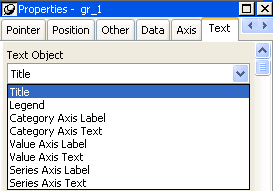
-
Specify the font and its characteristics.
Using Auto Size
With Auto Size in effect, PowerBuilder resizes the text appropriately
whenever the graph is resized. With Auto Size disabled, you specify
the font size of a text element explicitly.
To have PowerBuilder automatically size a text element
in a graph:
-
On the Text properties page for the graph,
select a text element from the list in the Text Object drop-down
list. -
Select the Autosize check box (this is the default).
To specify a font size for a text element in a
graph:
-
On the Text properties page for the graph,
select a text element from the list in the Text Object drop-down
list. -
Clear the Autosize check box.
-
Select the Font size in the Size drop-down list.
Rotating text
For all the text elements, you can specify the number of degrees
by which you want to rotate the text.
To specify rotation for a text element in a graph:
-
On the Text properties page
for the graph, select a text element from the list in the Text Object
drop-down list. -
Specify the rotation you want in the Escapement box using
tenths of a degree (450 means 45 degrees).
Changes you make here are shown in the model graph in the
Design view and in the Preview view.
Using display formats
To use a display format for a text element in
a graph:
-
On the Text properties page for the graph,
select a text element from the list in the Text Object drop-down
list. -
Type a display format in the Format box or choose
one from the pop-up menu. To display the pop-up menu, click the
button to the right of the Format box.
Modifying display expressions
You can specify an expression for the text that is used for
each graph element. The expression is evaluated at execution time.
To specify an expression for a text element in
a graph:
-
On the Text properties page for the graph,
select a text element from the list in the Text Object drop-down
list. -
Click the button next to the Display Expression box.
The Modify Expression dialog box displays.
-
Specify the expression.
You can paste functions, column names, and operators. Included
with column names in the Columns box are statistics about the columns,
such as counts and sums. -
Click OK to return to the graph’s Properties view.
Example
By default, when you generate a pie graph, PowerBuilder puts
the title at the top and labels each slice of the pie with the percentage
each slice represents of the whole. Percentages are accurate to
two decimal places.
The following graph has been enhanced as follows:
- The current date displays
in the title - The percentages are rounded to integers
- The raw data for each slice is shown in addition
to the percentages
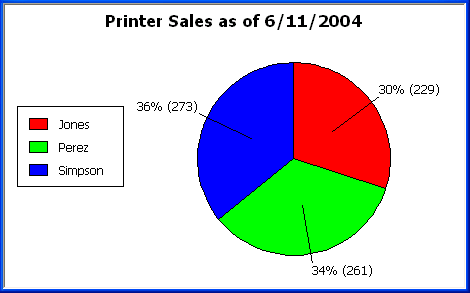
To accomplish this, the display expressions were modified
for the title and pie graph labels:
| Element | Original expression | Modified expression |
|---|---|---|
| Title | title | title + ” as of ” + date(today()) |
| Pie graph labels | if(seriescount > 1, series, string (percentofseries, “0.00%”)) |
if(seriescount > 1, series, string(percentofseries,”0%”) + ” (” + value + “)” ) |
Specifying overlap and spacing
With bar and column charts, you can specify the properties
in Table 26-8.
| Property | Meaning |
|---|---|
| Overlap | The percentage by which bars or columns overlap each other. The default is 0 percent, meaning no overlap. |
| Spacing | The amount of space to leave between bars or columns. The default is 100 percent, which leaves a space equal to the width of a bar or column. |
To specify overlap and spacing for the bars or
columns in a graph:
-
Select Properties from the graph’s
pop-up menu and then select the Graph tab. -
Specify a percentage for Overlap (% of
width) and Spacing (% of width).
Specifying axis properties
Graphs have two or three axes. You specify the axes’ properties
in the Axis page in the graph’s Properties view.
To specify properties for an axis of a graph:
-
Select Properties from the graph’s
pop-up menu and then select the Axis page in the Properties view. -
Select the Category, the Value, or the Series
axis from the Axis drop-down list.If you are not working with a 3D graph, the Series Axis options
are disabled. -
Specify the properties as described next.
Specifying text properties
You can specify the characteristics of the text that displays
for each axis. Table 26-9 shows
the two kinds of text associated with an axis.
| Type of text | Meaning |
|---|---|
| Text | Text that identifies the values for an axis. |
| Label | Text that describes the axis. You specify the label text in a painter. You can use ~n to embed a new line within a label. |
For information on specifying properties for
the text, see “Specifying text properties
for titles, labels, axes, and legends”.
Specifying datatypes
The data graphed along the Value, Category, and Series axes
has an assigned datatype. The Series axis always has the datatype
String. The Value and Category axes can have the datatypes listed
in Table 26-10.
| Axis | Possible datatypes |
|---|---|
| Both axes (for scatter graph) | Number, Date, Time |
| Value (other graph types) | Number, Date, DateTime, Time |
| Category (other graph types) | String, Number, Date, DateTime, Time |
For graphs in DataWindow objects, PowerBuilder automatically assigns
the datatypes based on the datatype of the corresponding column;
you do not specify them.
For graphs in windows, you specify the datatypes yourself.
Be sure you specify the appropriate datatypes so that when you populate
the graph (using the AddData method), the data matches the datatype.
Scaling axes
You can specify the properties listed in Table 26-11 to define the scaling
used along numeric axes.
| Property | Meaning |
|---|---|
| Autoscale | If selected (the default), PowerBuilder automatically assigns a scaling for the numbers along the axis. |
| RoundTo, RoundToUnit | Specifies how to round the end points of the axis (note that this just rounds the range displayed along the axis; it does not round the data itself). You can specify a number and a unit. The unit is based on |
| MinimumValue, MaximumValue | The smallest and largest numbers to appear on the axis (disabled if you have selected Autoscale). |
| ScaleType | Specifies linear or logarithmic scaling (common or natural). |
| ScaleValue | Specifies whether values are displayed as actual values or as a cumulative value, a percentage, or a cumulative percentage. |
Using major and minor divisions
You can divide axes into divisions. Each division is identified
by a tick mark, which is a short line that intersects an axis. In
the Sales by Printer graphs shown in “Examples”, the
graph’s Value axis is divided into major divisions of 50
units each. PowerBuilder divides the axes automatically into major
divisions.
To define divisions for an axis of a graph:
-
To divide an axis into a specific number
of major divisions, type the number of divisions you want in the
MajorDivisions box.Leave the number 0 to have PowerBuilder automatically create
divisions. PowerBuilder labels each tick mark in major divisions.
If you do not want each tick mark labeled, enter a value in the
DisplayEveryNLabels box. For example, if you enter 2, PowerBuilder labels
every second tick mark for the major divisions. -
To use minor divisions, which are divisions within
each major division, type the appropriate number in the MinorDivisions box.
To use no minor divisions, leave the number 0. When using logarithmic axes If you want minor divisions, specify 1; otherwise, specify
0.
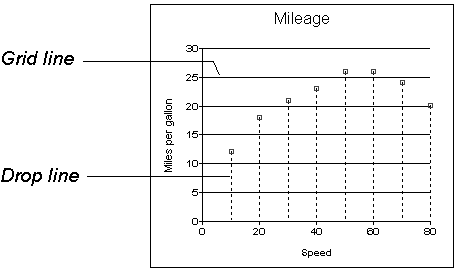
Representing divisions with grid and drop lines
You can specify lines to represent the divisions as described
in Table 26-12 and illustrated
in Figure 26-1.
| Line | Meaning |
|---|---|
| Grid line | A line that extends from a tick mark across the graph. Grid lines make graphs easier to read. |
| Drop line | A line that extends vertically from a data point to its axis (not available for all graph types). |
graph
Using line styles
You can define line styles for the components of a graph listed
in Table 26-13.
| Component | Meaning |
|---|---|
| PrimaryLine | The axis itself |
| SecondaryLine | The axis parallel to and opposite the primary axis |
| OriginLine | A grid line that represents the value zero |
| Frame | The frame for the axis in 3D graphs (disabled for 2D graphs) |
Specifying a pointer
You can specify a pointer to use when the mouse is over a
graph at runtime.
To specify a pointer for a graph:
-
Select Properties from the graph’s
pop-up menu and then select the Pointer page in the Properties view. -
Select a stock pointer from the list, or select
a CUR file containing a pointer.