Declare
a global variable
Where you are
Run the Connection
Object wizard
Modify the connection
information
Complete the login
and logout scripts
You will next examine the new connection service manager and create
a global variable to reference it. A global variable is available to all
objects in the application.
In more complex applications, you might prefer to reference the
connection service manager with local variables. This would release more
memory as soon as the local variable went out of scope. But in the
tutorial, you should keep an instance of the connection service manager
available as long as the database connection is open.
Establishing a connection
To make it possible for an application to connect to the database at
execution time, the connection service manager calls a wizard-generated
function to set properties for a Transaction object that serves as a
communications area between the application and the database.
SQLCA Transaction object
The connection service manager uses a built-in nonvisual system
object, the SQL Communications Area (SQLCA) object, as the default
Transaction object. The SQLCA object has several default properties
(including database name, login ID, and password) that are populated by
the connection service manager.
If an application communicates with multiple databases, you can
create additional Transaction objects as needed, one for each database
connection.
What is required and what is not
You must have a Transaction object to connect to a database. The
connection service manager is not required, but is used in the tutorial
because it generates Transaction object properties you would otherwise
have to type in an application script.
-
Make sure n_pbtutor_connectservice is open in the User Object
painter.Opening the connection service manager
If the n_pbtutor_connectservice object is not open in the User
Object painter, double-click n_pbtutor_connectservice in the System
Tree.The default view layout scheme for the User Object painter
includes a Script view and a Declare Instance Variables view as part
of a stack of tabbed panes. -
Make sure n_pbtutor_connectservice is selected in the first
drop-down list box of the Script view.Make sure the Constructor event is selected in the second
drop-down list box.The Script view displays the script created by the Connection
Object wizard for the Constructor event.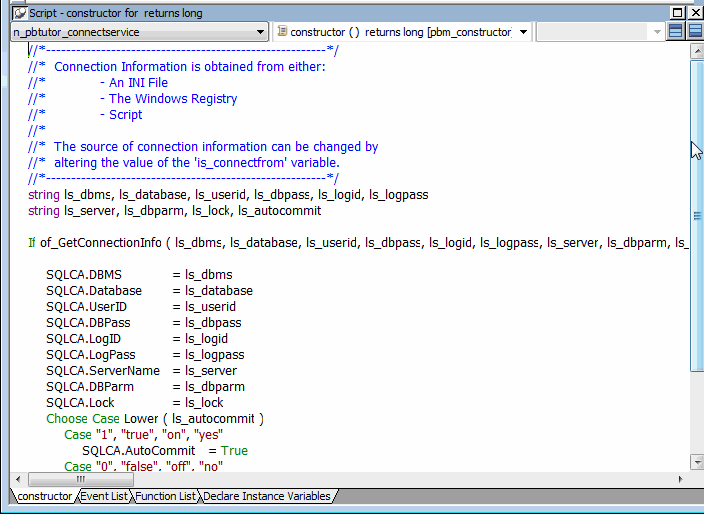
The script calls the function of_GetConnectionInfo to obtain
connection information. You will next look at the script for this
function. -
Select Functions in the first drop-down list box in a Script
view. -
Select of_GetConnectionInfo in the second drop-down list
box.The script for this function passes database connection
information to the Constructor event of the connection service
manager. The information passed depends on an instance variable. In
this case, the value of the is_connectfrom variable is 1. You will
verify this in a moment. The instance variable is available to all
functions and events of the n_pbtutor_connectservice object.Because the is_connectfrom variable is 1, the connection service
manager looks to the Database section of the named INI file to get
database connection information using ProfileString function calls. In
this case, the named INI file is pbtutor.ini. You created this file
with the Connection Object wizard.Later you modify the pbtutor.ini file and the
of_GetConnectionInfo function to make sure that user ID and password
information comes from the login window instead of the INI
file. -
Select of_ConnectDB in the second drop-down list box.
This is the connection service manager function that actually
connects to the database using the SQLCA Transaction object. You call
this function from the login window you created in Building a Login
WindowNotice that the wizard-generated script for this function also
opens a message box if the database connection fails. -
Select of_DisconnectDB in the second drop-down list box.
This is the connection service manager function that disconnects
from the database. You call this function from the application Close
event. -
Click the Declare Instance Variables tab.
Make sure Instance Variables is selected in the second drop-down
list box.Selecting Declare in Script views
The Declare Instance Variables view is a special instance of
the Script view. It displays when you select Declare in the first
drop-down list box of the Script view. However, you cannot select
Declare if a second Script view already displays instance
variables.You can now verify that the value of the is_connectfrom variable
is 1.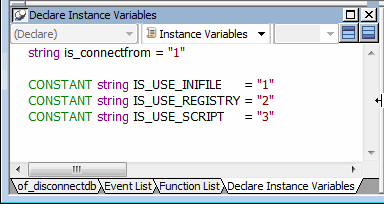
-
Select Global Variables in the second drop-down list box.
Drag n_pbtutor_connectservice from the System Tree to the Script
view.Dragging object and function names from the System Tree to the
Script view saves time and helps avoid typing errors. -
Complete the line by typing the variable name after the object
name:1n_pbtutor_connectservice gnv_connectAlthough you declare this object in the Script view for the
n_pbtutor_connectservice user object, it is available everywhere in
the application.Naming conventions for variables
To make scripts easier to read, it is best to follow a
standard naming convention. The recommended standard is to give each
variable a 2-letter or 3-letter prefix followed by an underscore
( _ ). The first letter of the prefix identifies the scope of the
variable (for example: g for global, l for local) and the next
letter or letters identify the data type (for example: s for string,
l for long, or nv for nonvisual object). -
Click the Save button in the PainterBar
or
Select File>Save from the menu bar.
PowerBuilder compiles the script and saves it. If you had typed
the global variable data type (instead of dragging it from the System
Tree) and you made a typing error, an error message would display. You
would then correct the error and select Save again.