Debugging an application
Sometimes an application does not behave the way you think
it will. Perhaps a variable is not being assigned the value you
expect, or a script does not perform as desired. In these situations,
you can examine your application by running it in debug mode.
When you run the application in debug mode, PowerBuilder stops
execution before it executes a line containing a breakpoint (stop).
You can then step through the application and examine its state.
 To debug an application:
-
Open the debugger.
-
Set breakpoints at places in the application where
you have a problem. -
Run the application in debug mode.
-
When execution is suspended at a breakpoint, look
at the values of variables, examine the properties of objects in
memory and the call stack, or change the values of variables. -
Step through the code line by line.
-
As needed, add or modify breakpoints as you run
the application. -
When you uncover a problem, fix your code and
run it in the debugger again.
 Debugging distributed applications You can debug a PowerBuilder component deployed to EAServer.
For more information, see the chapter on building EAServer components
in Application Techniques
.
Starting the debugger
To open the debugger:
-
Do one of the following:
- In
the System Tree, highlight a target and select Debug from the pop-up
menu - Click the Debug or Select and Debug button on the
PowerBar - Select Run>Debug or Run>Select
and Debug from the menu bar
The Debug button opens the debugger for the last debugged
or run target. The name of the current target is displayed in the
Debug button tool tip. The Select and Debug button opens a dialog
box that lets you select the target to be debugged. - In
Views in the debugger
The debugger contains several views. Each view shows a different
kind of information about the current state of your application
or the debugging session. Table 30-1 summarizes what each view shows and
what you can do from that view.
| View | What it shows | What you can do |
|---|---|---|
| Breakpoints | A list of breakpoints with indicators showing whether the breakpoints are currently active or inactive |
Set, enable, disable, and clear breakpoints, set a condition for a breakpoint, and show source for a breakpoint in the Source view. |
| Call Stack | The sequence of function calls leading up to the function that was executing at the time of the breakpoint, shown as the script and line number from which the function was called |
Examine the context of the application at any line in the call stack. |
| Instances | Instances of remote objects and their current status |
Change the context of the debugging session to a different instance. This view has content only if you are debugging a remote component. |
| Objects in Memory | An expandable list of objects currently in memory |
View the names and memory locations of instances of each memory object and property values of each instance. This view is not used if you are debugging a remote component. |
| Source | The full text of a script | Go to a specific line in a script, find a string, open another script, including ancestor and descendent scripts, manage breakpoints, and use TipWatch and QuickWatch. |
| Source Browser | An expandable hierarchy of objects in your application |
Select any script in your application and display it in the Source view. |
| Source History | A list of the scripts that have been displayed in the Source view |
Select any script in the Source History and display it in the Source view. |
| Variables | An expandable list of all the variables in scope |
Select which kinds of variables are shown in the view, change the value of a variable, and set a breakpoint when a variable changes. You cannot change the value of a variable in a remote component. |
| Watch | A list of variables you have selected to watch as the application proceeds |
Change the value of a variable, set a breakpoint when a variable changes, and add an arbitrary expression to the Watch view. |
Changing Variable views
The default debugger layout contains a separate view for each
variable type in a stacked pane. You can combine two or more Variables
views in a single pane. For example, you might want to combine local
and global variables in a single view that you keep at the top of
the stacked pane.
To display multiple variable types in a single
view:
-
Display the pop-up menu for a pane that
contains a Variables view you want to change. -
Click the names of the variable types you want
to display.A checkmark displays next to selected variable types. The
pop-up menu closes each time you select a variable type or clear
a checkmark, so you need to reopen the menu to select an additional
variable type.When you select or clear variable types, the tab for the pane
changes to show the variable types displayed on that pane.
Setting breakpoints
A breakpoint is a point in your application code where you
want to interrupt the normal execution of the application while
you are debugging. If you suspect a problem is occurring in a particular
script or function call, set a breakpoint at the beginning of the
script or at the line where the function is called.
When you close the debugger, any breakpoints you set are written
to your PowerBuilder initialization file and are available when
you reopen the debugger.
Setting a simple breakpoint
This procedure describes setting a breakpoint in the Source
view in the debugger. You can also set a breakpoint by selecting
Add Breakpoint from the pop-up menu in the Script view when you
are not running the debugger.
To set a breakpoint on a line in a script:
-
Display the script in a Source view and
place the cursor where you want to set the breakpoint.For how to change the script shown in the
Source view, see “Using the Source view”. -
Double-click the line or select Add Breakpoint
from the pop-up menu.PowerBuilder sets a breakpoint and a red circle displays at
the beginning of the line. If you select a line that does not contain
executable code, PowerBuilder sets the breakpoint at the beginning
of the next executable statement.
Setting special breakpoints
Breakpoints can be triggered when a statement has been executed
a specified number of times (an occasional breakpoint), when a specified
expression is true (a conditional breakpoint), or when the value
of a variable changes.
You use the Edit Breakpoints dialog box to set and edit occasional
and conditional breakpoints. You can also use it to set a breakpoint
when the value of a variable changes. The Edit Breakpoints dialog
box opens when you:
- Click the Edit Stop button
on the PainterBar - Select Breakpoints from the pop-up menu in the Source,
Variables, Watch, or Breakpoints view - Select Edit>Breakpoints from the menu bar
- Double-click a line in the Breakpoints view
Setting occasional and conditional breakpoints
If you want to check the progress of a loop without interrupting
execution in every iteration, you can set an occasional breakpoint
that is triggered only after a specified number of iterations. To
specify that execution stops only when conditions you specify are
met, set a conditional breakpoint. You can also set both occasional
and conditional breakpoints at the same location.
- If you
specify an occurrence Each time PowerBuilder passes through the specified location,
it increments a counter by one. When the counter reaches the number
specified, it triggers the breakpoint and resets the counter to
zero. - If you specify a condition Each time PowerBuilder passes through the specified location,
it evaluates the expression. When the expression is true, it triggers
the breakpoint. - If you specify both an occurrence and
a condition Each time PowerBuilder passes through the specified location,
it evaluates the expression. When the expression is true, it increments
the counter. When the counter reaches the number specified, it triggers
the breakpoint and resets the counter to zero.
For example, if you specify an occurrence of 3 and the condition notisNull(val),
PowerBuilder checks whether val is NULL each
time the statement is reached. The breakpoint is triggered on the
third occurrence of a non-NULL val, then again
on the sixth occurrence, and so forth.
To set an occasional or conditional breakpoint:
-
On the Location tab in the Edit Breakpoints
dialog box, specify the script and line number where you want the
breakpoint.You can select an existing location or select New to enter
a new location. Set a simple breakpoint first You must specify a line that contains executable code. Set
a simple breakpoint on the line before opening the Edit Breakpoints
dialog box to ensure the format and line number are correct. -
Specify an integer occurrence, a condition, or
both.The condition must be a valid boolean PowerScript expression
(if it is not, the breakpoint is always triggered). PowerBuilder
displays the breakpoint expression in the Edit Breakpoints dialog
box and in the Breakpoints view. When PowerBuilder reaches the location
where the breakpoint is set, it evaluates the breakpoint expression
and triggers the breakpoint only when the expression is true.
Setting a breakpoint when a variable changes
You can interrupt execution every time the value of a variable
changes. The variable must be in scope when you set the breakpoint.
To set a breakpoint when a variable changes:
-
Do one of the following:
- Select
the variable in the Variables view or Watch view and select Break
on Change from the pop-up menu. - Drag the variable from the Variables view or Watch
view to the Breakpoints view. - Select New on the Variable tab in the Edit Breakpoints
dialog box and specify the name of a variable in the Variable box.
The new breakpoint displays in the Breakpoints view and in
the Edit Breakpoints dialog box if it is open. PowerBuilder watches
the variable during execution and interrupts execution when the
value of the variable changes. - Select
Disabling and clearing breakpoints
If you want to bypass a breakpoint for a specific debugging
session, you can disable it and then enable it again later. If you
no longer need a breakpoint, you can clear it.
To disable a breakpoint:
-
Do one of the following:
- Click
the red circle next to the breakpoint in the Breakpoints view or Edit
Breakpoints dialog box - Select Disable Breakpoint from the pop-up menu in
the Source view - Select Disable from the pop-up menu in the Breakpoints
view
The red circle next to the breakpoint is replaced with a white
circle.You can enable a disabled breakpoint from the pop-up menus
or by clicking the white circle. - Click
Disabling all breakpoints To disable all breakpoints, select Disable All from the pop-up
menu in the Breakpoints view.
To clear a breakpoint:
-
Do one of the following:
- Double-click
the line containing the breakpoint in the Source view - Select Clear Breakpoint from the pop-up menu in
the Source view - Select Clear from the pop-up menu in the Breakpoints
view - Select the breakpoint in the Edit Breakpoints dialog
box and select Clear
The red circle next to the breakpoint disappears.
- Double-click
Clearing all breakpoints To clear all breakpoints, select Clear All in the Edit Breakpoints
dialog box or from the pop-up menu in the Breakpoints view.
Running in debug mode
After you have set some breakpoints, you can run the application
in debug mode. The application executes normally until it reaches
a statement containing a breakpoint. At this point it stops so that
you can examine the application. After you do so, you can single-step
through the application, continue execution until execution reaches
another breakpoint, or stop the debugging run so that you can close
the debugger and change the code.
To run an application in debug mode:
-
If necessary, open the debugger by clicking
the Debug or Select and Debug button.The Debug button opens the debugger for the target you last
ran or debugged. Use the Select and Debug button if you want to
debug a different target in the workspace. -
Click the Start button in the PainterBar or select
Debug>Start from the menu bar.The application starts and runs until it reaches a breakpoint.
PowerBuilder displays the debugger, with the line containing the
breakpoint displayed in the Source view. The yellow arrow cursor
indicates that this line contains the next statement to be executed.
You can now examine the application using debugger views and tools.For more information, see “Examining an application
at a breakpoint” and “Stepping through an application”.
To continue execution from a breakpoint:
-
Click the Continue button in the PainterBar
or select Debug>Continue from the menu barExecution begins at the statement indicated by the yellow
arrow cursor and continues until the next breakpoint is hit or until
the application terminates normally.
To terminate a debugging run at a breakpoint:
-
Click the Stop Debugging button in the
PainterBar or select Debug>Stop from the menu barPowerBuilder resets the state of the application and all the
debugger views to their state at the beginning of the debugging
run. You can now begin another run in debug mode, or close the debugger.
Cleaning up When you terminate a debugging run or close the debugger without terminating
the run, PowerBuilder executes the application’s close
event and destroys any objects, such as autoinstantiated local variables,
that it would have destroyed if the application had continued to
run and exited normally.
Examining an application at a breakpoint
When an application is suspended at a breakpoint, use QuickWatch,
TipWatch, and the Variables, Watch, Call Stack, and Objects in Memory
views to examine its state.
About icons used in debugging views The Variables, Watch, and Objects in Memory views use many
of the icons used in the PowerBuilder Browser as well as some additional
icons: I represents an Instance; F, a field; A, an array; and E,
an expression.
Examining variable values
The debugger provides three different ways to examine the
values of variables: TipWatch, QuickWatch, and the Variables view.
TipWatch
TipWatch is a quick way to get the current value of a variable
of a simple datatype. When execution stops at a breakpoint, you
can place the edit cursor over a variable in the Source view to
display a pop-up tip window that shows the current value of that
variable. You can also select a simple expression to display its
current value.
TipWatch has some limitations: if the variable you select
is an object type, the tip window shows only an internal identifier.
For array types, it shows {…} to
indicate that more information is available. To show complete information for
object type and array type variables, use QuickWatch instead.
TipWatch does not evaluate function, assignment, or variable
value modification expressions. If TipWatch cannot parse the string
you select, the pop-up window does not display.
Remote debugging When you are debugging a remote component, Tip Watch does
not evaluate expressions or indirect variables.
QuickWatch
QuickWatch provides the current value of simple variables
and detailed information about object variables, including the values
of all fields in the variable. QuickWatch can also evaluate function
expressions, and you can use it to change the values of variables,
evaluate expressions, and add variables and expressions to the Watch
view.
Exercise caution when evaluating expressions QuickWatch evaluates all kinds of expressions, including functions,
in local debugging. If you select a function and activate QuickWatch,
the function is executed. This may have unexpected results. For
example, if you select dw_1.print() and
activate QuickWatch, the DataWindow is printed.
To open the QuickWatch dialog box:
-
When execution stops at a breakpoint, move
the edit cursor to a variable or select an expression in the Source
view, and do one of the following:- Select QuickWatch
from the Debug or pop-up menu - Press Shift+F9
- Select QuickWatch
To change the value of a variable from the QuickWatch
dialog box:
-
Select an item in the tree view and do
one of the following:- Click Change Value
- Double-click the tree view item

-
In the Modify Variable dialog box, type a new
value for the variable in the New Value box, or select the Null
check box to set the value of the variable to null,
and click OK. -
Close the QuickWatch dialog box and continue debugging
the application with the variable set to the new value.
To evaluate an expression in the QuickWatch dialog
box and add it to the Watch view:
-
Change the variable or expression in the
Expression box. -
Click Reevaluate to display the new value in the
tree view. -
(Optional) Click Add Watch to add the expression
to the Watch view.
Remote debugging When you are debugging a remote component, expressions and
indirect variables are not evaluated, and you cannot modify variable
values.
Using Variables views
Each Variables view shows one or more types of variables in
an expandable outline. Double-click the variable names or click
on the plus and minus signs next to them to expand and contract
the hierarchy. If you open a new Variables view, it shows all variable
types.
| Variable type | What the Variables view shows |
|---|---|
| Local | Values of variables that are local to the current script or function |
| Global | Values of all global variables defined for the application and properties of all objects (such as windows) that are open |
| Instance | Properties of the current object instance (the object to which the current script belongs) and values of instance variables defined for the current object |
| Parent | Properties of the parent of the current instance |
| Shared | Objects, such as application, window, and menu objects, that have been opened and the shared variables associated with them |
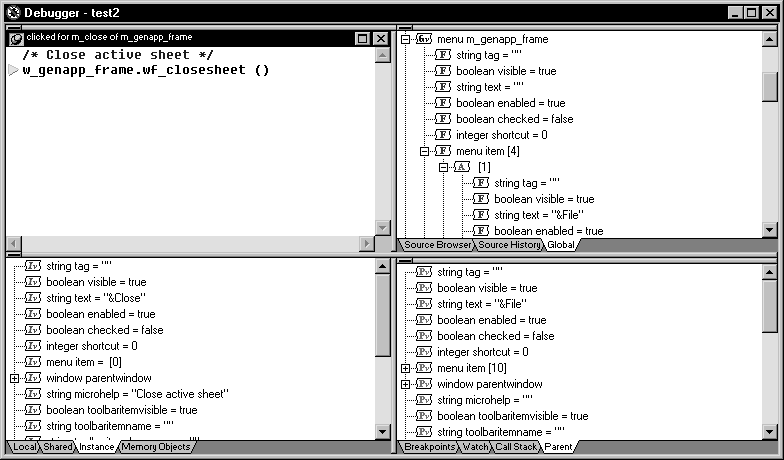
About Instance and Parent variables
In the following illustration, an application has stopped
at a breakpoint in the script for the Clicked event for the Close
menu item on a frame’s File menu. The Instance Variables
view shows the properties of the current instance of the Close menu
item. The Parent Variables view shows the properties of its parent, an
instance of the File menu. Navigating through the hierarchy in the
Global Variables view shows the same objects.
Watching variables and expressions
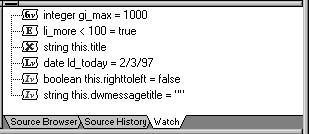
The Watch view lets you monitor the values of selected variables
and expressions as the application runs.
If the variable or expression is in scope, the Watch view
shows its value. Empty quotes indicate that the variable is in scope
but has not been initialized. An X in the Watch view indicates that
the variable or expression is not in scope.
Setting variables and expressions in the Watch
view
You can select variables you want to watch as the application
runs by copying them from a Variables view. You can also set a watch
on any PowerScript expression. When you close the debugger, any
watch variables and expressions you set are saved.
Using QuickWatch You can also add variables and expressions to the Watch view
from the QuickWatch dialog box. See “QuickWatch”.
To add a variable to the Watch view:
-
Select the variable in the Variables view.
-
Do one of the following:
- Drag
the variable to the Watch view - Click the Add Watch button on the PainterBar
- Select Debug>Add Watch from the menu bar
PowerBuilder adds the variable to the watch list.
- Drag
To add an expression to the Watch view:
-
Select Insert from the pop-up menu.
-
Type any valid PowerScript expression in the New
Expression dialog box and click OK.PowerBuilder adds the expression to the watch list.
To edit a variable in the Watch view:
-
Select the variable you want to edit.
-
Double-click the variable, or select Edit Variable
from the pop-up menu. -
Type the new value for the variable in the Modify
Variable dialog box and click OK.
To edit an expression in the Watch view:
-
Select the expression you want to edit.
-
Double-click the expression, or select Edit Expression
from the pop-up menu. -
Type the new expression in the Edit Expression
dialog box and click OK.
To clear variables and expressions from the Watch
view:
-
Select the variable or expression you want
to delete. -
Do one of the following:
- Select
Clear from the pop-up menu - Click the Remove Watch button on the PainterBar
- Select Debug>Remove Watch from the menu
bar
- Select
To clear all variables and expressions from the
Watch view:
-
Select Clear All from the pop-up menu
Monitoring the call stack
The Call Stack view shows the sequence of function calls leading
up to the script or function that was executing at the time of the
breakpoint. Each line in the Call Stack view displays the name of
the script and the line number from which the call was made. The
yellow arrow shows the script and line where execution was suspended.
You can examine the context of the application at any line
in the call stack.
To show a different context from the Call Stack
view:
-
Select a line in the Call Stack view.
-
Do one of the following:
- Double-click
the line - Select Set Context from the pop-up menu
- Drag the line into the Source view
A green arrow indicates the script that you selected. The
Source view shows the script and line number you selected, and the
Variables and Watch views show the variables and expressions in
scope in that context.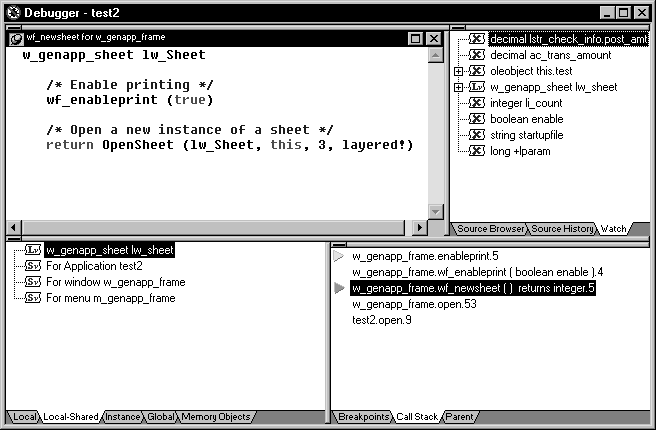
- Double-click
Examining objects in memory
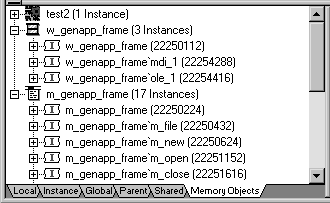
The Objects in Memory view shows an expandable list of objects
currently in memory. Double-click the name of an object or click
the plus sign next to it to view the names and memory locations
of instances of each object and property values of each instance.
Using the Source view
The Source view displays the full text of a script. As you
run or step through the application, the Source view is updated
to show the current script with a yellow arrow indicating the next
statement to be executed.
Multiple Source views
You can open more than one source view. If there are multiple
source views open, only the first one opened is updated to show
the current script when the context of an application changes.
Copying from the Source view
When text is selected in the Source view, you can select Copy
from the pop-up menu in the Source view to copy the string to the
clipboard. You can then paste the string into another dialog box
to search for the string, insert a watch, or add a conditional breakpoint.
Changing the Source view
From the pop-up menu, you can navigate backward and forward
through the scripts that have been opened so far, open ancestor
and dependent scripts, and go to a specific line in the current
script. There are several other ways to change the script from other
views or from the menu bar.
To change the script displayed in a Source view:
-
Do one of the following:
- Drag
the name of a script to the Source view from the Call Stack, Source
Browser, or Source History views - Select a line and then select Open Source from the
pop-up menu in the Breakpoints, Source Browser, or Source History
views - Select Edit>Select Script from the menu
bar
- Drag
To find a specified string in the Source view:
-
Select Find from the pop-up menu, or select
Edit>Find from the menu bar.The Find Text dialog box opens.
-
Type the string in the Find box and check the
search options you want.
Using the Source Browser view
The Source Browser shows all the objects in your application
in an expandable hierarchy. It provides a view of the structure
of the application and a quick way to open any script in the Source
view.
To open a script from the Source Browser:
-
Double-click the object that the script
belongs to or click the plus sign next to the object to expand it. -
Do one of the following:
- Double-click
the script - Select the script and select Open Source from the
pop-up menu - Drag the script onto a Source view
When you double-click or select Open Source, a new Source
view opens if there was none open. If several Source views are open,
the script displays in the view that was used last. - Double-click
Using the Source History view
The Source History view lists all the scripts that have been
opened in the current debugging session. Use the same techniques
as in the Source Browser view to display a selected script in the
Source view.
Source History limit The Source History view shows up to 100 scripts and is not cleared
at the end of each debugging run. It is cleared when you close the
debugger, or you can clear the list from the pop-up menu.
Stepping through an application
When you have stopped execution at a breakpoint, you can use
several commands to step through your application code and use the
views to examine the effect of each statement. As you step through
the code, the debugger views change to reflect the current context
of your application and a yellow arrow cursor indicates the next
statement to be executed.
Updating the Source view When the context of your application changes to another script,
the Source view is updated with the new context. If you have multiple
Source views open, only the first one opened is updated.
Single-stepping through an application
You can use either Step In or Step Over to step through an
application one statement at a time. They have the same result except
when the next statement contains a call to a function. Use Step
In if you want to step into a function and examine the effects of
each statement in the function. Use Step Over to execute the function
as a single statement.
To step through an application entering functions:
-
Click the Step In button in the PainterBar,
or select Debug>Step In from the menu bar.
To step through an application without entering
functions:
-
Click the Step Over button in the PainterBar,
or select Debug>Step Over from the menu bar.
Using shortcut keys To make it easier to step through your code, the debugger
has standard keyboard shortcuts for Step In, Step Out, Step Over,
Run To Cursor, and Continue. If you prefer to use different shortcut
key combinations, select Tools>Keyboard Shortcuts to define
your own.
Stepping out of a function
If you step into a function where you do not need to step
into each statement, use Step Out to continue execution until the
function returns.
To step out of a function:
-
Click the Step Out button in the PainterBar,
or select Debug>Step Out from the
menu bar.
Stepping through multiple statements
As you step through an application, you might reach sections
of code that you are not interested in examining closely. The code
might contain a large loop, or it might be well-tested code that
you are confident is free of errors. You can use Run To Cursor to
select a statement further down in a script or in a subsequent script
where you want execution to stop.
To step through multiple statements:
-
Click on the line in the script where you
want to resume single stepping. -
Click the Run To Cursor button in the PainterBar,
or select Debug>Run To Cursor from the menu bar.PowerBuilder executes all intermediate statements and the
yellow arrow cursor displays at the line where you set the cursor.
Bypassing statements
You can use Set Next Statement to bypass a section of code
that contains a bug, or to test part of an application using specific
values for variables. Execution continues from the statement where
you place the cursor. Be cautious when you use Set Next Statement,
because results may be unpredictable if, for example, you skip code
that initializes a variable.
To set the next statement to be executed:
-
Click on the line in the script where you
want to continue execution. -
Click the Set Next Statement button in the PainterBar,
or select
Debug>Set Next Statement from the menu
bar. -
If necessary, change the values of variables.
-
Continue execution using Continue, Step In, or
Step Over.If you select Continue, PowerBuilder begins execution at the
statement you specified and continues to the next breakpoint. If
you select Step In or Step Over, PowerBuilder sets the next statement
and displays the yellow arrow cursor at the line where you set the
cursor.
Changing a variable’s value
As you step through the application, you can change the values
of variables that are in scope. You may want to do this to examine
different flows through the application, to simulate a condition
that is difficult to reach in normal testing, or if you are skipping
code that sets a variable’s value.
Limitations You cannot change the values of enumerated variables, and
you cannot change the value of any variable when you are debugging
a remote component.
To change the value of a variable:
-
Select the variable in the Variables view
or the Watch view. -
From the pop-up menu, select Edit Variable.
-
Type a value for the variable or select the Null
check box and click OK.The value you enter must conform to the type of the variable.
If the variable is a string, do not enclose the string in quotes.
When you continue execution, the new value is used.
Fixing your code
If you find an error in a script or function during a debugging
session, you must close the debugger before you fix it. After you
have fixed the problem, you can reopen the debugger and run the
application again in debug mode. The breakpoints and watchpoints
set in your last session are still defined.
Debugging windows opened as local variables
One way to open a window is by declaring a local variable
of type window and opening it through a string. For example:
|
1 |
window mywin<br />string named_window<br />named_window = sle_1.Text<br />Open(mywin, named_window) |
The problem
Normally, you cannot debug windows opened this way after the
script ends because the local variable (mywin in
the preceding script) goes out of scope when the script ends.
The solution
If you want to debug windows opened this way, you can declare
a global variable of type window and assign it the local variable.
If, for example, GlobalWindow is a global window
of type window, you could add the following line to the end of the
preceding script:
|
1 |
GlobalWindow = mywin |
You can look at and modify the opened window through the global
variable. When you have finished debugging the window, you can remove
the global variable and the statement assigning the local to the
global.
Just-in-time debugging
If you are running your application in regular mode (using
the Run button) and you notice that the application is behaving
incorrectly, just-in-time debugging lets you switch to debug mode
without terminating the application.
When you open the debugger while running an application, the
application does not stop executing. The Source,
Variables, Call Stack, and Objects in Memory views are all empty
because the debugger does not have any context. To suspend execution
and examine the context in a problem area, open an appropriate script
and set breakpoints, then initiate the action that calls the script.
If just-in-time debugging is enabled and a system error occurs
while an application is running in regular mode, the debugger opens
automatically, showing the context where the error occurred.
You can also use the DebugBreak function
to break into the debugger.
You must enable just-in-time debugging before you run your
application to take advantage of this feature.
To enable just-in-time debugging:
-
Select Tools>System Options.
-
Check the Just In Time Debugging check box and
click OK.
To debug an application while running in regular
mode:
-
Enable just-in-time debugging.
-
Run the application.
-
Click the PowerBuilder button on the Windows Taskbar.
-
Click the Debug button in the dialog box that
displays. -
Open a script in the Source view and set breakpoints.
The application is suspended when it hits a breakpoint and
the Source, Variable, Call Stack, and Objects in Memory views show
the current context. You can now debug the application.