Creating an OLE column
This section describes how to create an OLE column in a
DataWindow object. The steps are illustrated using a table that you
can create in the Database painter. It must contain at least two
columns, id and object:
-
The id column is an integer and serves as the table’s
key. -
The object column is a blob datatype and contains OLE
objects associated with several OLE servers.
To create the database table
-
In the Database painter, create a table to hold the blob
(binary large-object) data.The table must have at least two columns: a key column and a
column with the blob datatype. The actual datatype you choose
depends on your DBMS. For example, in SQL Anywhere, choose long
binary as the datatype for the blob column. For information about
datatypes, see your DBMS documentation. -
Define the blob columns as allowing NULLs (this allows you
to store a row that does not contain a blob).
Adding a blob column to the DataWindow
object
The following procedure describes how to add a blob column to a
DataWindow object.
To add a blob column to a new DataWindow object
-
Create a new DataWindow object.
-
Specify the table containing the blob as the data source for
the DataWindow object.Be sure to include the key column in the data source. You
cannot include the blob column in the data source; if you try, a
message tells you that its datatype requires the use of an
embedded SQL statement. You add the blob column later in the
DataWindow painter workspace. (If you use Quick Select, the blob
column is not listed in the dialog box.) -
Select Insert>Control>OLE Database Blob and click
where you want the blob column in the Design view.The Database Binary/Text Large Object dialog box
displays: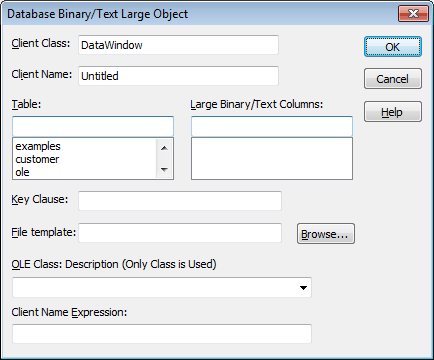
Setting properties for the blob
column
The following procedure describes the properties you need to set
for the blob column.
To set properties for a blob column
-
(Optional) Enter the client class in the Client Class box.
The default is DataWindow.This value is used in some OLE server applications to build
the title that displays at the top of the server window. -
(Optional) Enter the client name in the Client Name box. The
default is Untitled.This value is used in some OLE server applications to build
the title that displays in the title bar of the server
window. -
In the Table box, select the database table that contains
the blob database column you want to place in the DataWindow
object.The names of the columns in the selected table display in
the Large Binary/Text Columns list. -
In the Large Binary/Text Columns box, select the column that
contains the blob datatype from the list. -
If necessary, change the default key clause in the Key
Clause box.PowerBuilder uses the key clause to build the WHERE clause
of the SELECT statement used to retrieve and update the blob
column in the database. It can be any valid WHERE clause. -
Use colon variables to specify DataWindow columns. For
example, if you enter this key clause:1id = :idthe WHERE clause will be:
1WHERE id = :id -
Identify the OLE server application by doing one of the
following:-
If you always want to open the same file in the OLE
server application, enter the name of the file in the File
Template box.For example, to specify a particular Microsoft Word
document, enter the name of the DOC file. If the file is not
on the current path, enter the fully qualified name.Use the Browse button to find the file
If you do not know the name of the file you want to
use, click the Browse button to display a list of available
files. Select the file you want from the resulting
window. -
If you do not want to open the same file each time,
select an OLE server application from the OLE Class:
Description drop-down list.When the server does not match the OLE blob
dataIf you specify a server that does not match the OLE
blob object or if your database contains objects belonging
to different servers, the OLE mechanism can usually handle
the situation. It looks for the server specified in the
object and starts it instead of the server you
specified.
-
-
Enter text or an expression that evaluates to a string in
the Client Name Expression box.The server might use this expression in the title of the
window in the OLE server application. The expression you specify
can identify the current row in the DataWindow object.Use an expression to make sure the name is unique
To make sure the name is unique, you should use an
expression. For example, you might enter the following
expression to identify a document (where id is the integer key
column):1"Document " + String(id) -
Click OK.
PowerBuilder closes the dialog box. The blob column is
represented by a box labeled Blob in the Design view. -
Save the DataWindow object.
The following screenshot shows what a completed Definition
page for a Blob object in a table called ole looks like in the
Properties view: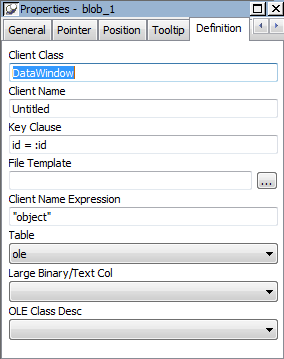
Making the blob column
visible
If the blob column is invisible in the DataWindow object until
you activate the OLE server, you can make it easy to find the blob
column by adding a border to the object.
Previewing an OLE column
Before using the DataWindow object in an application, you should
preview it in the Preview view or in preview mode to see how it
works.
To preview an OLE column in preview mode
-
Select File>Run/Preview from the menu bar and select the
DataWindow object. -
Click the Insert Row button.
PowerBuilder adds a blank row.
-
In the blank row, enter a value in the key column.
-
Double-click the column that contains the blob
datatype.The OLE server application starts and displays the file you
specified in the File Template box, or an empty workspace if you
specified only the OLE server name. -
Review the file in the OLE server application and make
changes if you want.When you use an OLE column to access an OLE server
application, the server application adds an item to its File menu
that allows you to update the data in the server application and
in the client (the DataWindow object). The text of the menu item
depends on the OLE server application. In most applications, it is
Update. -
Select the menu item in the OLE server that updates the OLE
client with the modifications.In the example, you would select Update from the File menu
in Microsoft Word. The OLE server application sends the updated
information to the DataWindow object. -
Close the file in the server application (typically by
selecting Close from the File menu). -
To save the blob data in the database, click the Save
Changes button in the PainterBar.The new row, including the key value and the blob, is stored
in the database.Later, after you retrieve the rows from the database, you
can view and edit the blob by double-clicking it, which invokes
the OLE server application and opens the stored document. If you
make changes and then update the database, all the modified OLE
columns are stored in the database.