Create a new
workspace
Where you are
Specify an icon for
the application
Change the size of
the main window
The workspace is where you build, edit, debug, and run PowerBuilder
targets. You can build several targets within a single workspace.
Now you start PowerBuilder and create a new workspace.
First read the Release Bulletin for this release
Any last-minute items are documented in the Release Bulletin. To
make sure you have all the files necessary to complete the tutorial, see
Setting up for the
tutorial.
-
Double-click the PowerBuilder icon (representing PB190.EXE) in
%AppeonInstallPath%PowerBuilder [version]or
Select All Programs>Appeon>PowerBuilder
[version]>PowerBuilder [version] from the Windows Start menu.The Welcome to PowerBuilder dialog box displays.
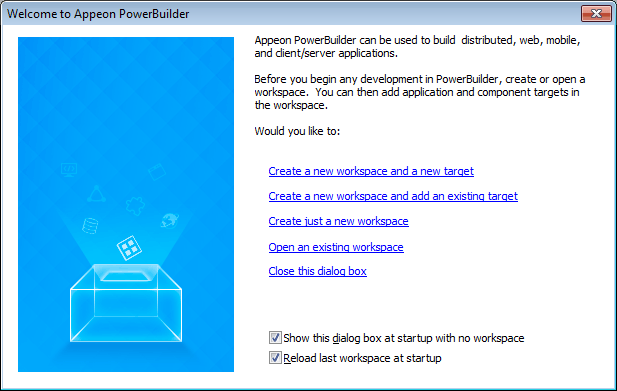
The Welcome to PowerBuilder dialog box allows you create a new
workspace and add a new target or an existing target to the
workspace.If you do not want PowerBuilder to display the dialog box
againYou can leave the “Show this dialog box at startup with no
workspace” check box unchecked to keep PowerBuilder from displaying
the welcome dialog box every time you start PowerBuilder. Select the
“Reload last workspace at startup” check box to load the most
recently used workspace each time you start a PowerBuilder session.
Then click “Close this dialog box”.The PowerBuilder development environment displays.
If this is the first time you are opening PowerBuilder on your
machine, you see only a top-level entry in the System Tree to indicate
that no workspace is currently open. Otherwise, the System Tree might
show a workspace with targets and objects in it.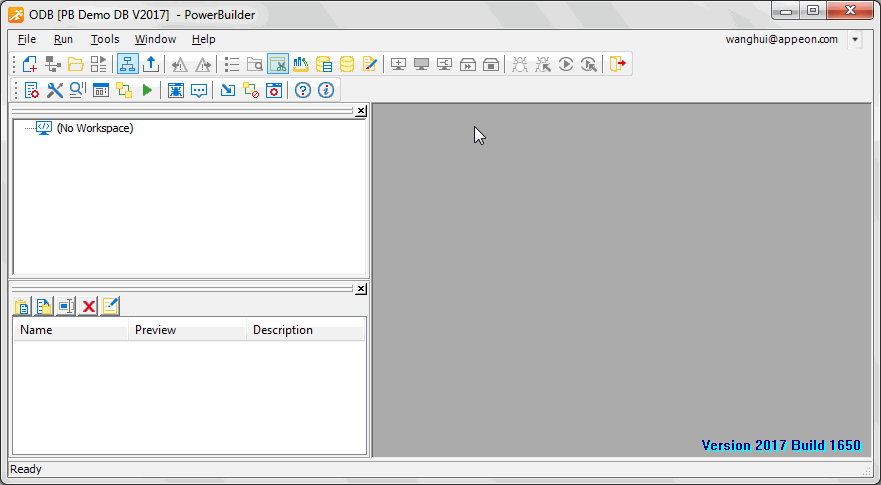
-
Select New from the File menu
or
Click the New button in the PowerBar.
The Workspace page of the New dialog box displays.
PowerBuilder displays the page of the New dialog box that was
used before the dialog box was last closed. In this exercise, make
sure that the Workspace page of the New dialog box displays.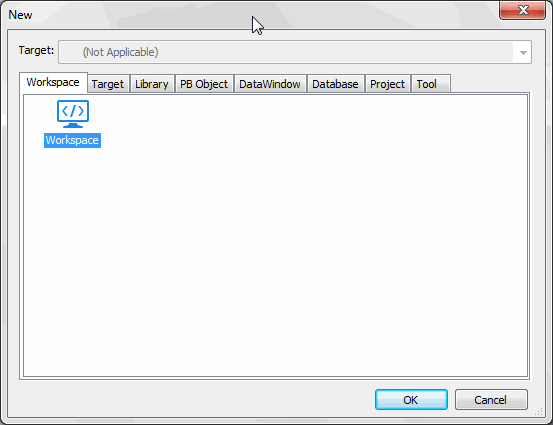
-
Select Workspace from the Workspace page of the New dialog
box.Click OK.
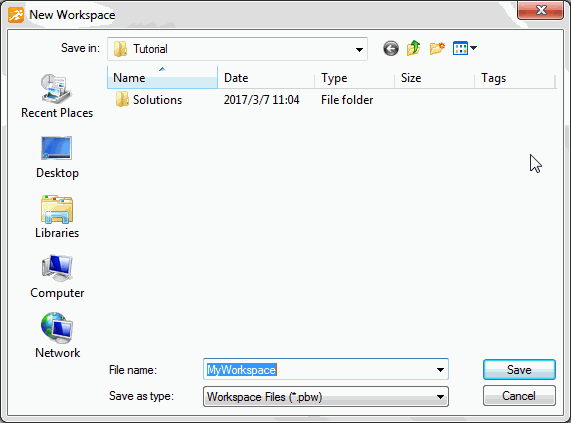
The New Workspace dialog box displays.
-
Choose the tutorial folder.
If you have created a workspace before, the dialog opens to the
location of the most recently-used workspace. For this new workspace,
change the location to the path described in the next
paragraph.If this is your first workspace, the New Workspace dialog box
opens to %SystemDrive%Users[username]Documents. Navigate
from this point to AppeonPowerBuilder [version]Tutorial. The solutions
for the tutorial are in the Solutions subfolder, but you will create
your own solutions as you work your way through the tutorial. -
Type MyWorkspace in the File name text box.
-
Click Save.
The New Workspace dialog box closes and the workspace you
created appears as the first item in the System Tree.