Could not find resource file
Symptom
The images are missing when a PowerBuilder application is deployed
using PBC with a PBR file. When you deploy the same application using
PowerBuilder IDE, you get the error “Could not find resource
file.”
For example, if you create an application that contains the
following files:

C:app est.pbt
C:app est.pbl
C:appimagesabout.ico
C:appimages est.pbr
If the content in the test.pbr file is “about.ico”, then you can
reproduce this problem when you deploy this application.
Environment
PowerBuilder 2017 or later
Cause
This is because the path of the image in the PBR file is
incorrect.
The path is relative to where the PBT file is located, so
“about.ico” points to the file c:appabout.ico. However, the image file
is not located in this path thus causing the problem.
Solution
Solution #1: Change the relative path of the
image in test.pbr.
The user who encountered this problem solved it in the following
steps:
In the PBR file, change “about.ico” to “.imagesabout.ico”.
Please note that if any image controls in your application use this
image, they are also required to use the same relative path
“.imagesabout.ico”.
If the image file and the PBR file are located in the same
directory, and the image name in the PBR files does not contain the
image file’s path, then you can use the following Solution #2 or
Solution #3 to resolve the problem.
Solution #2: Change current directory of
PowerBuilder IDE.
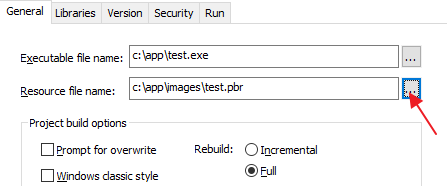
Each time before you use PowerBuilder IDE to deploy, click on the
Browse button behind Resource file name to select the PBR file again so
that it will automatically change PowerBuilder IDE’s current path to
where the PBR file is located. In this way, you can successfully deploy
your application in PowerBuilder IDE.
Solution #3: Use PBC to deploy the
application, but switch the current directory before you do
so.
As shown in the screenshot, before you execute PBC, run the
command first to switch to the directory where the PBR file is
located.
|
1 |
cd c:appimages |
