Configuring IIS as a load balancer
This tutorial will walk you through configuring IIS as a load
balancer to direct client requests to a group of PowerServer Web APIs. You
will have to configure IIS to support sticky sessions.
Step 1: Follow the sections below to install IIS and configure IIS
as a reverse proxy server.
-
Configuring
IIS reverse proxy server > “Preparations” and “Configuring IIS” sections
Step 2: Configure IIS as a proxy server and load balancer which
redirects requests to the PowerServer Web APIs group.
-
Create a new website “proxyserver” which binds to port number
8080. You can also use the existing Default Web Site (with port
80). -
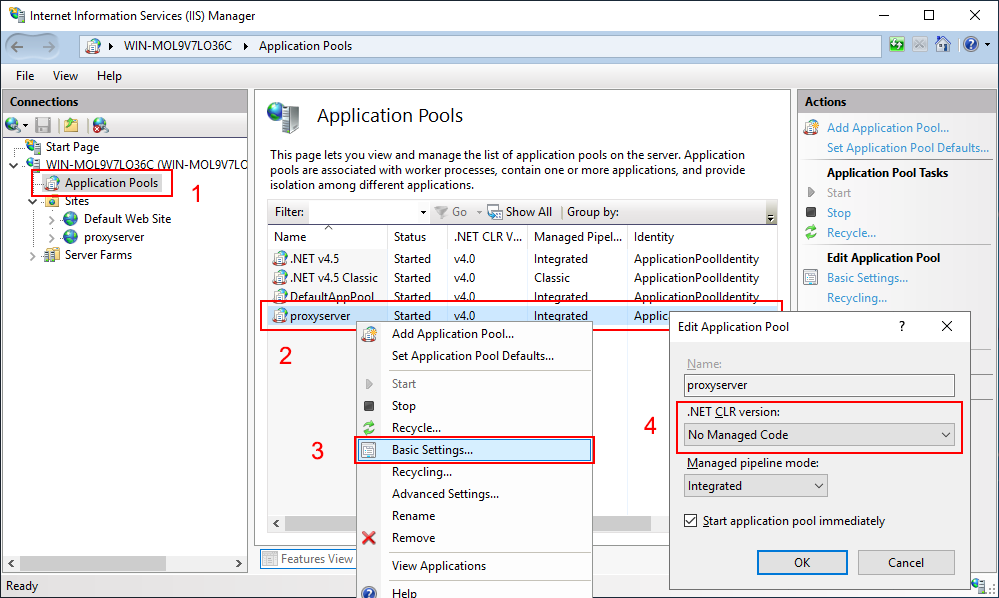
Set the application pool to “No managed code”.
-
Select Application Pools in
the Connections pane. -
Right click “proxyserver” in the list of application pools
and then select Basic
Settings. -
In the Edit Application
Pool window, select No Managed
Code from the .NET CLR
version list box, and then click OK.
-
-
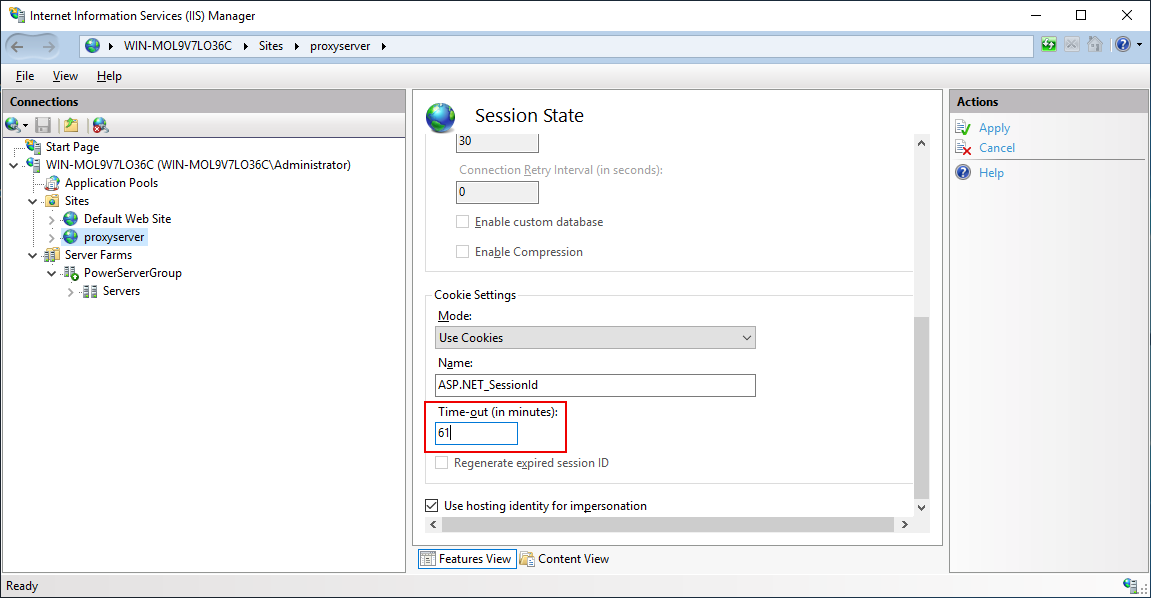
Set the cookie timeout value to a value equal to or greater than
the session timeout value which is 3600 seconds (60 minutes) by
default.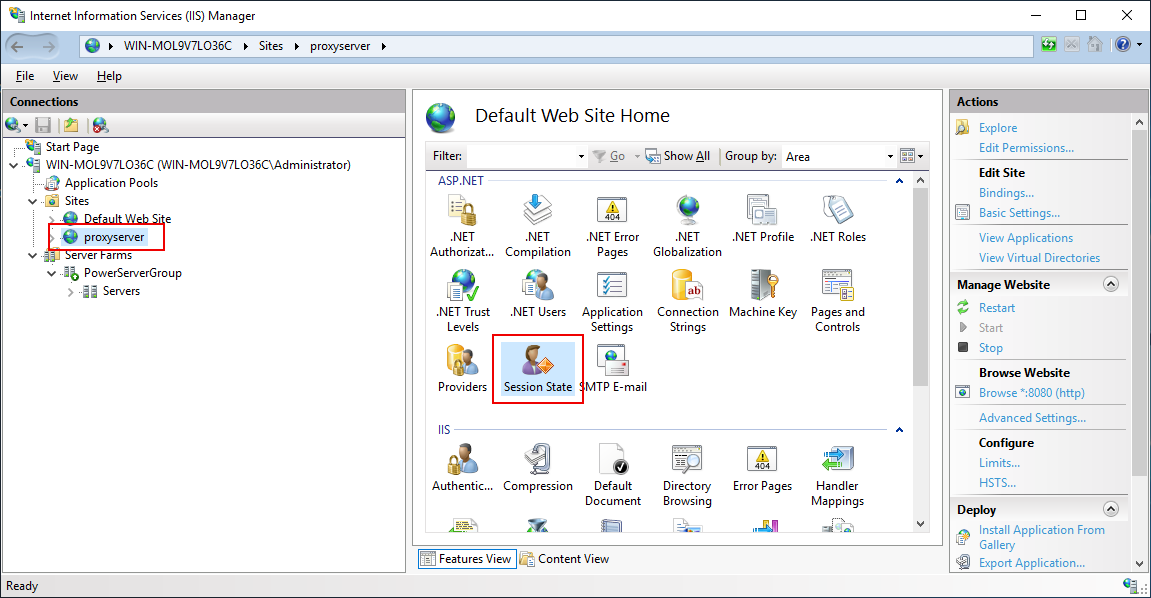
-
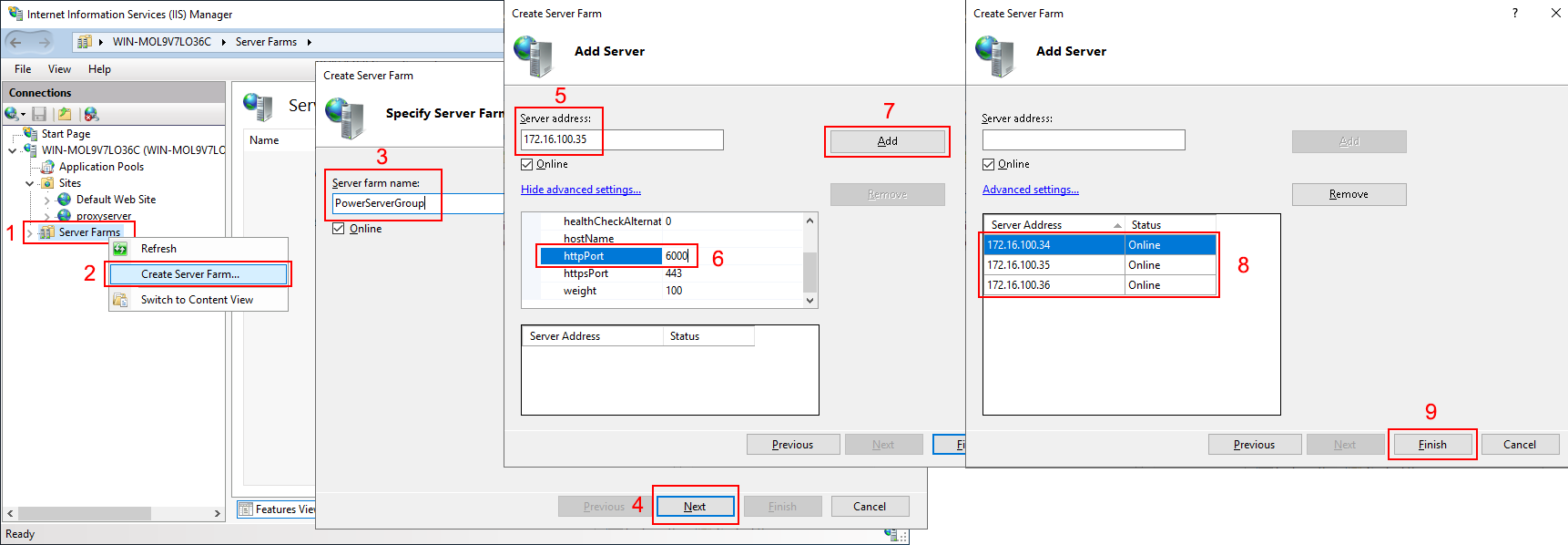
Create a server farm that includes the group of PowerServer Web
APIs.-
Right click Server Farms in
the Connections pane, and then
select Create Server Farm.The Server Farms node will
not be available if “IIS Application Request Routing (ARR)” is not
installed. -
In the Create Server Farm
window, specify the server farm name and then click Next. -
Add the server instance by inputting the host name or IP
address of PowerServer Web APIs, clicking Advanced settings to specify the port
number of PowerServer Web APIs, and then clicking Add. -
Repeat the previous step to add the server instances one by
one and then click Finish. -
Select Yes when asked
whether to automatically create a URL rewrite rule.
-
-
Modify the URL rewrite rule.
-
Select the server in the Connections pane and then double click
URL Rewrite in the features view
to open the feature.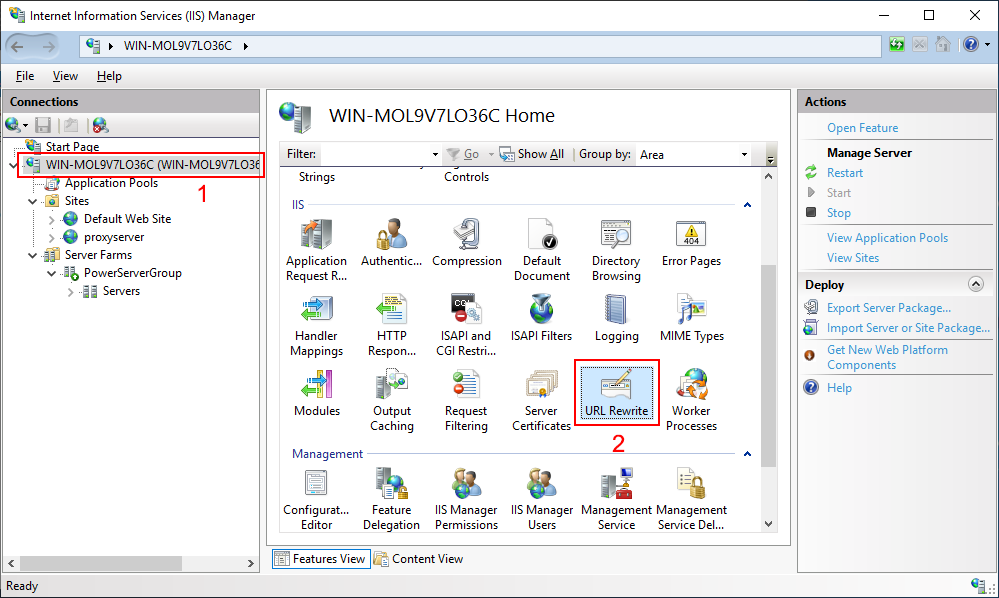
-
Select the “ARR_PowerServerGroup_loadbalance” rule (this
rule is automatically created when you create the server farm) and
then click Edit from the
Actions pane.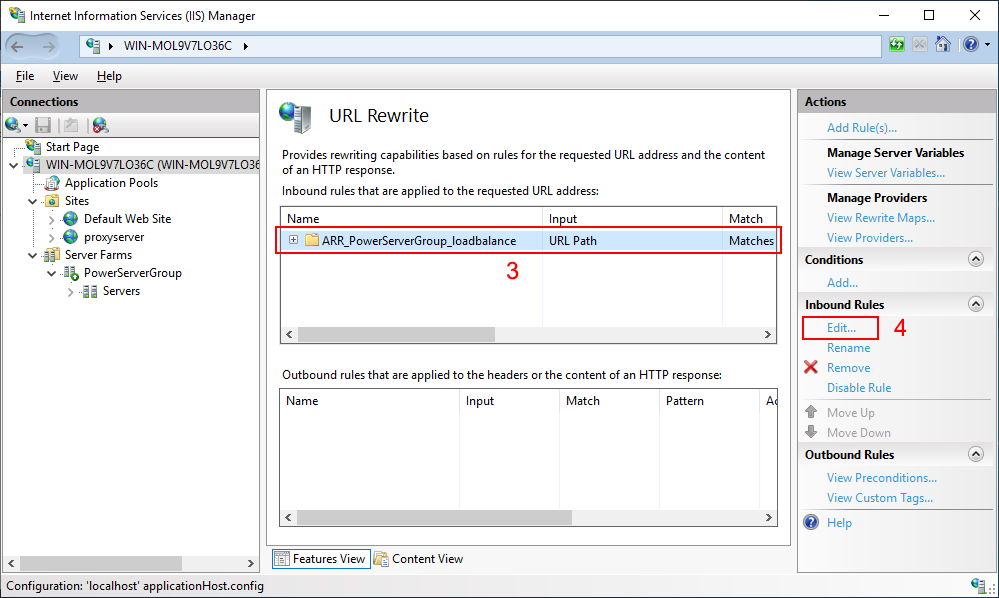
-
In the Edit Inbound Rule
window, expand the Conditions
block and then click Add. In the
Add Condition dialog, input
“{SERVER_PORT}” to the Condition
input field and “8080” (port of “proxyserver” website)
to the Pattern field, and click
OK.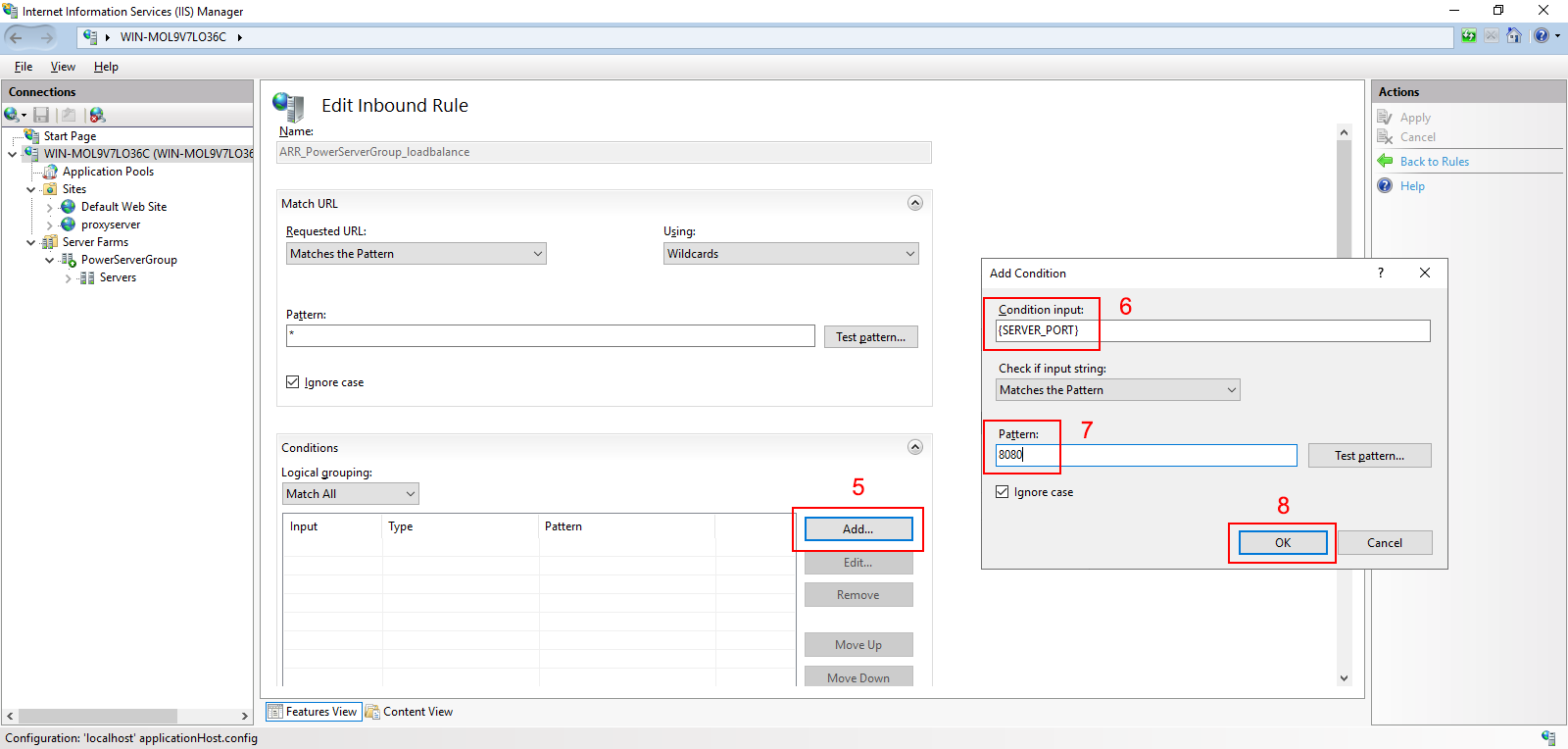
-
Click Apply for the changes
to take effect.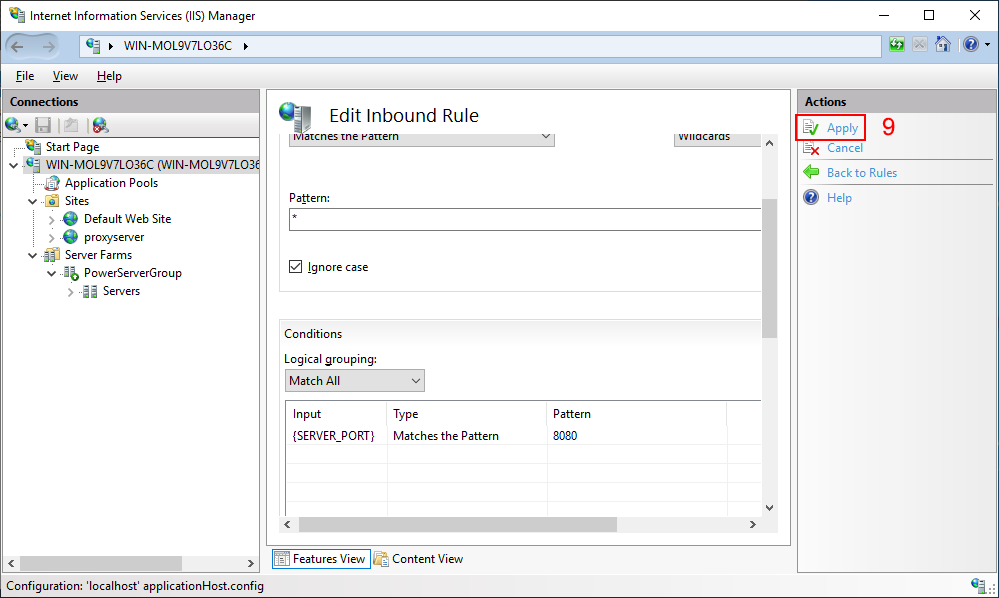
-
-
Configure Server Affinity of
the server farm to support sticky sessions.-
Select the “PowerServerGroup” server farm in the Connections pane, and then double click
Server Affinity in the features
view to open the feature.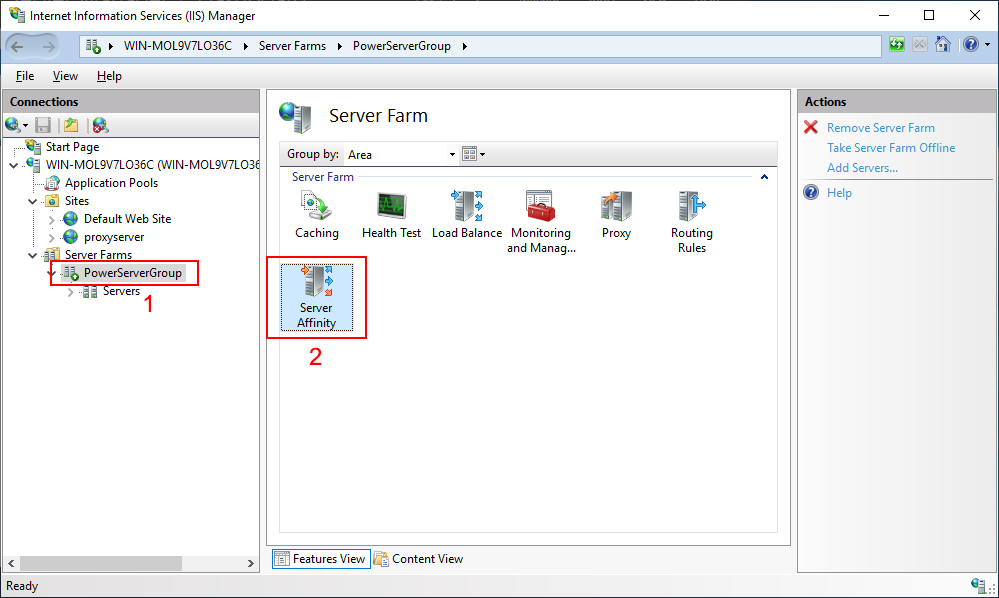
-
Select the check box of Client
affinity, keep the Cookie
name as default “ARRAffinity”, and then click
Apply.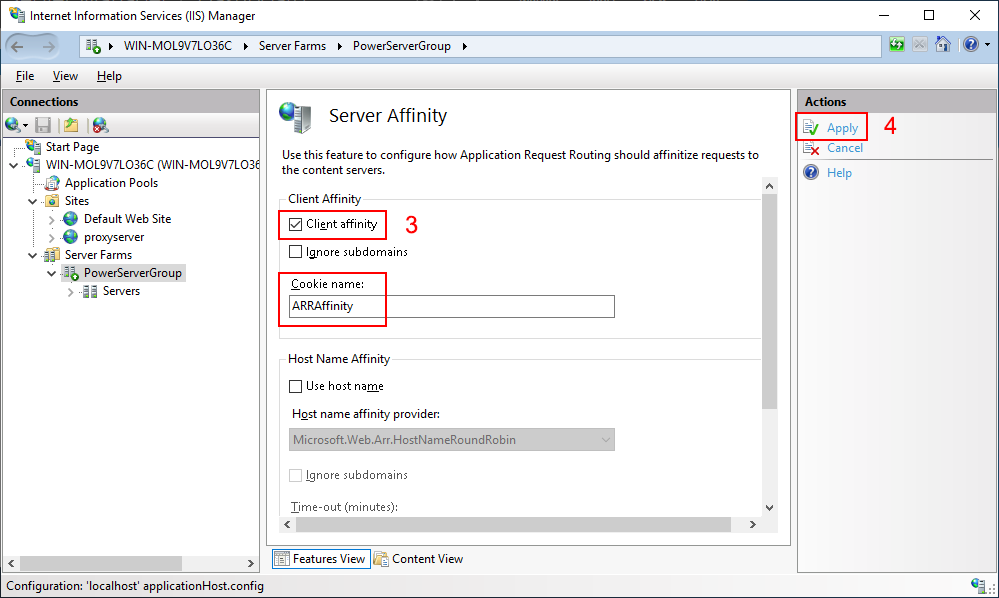
-