Concepts and terms
This section discusses some basic concepts and terms you need
to be familiar with before you start using PowerBuilder to develop
applications and components.
Workspaces and targets
In PowerBuilder, you work with one or more targets in a workspace.
You can add as many targets to the workspace as you want, open and
edit objects in multiple targets, and build and deploy multiple
targets at once.
A PowerBuilder target can be one of several types:
- Application target A client/server or multitier executable application. Most
of this book is concerned with building application targets. See Chapter 5, “Working with Targets.” - .NET target A .NET target that you can use to deploy applications as .NET
Windows Forms or ASP.NET applications or to deploy nonvisual components
as .NET assemblies or Web services. .NET targets are described in
detail in a separate book, Deploying Applications and Components
to .NET. - An EAServer or Application Server Component
target A component that can be deployed to EAServer or another J2EE-compliant
server. For more information, see Application Techniques
.
All of these targets can use PowerBuilder’s built-in
language, PowerScript®.
You choose targets in the New dialog box. Here are the Target
types that are available in PowerBuilder:
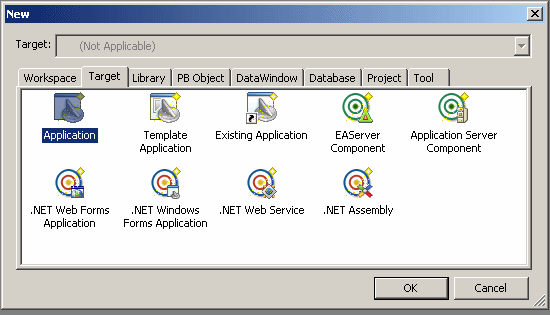
For more information about creating a workspace and targets,
see “Creating and opening workspaces” and “Creating a target”.
 PowerBuilder editions The ability to create all these target types is available
in the PowerBuilder Enterprise edition. In the Professional edition,
you can create application targets and .NET Windows Forms targets.
In the Desktop edition, you can create only application targets.
Objects
Your application is a collection of objects. For most targets, PowerBuilder provides
many types of objects, including graphical objects such as windows, menus,
and buttons, and nonvisual objects such as datastore, exception,
and timing objects.
As you work in your application, you create new objects and
open existing objects to continue work on their development.
For more information about creating, opening, and editing
objects, see “Working with objects”.
DataWindow objects
The applications
you build are often centered around your organization’s
data. With PowerBuilder you can define DataWindow® objects
to retrieve, display, and manipulate data. For more information
about DataWindow objects, see Chapter 18, “Defining DataWindow Objects .”
PowerBuilder libraries
As you work in an application,
component, or .NET target, the objects you create are stored in
one or more libraries (PBL files)
associated with the application. When you run your application,
PowerBuilder retrieves the objects from the library.
PowerBuilder provides a Library painter for managing your
libraries. For information about creating a new library and working
with libraries in the Library painter, see Chapter 6, “Working with Libraries.”
Painters and editors
Some of the editors you use to edit objects are called painters.
For example, you build a window in the Window painter. There you
define the properties of the window, add controls such as buttons
and labels, and code the window and its controls to work as your
application requires.
PowerBuilder provides painters for windows, menus, DataWindow
objects, visual and nonvisual user-defined objects, functions, structures,
databases, data pipelines, and the application itself. For each
of these object types, there is also a Source editor in which you
can modify code directly. See “Working in painters” and “Using the Source editor”.
There is also a file editor you can use to edit any file without
leaving the development environment. See “Using the file editor”.
Events and scripts
Applications are event-driven: users control the flow of the
application by the actions they take. When a user clicks a button,
chooses an item from a menu, or enters data into a text box, an
event is triggered. You write scripts that specify the processing
that should happen when the event is triggered.
For example, buttons have a Clicked event. You write a script
for a button’s Clicked event that specifies what happens
when the user clicks the button. Similarly, edit controls have a
Modified event that is triggered each time the user changes a value
in the control.
You write scripts using PowerScript, the PowerBuilder language,
in a Script view in the painter for the object you are working on.
Scripts consist of PowerScript functions, expressions, and statements
that perform processing in response to an event. The script for
a button’s Clicked event might retrieve and display information
from the database; the script for an edit control’s Modified event
might evaluate the data and perform processing based on the data.
Scripts can also trigger events. For example, the script for
a button’s Clicked event might open another window, which
triggers the Open event in that window.
Functions
PowerScript provides a rich assortment of built-in functions
you use to act upon the objects and controls in your application.
There are functions to open a window, close a window, enable a button,
retrieve data, update a database, and so on.
You can also build your own functions to define processing
unique to your application.
Properties
All the objects and controls in an application or component
have properties, many of which you set as you develop your application.
For example, you specify a label for a button by setting its text
property. You can set these properties in painters or set them and
modify them dynamically in scripts.
Source control
If you are working with other developers on a large application,
you can make sure you are working with the latest version of a component
or object by synchronizing the copy of the object you are working
on with the last version of the object checked into a source control
system. PowerBuilder provides a basic check in/check out
utility as well as a standard application programming interface
to more sophisticated source control systems. For more information, see Chapter 3, “Using Source Control.”
PowerBuilder extensions
You can use PowerBuilder extension objects in an application
in the same way as you would built-in PowerBuilder objects, with
one difference—you must import the file that contains the
definition of the extension into a library in the target. Some extensions
are provided with PowerBuilder, but you can also obtain them from
third parties or build your own.
For more information about the extensions provided with PowerBuilder,
see the PowerBuilder Extension Reference
. For
how to build your own extensions, see the PowerBuilder
Native Interface Programmers Guide and Reference
.