Building an executable file and dynamic libraries
Once you have completed development and defined your project,
you build the project to create the executable files and all specified
dynamic libraries. You can build your project anytime you have made
changes to the objects and want to test or deploy another version
of your application.
 To build the application:
-
Open the project you built in the Project
painter.The Project painter workspace displays.
-
Click the Build button in the PainterBar.
or
Select Design>Build Project.
 If the application’s library list has changed When you click Build, PowerBuilder checks your application’s
library list. If it has changed since you defined your project, PowerBuilder updates
the Project painter workspace with the new library list. Make whatever changes
you need in the workspace, then click Build again.PowerBuilder builds the executable and all specified dynamic
libraries.
What’s next
The next two sections describe in detail how PowerBuilder builds
the project and finds the objects used in the application in detail.
Once PowerBuilder has built the application, you can check which
objects are included in the application. See “Listing the objects in a
project”.
How PowerBuilder builds the project
Here is what happens when PowerBuilder builds your application
project:
- If you selected
Rebuild: Full, PowerBuilder first regenerates all the objects in the
libraries. - If you selected Prompt for Overwrite, PowerBuilder displays
a message box asking for confirmation before overwriting the executable
file and each dynamic library.
To create the executable file you specified, PowerBuilder searches
through your application and copies the compiled versions of referenced
objects
from the libraries in the application’s library search
path into the executable file. It does not copy objects that are not
referenced
in the application to the executable file.
Nor does it copy objects to the executable file from libraries
you declared to be dynamic libraries. These objects are linked to
the application at execution time; they are not stored in the executable
file. Instead, PowerBuilder creates a dynamic library for each of
the specified libraries and maintains a list of all the dynamic
library files that were specified for the application (PowerBuilder maintains
the unqualified filenames of the dynamic library files; it does
not save the pathname).
What happens during execution When an object such as a window is referenced in the application, PowerBuilder first
looks in the executable file for the object. If it doesn’t
find it there, it looks in the dynamic library files that are defined
for the application. For example, if you specified that test.pbl
is a dynamic library, PowerBuilder looks for test.pbd or test.dll
at execution time. The dynamic library files must be in the search
path. If PowerBuilder can’t find the object in any of the dynamic
library files, it reports an execution-time error.
How PowerBuilder searches for objects
When searching through the application, PowerBuilder doesn’t
necessarily find all the objects that are used in your application
and copy them to the executable file. This section describes which
objects it finds and copies and which ones it doesn’t.
Which
objects are copied to the executable file
PowerBuilder finds and copies the following objects to the executable
file.
Objects that are directly referenced in scripts For example:
- If a window
script contains the following statement:1Open(w_continue)
Then w_continue is copied to the executable file. - If a menu item script refers to the global function
f_calc:1f_calc(EnteredValue)
Then f_calc is copied to the executable file. - If a window uses a popup menu through the following
statements:1m_new mymenu<br />mymenu = create m_new<br />mymenu.m_file.PopMenu(PointerX(), PointerY())
Then m_new is copied to the executable file.
Objects that are referenced in painters For example:
- If a menu
is associated with a window in the Window painter, the menu is copied
to the executable file as a result of the window being copied. - If a DataWindow object is associated with a DataWindow
control in the Window painter, the DataWindow object is copied to
the executable file. - If a window contains a custom user object that includes
another user object, each user object is copied. - If a resource is assigned in a painter, it is copied
to the executable file. For example, when you place a Picture control
in a window in the Window painter, the bitmap file you associate
with it is copied.
Which objects are not copied to the executable file
When creating the executable file, PowerBuilder can identify
the associations you made in the painter (because those references
are saved with the object’s definition in the library)
and direct references in scripts (the compiler saves this information).
But it does not identify objects that are referenced dynamically
through string variables (it would have to read through all the
scripts and process all assignment statements to uncover all the
referenced objects).
For example:
- If the
DataWindow object d_emp is associated with a DataWindow
control dynamically through the following statement:1dw_info.DataObject = "d_emp"
Then d_emp is not copied to the executable file. - If a resource is assigned dynamically in scripts,
such as:1IF Balance < 0 THEN<br /> p_logo.PictureName = "frown.bmp"<br />ELSE<br /> p_logo.PictureName = "smile.bmp"<br />END IF
Then FROWN.BMP and SMILE.BMP are not copied to the executable file. - If a window script has the following statements:
1window mywin<br />string winname = "w_go"<br />Open(mywin,winname)
Then the reference to window w_go is not
found
by PowerBuilder when building the executable file, so w_go
is not copied to the executable file.
Which objects are not copied to the dynamic libraries
When building a dynamic library, PowerBuilder does not inspect
the objects; it simply copies the compiled form of the objects.
Therefore, the DataWindow objects and resources (pictures, icons,
and pointers) used by any of the objects in the library–either
specified in a painter or assigned dynamically in a script
–are
not copied into the dynamic library.
For example, suppose TESTDW.PBL contains DataWindow objects
and TESTW.PBL contains window objects that reference them, either
statically or dynamically. If you build a dynamic library from TESTW.PBL,
you must either include the DataWindow objects in a PowerBuilder resource
file that is referenced by TESTW.PBL, or build a dynamic library
from TESTDW.PBL, as described in “How to include the objects
that were not found”.
How to include the objects
that were not found
If you didn’t use any of the types of references
described in the preceding sections, you don’t need to
do anything else to ensure that all objects get distributed: they
were all built into the executable file. Otherwise, you have the following
choices for how to include the objects that were not found.
Distributing resources For resources such as icons and bitmaps, you have two choices:
- Distribute them separately.
- Include them in a PowerBuilder resource file, then
build an executable file or dynamic PowerBuilder library that uses
the resource file.
Distributing DataWindow objects For DataWindow objects, you have two choices:
- Include them in a PowerBuilder resource file, then
build an executable file or dynamic PowerBuilder library using the
resource file. - Build and distribute a dynamic library from the
PBL that contains the DataWindow objects.
Distributing other objects All other objects (such as windows referenced only in string
variables) must be included directly in a dynamic PowerBuilder library.
The following table summarizes distribution possibilities:
| Object | Separately | Through resource file | Directly in dynamic library |
|---|---|---|---|
| Resource | X | X | |
| DataWindow object | X | X | |
| Other object | X |
For information about distributing resources,
see “Distributing resources “.
For information about dynamic PowerBuilder libraries,
see “Using dynamic libraries “.
Listing the objects in aproject
After you have built your project, you can display a list
of objects in the project.
To list the objects in a project:
- Build your project.
-
Select Design>List Objects from the menu
bar.The List Objects dialog box displays listing the objects that PowerBuilder placed
in the executable file and the dynamic libraries it created when
it built the project..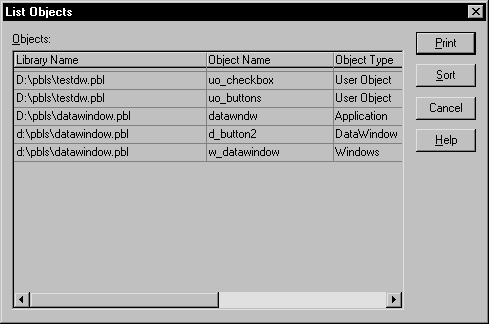
What’s in the report
The report is a grid DataWindow object with the following
columns:
| Column | Meaning |
|---|---|
| Library Name | Source library that contains the object |
| Object Name | Name of the object |
| Object Type | Type of object |
What you can do
Because the report is a grid DataWindow object, you can resize
and reorder columns just as you can in other grid DataWindow objects.
You can also sort the rows and print the report using the
Sort and Print buttons.