Attach the
DataWindow object to the detail DataWindow control
Where you are
Attach the DataWindow
object to the master DataWindow control
> Attach the DataWindow
object to the detail DataWindow control
Attach DataWindow
objects to the Product window
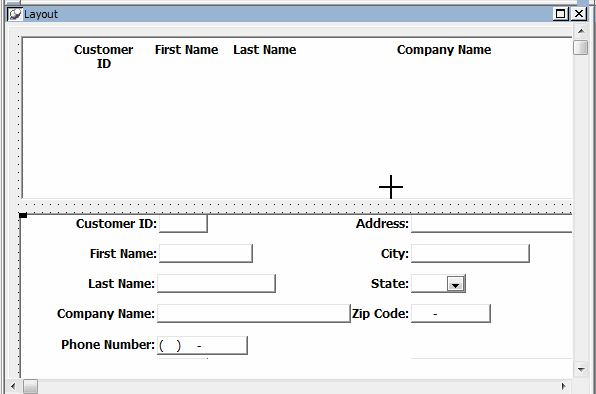
Now you attach a DataWindow object to the detail DataWindow control.
The Window painter should still be open for the w_customers window.
-
Select the bottom DataWindow control (dw_detail) in the Layout
view.Click the ellipsis button next to the DataObject box in the
Properties view.Select d_customer in the Select Object dialog box and click
OK.PowerBuilder associates the d_customer DataWindow object with
the dw_detail DataWindow control. The Window painter workspace now
shows the d_customer DataWindow object inside the dw_detail
control. -
In the Layout view, make the dw_detail control larger so that
you can see all of the columns you added to the DataWindow
object.If you need to, you can also enlarge the window to make more
room. If you make the dw_detail control wider, you may also want to
make the dw_master control the same width.