Create
the sheet window
You inherit the sheet window from the w_pbtutor_basesheet window.
This is the base class for sheet windows that you generated with the
Template Application wizard. You do not use the w_master_detail_ancestor
extension layer window, since the modifications you made to it are not
useful in the new sheet window.
-
Select File>Inherit from the PowerBuilder menu.
Make sure the Objects of Type box displays Windows.
Select w_pbtutor_basesheet from the available windows in the
pbtutor.pbl library and click OK. -
Make sure the Layout view displays in the Window
painter.Select Insert>Control>StaticText and click near the top
left corner of the Layout view. -
In the Properties view, highlight the default text in the Text
text box and type the following:11. Select or type a state code in drop-down list: -
Lengthen the control width and the width of the sheet window
to display the entire text and allow room for a drop-down list
control at the top right of the window.A length of 2250 should be sufficient for the sheet window
width. You can set this on the Other tab of the Properties view for
the window, or you can drag the window edge in the Layout view to
make room for an additional control. -
Right-click the static text control in the Layout view and
click Duplicate from the pop-up menu.In the Properties view, highlight the default text in the Text
text box of the new static text control and type the
following:12. Click Percentage button -
Select Insert>Control>DropDownListBox and click to the
right of the static text boxes near the top right corner of the
Layout view.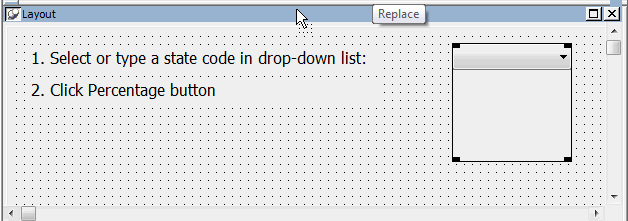
-
In the Properties view for the drop-down list box, type
ddlb_state for the control name.Select the AllowEdit and the VScrollBar check boxes.
-
Click the CommandButton button in the painter bar and click
below the two static text boxes.In the Properties view, type cb_percent for the button name
and type Percentage for the button text. -
Select Insert>Control>SingleLineEdit and click below the
command button in the Layout view.In the Properties view, type sle_result for the control name
and type the following for the control text:1Text box for percent of customers in the selected state -
Lengthen the control width to display the entire text.
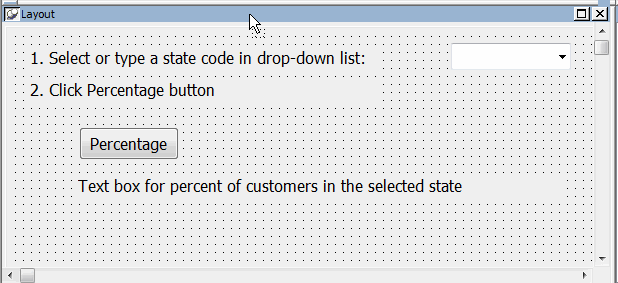
-
Make sure no control is selected and the sheet window
properties are displayed in the Properties view.Type Customer Location for the Tag property.
The text you typed will be visible in the sheet window title
at runtime. Code in the basesheet ue_postopen event assigns the Tag
text to the sheet window title. -
Select File>Save from the PowerBuilder menu.
Select pbtutor.pbl for the application library, type
w_cust_pct for the new sheet window name, and click OK.This saves the new sheet window with all its controls to the
main tutorial library.