Altering a table
After a table is created, how you can alter the table depends on
your DBMS.
You can always:
-
Add or modify PowerBuilder-specific extended attributes for
columns -
Delete an index and create a new index
You can never:
-
Insert a column between two existing columns
-
Prohibit null values for an appended column
-
Alter an existing index
Some DBMSs let you do the following, but others do not:
-
Append columns that allow null values
-
Increase or decrease the number of characters allowed for
data in an existing column -
Allow null values
-
Prohibit null values in a column that allowed null
values
Database painter is DBMS aware
The Database painter grays out or notifies you about actions
that your DBMS prohibits.
For complete information about what you can and cannot do when
you modify a table in your DBMS, see your DBMS documentation.
To alter a table
-
Highlight the table and select Alter Table from the pop-up
menu.Opening multiple instances of tables
You can open another instance of a table by selecting
Columns from the View menu. Doing this is helpful when you want
to use the Database painter’s cut, copy, and paste features to
cut or copy and paste between tables.The table definition displays in the Columns view (this
screen shows the Employee table).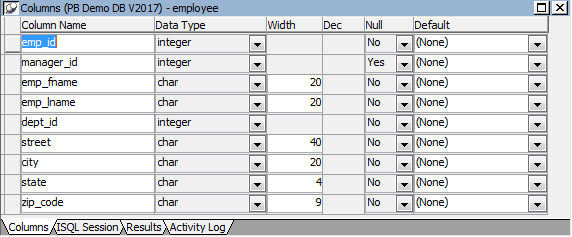
-
Make the changes you want in the Columns view or in the
Object Details view. -
Select Save Table or Save Changes.
PowerBuilder submits the pending SQL syntax statements it
generated to the DBMS, and the table is modified.