Adding controls
You add
controls to 4GL JSP pages the same way you add them to other Web pages.
When you add controls to 4GL JSP pages, however, the server scriptable property
is turned on by default.
Server scriptable property
The server scriptable property does
the following:
- Creates a server object that
represents the control
For server scripts, you access the object as a page variable
that has the same name as the control (which is why controls must
have unique names). The control is added under the Server Side branch
in the Page tab of the System Tree when the server scriptable property
is selected. - Supports binding to properties of EAServer components and other
page data (from page parameters, page variables, and session variables)
Supported controls
4GL pages provide enhanced support for HTML form field controls.
Several controls present special conditions on 4GL JSP pages:
- Hidden text This is a client-side control. It is not server scriptable,
but is available for 4GL-enabled Web pages only. - Static text The Static Text control is a specialized text field that can
be manipulated by server scripts. The client cannot change the value
of this text. The Static Text control is available on 4GL JSP pages
only. - Check box The value of a check box sent to the server from a 4GL JSP page
is a boolean value (T or F). The Value To Send To Server field on
the Checkbox Properties dialog box for a 4GL JSP page is grayed. - Standard button A standard button on a 4GL JSP page can work like a submit
button if you add a server redirect on the ServerAction event. However,
if you code the client-side onclick event to return False,
the ServerAction event will not be triggered. - Submit button The client-side onclick event for a submit button is triggered
only on a 4GL-enabled Web page. If you code this event to return False,
a form submit (either to the current page in a self-link or to a
URL that you select on the Destination page of the Page Properties
dialog box) does not occur and the ServerAction event is not triggered. - Radio button Radio buttons are different from other controls because they
function as a group. The server scriptable property is either enabled or
disabled for all buttons in the group. Each button in the group
uses the same binding and has the same properties. If you make a
change to a binding or a property for one button, the change takes
effect for the others too.
Binding controls to properties of EAServer components
Binding a server-scriptable
control to the property of an EAServer component gives
the control access to the data encapsulated by that property. It
also automates the process of moving data to and from the component.
For components that encapsulate data from a database, binding a
property of that component to a control lets you quickly get data
and update it.
Adding the component to a page
Before you can bind a control to the value of an EAServer component property, the
component value must be available to your page. You can add a component to
an existing page by selecting the component on the EAServer page of the Page Properties
dialog box or by dragging and dropping it onto the page from the
System Tree. The component must have at least one get method
for a property that you want to bind to your control. The required get method
must not include any arguments.
For more information about accessing a property for an EAServer component, see “Accessing EAServer components”.
Using component stubs at runtime
For the binding to work at runtime, component stubs must be
available to the page server. Component stubs can be generated automatically
from PowerBuilder.
 Regenerating component stubs EAServer stubs are
regenerated only if you select a full rebuild for your target deployment
rebuild option. You can make this selection in the Deployment Configuration
wizard or in the Deployment Configuration Properties dialog box.
By default, the default rebuild option for a deployment configuration
is incremental. If the incremental rebuild option is selected, the
time it takes to deploy a 4GL target that uses EAServer components can be significantly reduced.
The directory containing the component stubs must be included
in the classpath used by the page server. If the page server caches
pages it generates, and if you modify a component and regenerate
the stubs after loading a page from your Web server, you may need
to stop and restart the Web server to see changes on the client
side.
 To bind an EAServer component
property to a control:
-
Select Insert>Form Field, then
select the type of control (such as Single Line Text) you want to
bind to a component property.The Properties dialog box for the control displays.
-
On the main page of the control properties dialog
box, type the name of the control and other information as needed. -
On the Bind page, select an EAServer component.
The list includes only EAServer components
that have properties available for binding. -
Select a component property.
The property name is the property that provides access to
the component through a get method defined for
it in EAServer. The get method
must not take any arguments for it to appear in the Property Name
drop-down list.
Binding controls to page data
You can also bind a server-scriptable
control to the value of a page parameter, page variable, or session
variable. The Bind page in the Properties dialog box for each control
lists the properties available for each of these components.
To bind page data (the value of a parameter or
variable) to a control:
-
Select Insert>Form Field, then
select the type of control (such as Single Line Text) you want to
add to your Web page.The Properties dialog box displays.
-
On the main page of the control properties dialog
box, type the name of the control and other information as needed. -
On the Bind page, select Page Parameter, Page
Variable, or Session Variable as the component you want to bind
to the control. -
Select the name of a parameter or a variable that
appears in the property list: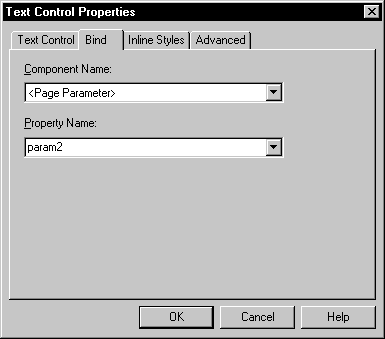
Disabling server scripting for a control
Disabling
server scripting for a control makes the control unavailable for binding
to input data. The control is inaccessible to server scripts and
cannot pass data back to the server.
To disable server scripting for a control:
-
Right-click the control on a page open
in the HTML editor, then select Properties from the pop-up menuor
Insert a new control.
The Properties dialog box for the control displays.
-
On the initial page, clear the Server Side Scriptable
check box.