Adding a DataWindow to a Web page
You can use the Web/JSP DataWindow Page wizard to
create a new Web page with a DataWindow on it. For existing pages,
you add a DataWindow to your page using the Web Target toolbar or
the Insert>Form Field menu in the Page view or Source view
of the HTML editor. You can also drag and drop a DataWindow (or
a Web DataWindow Container component) onto a Web page in the HTML
editor.
If you want your page to access a Web DataWindow component
on EAServer, both the wizard
and the property pages give you quick access to a list of the components
available.
Creating a page that has a Web DataWindow DTC
 To create a new page with a Web DataWindow DTC:
-
In an open Web Target workspace, select
File>New from the menu bar. - Click the Web tab of the New dialog box.
-
Double-click the Web/JSP DataWindow Page
wizard icon. -
Follow the instructions in the wizard to complete
the entries required. The new page is not 4GL-enabled If you want to enable 4GL processing for a new JSP page, you
need to select the Enable 4GL Web Server Side Event Model check
box in the Page Properties dialog box for the page after you create
it.
To insert a new Web DataWindow DTC in an existing
HTML page:
-
In Page view or Source view of the HTML
editor, put the insertion point where you want the control to appear. -
Select Insert>Form Field>DataWindow
from the menu baror
Click the DataWindow
button on the Insert toolbar. Drag and drop You can also drag the Sybase Web DataWindow DTC control from
the Components tab of the System Tree to an open page in the HTML
editor Page view or Source view. You can find the control under
the ActiveX Controls>Web Design-Time Controls branch on
the Components tab.The Sybase Web DataWindow DTC Properties dialog box displays.
-
Specify Web DataWindow DTC properties by making
the following selections:Property selection For information Source for the DataWindow object See “Selecting the source for
a DataWindow object”Database profile See Selecting a database profile on
pageWeb DataWindow generator See “Selecting a Web DataWindow
generator”Specifying properties also typically involves taking these
actions:Typical actions For information Binding data to DataWindow retrieval
argumentsSee “Binding data to DataWindow
retrieval arguments”Defining hyperlinks on objects in a DataWindow See “Defining hyperlinks on objects
in a DataWindow”Changing presentation details stored
in the DataWindow definitionSee “DataWindow presentation
styles and data sources”Scripting client or server-side events
on the DataWindowSee Choosing an object or event
for scriptingon page -
Do one of the following:
- In Page view Click OK in the Sybase Web DataWindow
DTC Properties dialog box. - In Source view Click OK in the Sybase Web DataWindow DTC Properties
dialog box and then click OK to close the Edit Design Time Control
dialog box. Using the Edit Design Time Control dialog box You can do any of the following in the Edit Design Time Control dialog
box:- Click OK to insert
the control in the page - Click Cancel to cancel the insert
operation - Click Properties to redisplay
the Sybase Web DataWindow DTC Properties dialog box
- Click OK to insert
- In Page view Click OK in the Sybase Web DataWindow
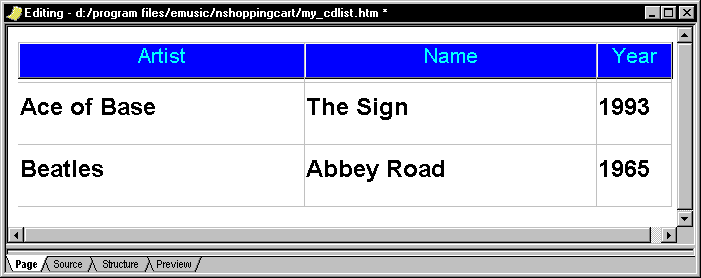
What you see in Page view
The labels from the header band of the DataWindow object that
you select in the Web DataWindow Properties dialog box (or in the
Web DataWindow wizard) display in Page view. If you did not specify
a DataWindow object, you see only an empty box–with a title
based on the default DataWindow control name to represent the Web
DataWindow.
If you saved data in your DataWindow object, you can also
see data in Page view–unless you use a Web DataWindow Container
component as the source for your DataWindow object.
When you deploy the page, the generated source HTML and script
is passed to the server.
What you see in Source view
When you insert
a Web DataWindow DTC in a Web page, the following text is added
to the page source between two METADATA comments:
- An <OBJECT> element
that embeds the Web DataWindow DTC ActiveX in the page. The control
provides the information to manage the server component that generates
the client control. The OBJECT element has parameters that keep
track of various kinds of information about the DTC definition.
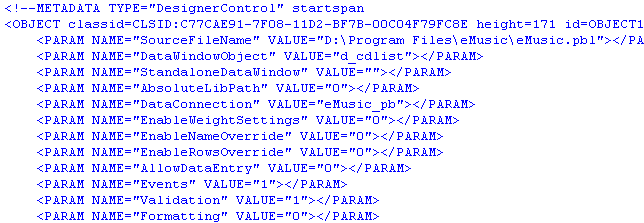
For example, the OBJECT SourceFileName parameter specifies
the PBL, PSR, or SRD file that
contains the DataWindow object definition. This value is set to
an empty string if a Web DataWindow Container component is the DataWindow
source. - Server script generated by the DTC that
provides logic for accessing the Web DataWindow server component.
To allow you to target multiple application servers from the same
source page, platform-independent code is generated that takes advantage
of the capabilities of the Web Target object model.
The OBJECT element in the METADATA comment is required only
when you are authoring the page; it is not needed at execution time.
However, when the application server processes the page, it executes
the generated server script on the page and returns the resulting
HTML to the Web browser.
Working with the generated text Typically, you do not modify any of the text generated for
the Web DataWindow DTC. Changes you
make are lost the next time you modify the properties of the control
and regenerate the text.
What you see in a non-4GL Web page
You can see the generated source for your page in the Source
view of the HTML editor. The following example shows the OBJECT
element (and some of the PARAM tags) added to the Source view for
a Web DataWindow DTC in a non-4GL page. They are wrapped in a METADATA
comment:
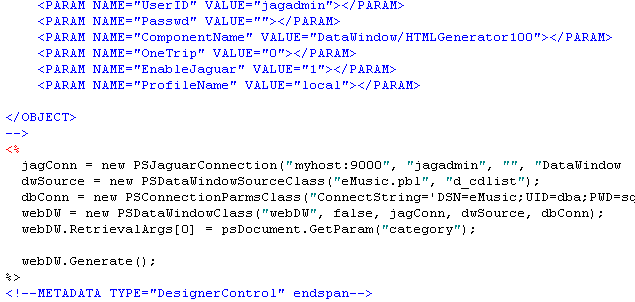
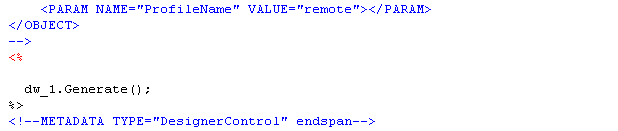
The code for the DTC includes source and connection information.
It calls the Generate method on the server component
inside a server script immediately following the closing OBJECT
tag and just before the closing METADATA comment:
What you see in a 4GL Web page
When placed on a 4GL Web page, the Web DataWindow DTC becomes
an object of type PSWebDataWindowClass (an extension to the Web
Target object model) with its own server-side methods and events.
These are listed under the Web Target object model node on the Language
tab of the System Tree.
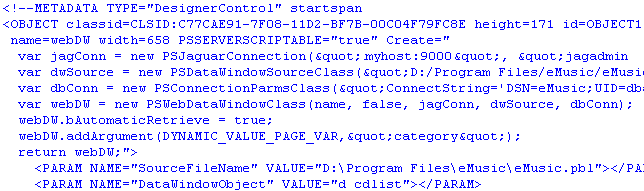
The OBJECT element on a 4GL Web page includes a special CREATE attribute
that sets the source and connection information for the DataWindow object
(similar to the code that is generated inside a server script on
a non-4GL page):
The server script generated on a 4GL page calls only the Generate method
on the server component:
On the Page view of the Web Target HTML Editor, you can code
server-side events (in 4GL Web mode only) from the integrated Script
editor. After you select a Web DataWindow control in the first drop-down
list in the Script editor, you can select a server-side event in
the second drop-down list. Server-side events display in
blue, and client-side events display in black.
Using the Web Target object model
The Sybase Web DataWindow DTC uses the
following classes of the Web Target object model to set up the database
and component server connections:
- PSConnectionParmsClass
- PSDataWindowClass
- PSDataWindowSourceClass
- PSJaguarConnection
- PSNamedConnectionParmsClass (not supported in JSP
targets)
For more information, see the Web and JSP Target
Reference
.