Add user
events and event scripts
Where you are
Add a library to the
search path
Create a new ancestor
sheet window
> Add user events
and event scripts
Add scripts to retrieve
data for the DataWindow controls
Adjust a runtime
setting for sheet window size
Windows, user objects, and controls have predefined events
associated with them. Most of the time, the predefined events are all you
need, but there are times when you want to declare your own events. Events
that you define are called user events.
Purpose of user events
One reason to define a user event is to reduce coding in situations
where an application provides several ways to perform a particular task.
For example, a task like updating the database can be performed by
clicking a button, selecting a menu item, or closing a window. Instead of
writing the code to update the database in each of these places, you can
define a user event, then trigger that user event in each place in which
you update the database.
Now you define some user events to handle retrieval, insert, update,
and delete operations against the tutorial database. You make these
changes in the Script view of the Window painter. Later in the tutorial,
you add code in the Menu painter to trigger these events.
-
Select w_master_detail_ancestor in the first drop-down list box
of the Script view. -
Select Insert>Event from the menu bar
or
Select New Event in the second drop-down list box of the Script
view.The Script view displays the Prototype window for defining a new
event.The first button to the right of the third drop-down list box is
a toggle switch that displays or hides the Prototype window.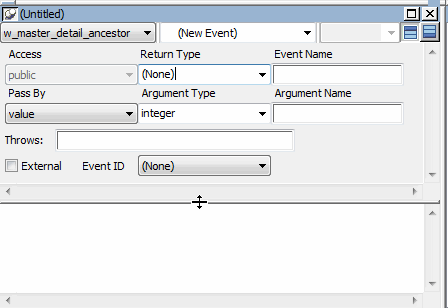
-
Type ue_retrieve in the Event Name text box in the Prototype
window.Click inside the Script view below the Prototype window.
Type these lines (or use AutoScript as described below):
1234IF dw_master.Retrieve() <> -1 THENdw_master.SetFocus()dw_master.SetRowFocusIndicator(Hand!)END IFUsing AutoScript instead of typing
You can use AutoScript to paste in the IF THEN template as
well as the variables and function names:Type IF, then press Ctrl+space.
Press Tab to paste an IF THEN statement.
Type dw_m, then press Ctrl+space.
Place the cursor after dw_master, type a dot, then type
Ctrl+space.Scroll and select retrieve( ), press Tab, and type the rest of
the line.Press Ctrl+M to jump to the next comment.
Enter the other function calls by typing them or using
AutoScript.As soon as you clicked in the script area, the text in the
second drop-down list box of the Script view changed from New Event to
ue_retrieve. It has no arguments, does not return a value, and does
not throw user-defined exceptions. For information on throwing
user-defined exceptions, see Exception HandlingThe script lines you entered execute the Retrieve function and
place the retrieved rows in the dw_master DataWindow control. If the
retrieval operation succeeds, the script sets the focus to the first
row in the DataWindow control and establishes the hand pointer as the
current row indicator.If the retrieve fails
If the retrieval operation does not succeed, PowerBuilder
triggers the DBError event. The logic for the DBError event is
handled in the user object u_dwstandard. You looked at this script
in the previous exercise.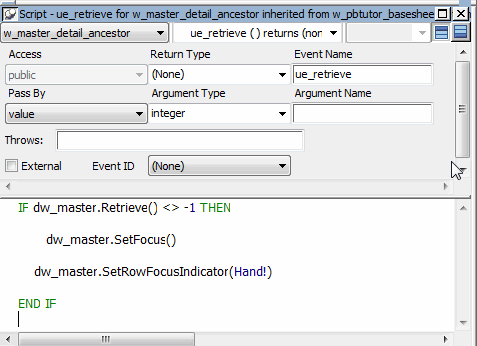
-
Select File>Save from the menu bar.
Right-click the Prototype window and select New Event from the
pop-up menu.PowerBuilder compiles the script you entered for the ue_retrieve
event. The Script view displays the Prototype window for another new
user event.If you get an error message
Mistyped or incomplete script entries generate compiler
errors. If you select No when prompted to ignore compilation errors,
a compiler error area displays at the bottom of the Script view,
identifying your error. If this happens, retype the script for the
ue_retrieve event.You can display or hide the compiler error area by clicking the
second toggle switch at the top right of the Script view. -
Repeat steps 3 and 4 for the following entries:
Event name
Script
ue_insert
1dw_detail.Reset()1dw_detail.InsertRow(0)1dw_detail.SetFocus()ue_update
123456IF dw_detail.Update() = 1 THENCOMMIT using SQLCA;MessageBox("Save","Save succeeded")ELSEROLLBACK using SQLCA;END IFue_delete
1dw_detail.DeleteRow(0)What the scripts do
The first line of the script for the ue_insert event clears the
dw_detail DataWindow control. The second line inserts a new row after
the last row in the DataWindow (the argument zero specifies the last
row). The third line positions the cursor in the dw_detail
control.The ue_insert and ue_delete events operate on the DataWindow
buffer, not on the database. When these events are triggered, a row is
not inserted or deleted from the database unless the Update function
is also called (the ue_update event calls this function). If the
Update function returns the integer 1, changes made to the buffer are
committed to the database. If it returns a different integer, changes
to the buffer are rolled back.In the script for the ue_delete event, the argument zero in the
DeleteRow function specifies that the current row in the dw_detail
control be deleted. -
Make sure your work is saved.
If you repeated step 4 for each new event and script that you
added, you have already saved your work.