Accessing EAServer components
4GL
JSP pages provide tight integration with EAServer servers.
Using 4GL JSP pages facilitates access to EAServer components,
component properties, and component methods.
For a deployed 4GL JSP page, the connection
to the EAServer server associated
with the page is made before the page is loaded in a client browser. If
component stubs are available to the page server, components accessed
by the page get instantiated at load time.
Before you start working with EAServer components,
you should be familiar with component support in EAServer. For details about EAServer components, see the EAServer
Programmer’s Guide
.
About EAServer integration
4GL JSP pages integrate EAServer components
in several ways, by:
- Binding controls to the
properties of an EAServer component
to incorporate data returned from the EAServer component
For information about binding controls to the property of
an EAServer component, see “Binding controls to properties
of EAServer components”. - Writing a server script that directly accesses an EAServer component
You can drag an EAServer component
or a method on an EAServer component
directly from the System Tree to a server script. For more information
about adding EAServer methods
to a page, see “Writing scripts to access EAServer components”. - Writing a server script that manipulates a variable
representing an EAServer component.
For more information about working with variables that represent EAServer components, see “Making properties of EAServer components available
for binding” and “Writing scripts to access EAServer components”.
Working with EAServer components
After you
define an EAServer profile
in PowerBuilder, the 4GL JSP Page wizard and the Components tab of
the System Tree list the components available on the server. You
can select components in the wizard, or drag components from the
System Tree to your page to give your page access to the components.
Making properties of EAServer components available
for binding
Providing page access to a component lets you use it for data
binding. Data binding lets you bind a property of an EAServer component to a page
control, associating the control with the property value.
Properties available for binding comprise a standardized set
of set and get methods. In
general, components are available for binding if they display a get method
that does not require arguments.
For example, the picture that follows is part of a System
Tree display of components on an EAServer server:
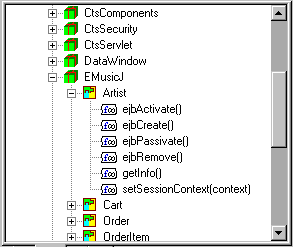
The Artist component has a getInfo method
that does not have any arguments. That means that if you add the
component to your 4GL JSP page, the Info property of the Artist
component is available for binding to controls on the page.
The 4GL JSP Page wizard lets you select components to add
to your page. You can also defer adding components until after the
page is created.
 To make properties of EAServer components
available for binding:
-
Drag an EAServer component
from the Components tab of the System Tree to the Page view of a
4GL JSP page in the HTML editor. Start EAServer The server must be running before you can see the server components
in the System Tree.The EAServer page
of the Page Properties dialog box displays. This page supplies the
component name, a default variable name (based on the component
name), and a default scope (page) for the variable.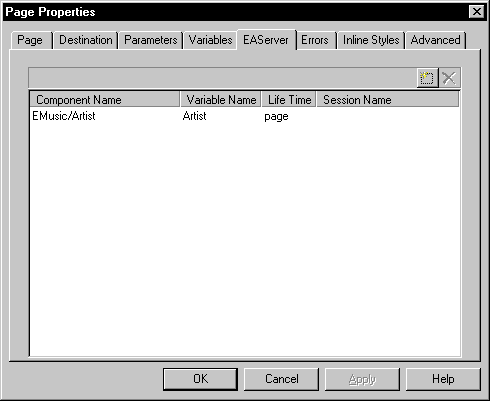
-
Change any of these values as needed and click
OK.Now the variable representing the component is available to
your page.
For information about binding controls to EAServer component properties,
see “Binding controls to properties
of EAServer components”.
Getting information about EAServer components
After your page has access to an EAServer component,
you can display information about the characteristics of that component
on the Page tab of the System Tree (as well as on the Components
tab). You can find the component under the EAServer Objects
branch of the Server Side node of the Page tab. The Properties menu
item on the pop-up menu for the component displays the properties
of the component.
Drag and drop from the Page tab If you drag an EAServer component
from the Page tab of the System Tree to the integrated Script editor
or the Source view, the name of the component is added to the open
script or the source code. The Page Properties dialog box does not
display as it does when you drag and drop the same component from the
Components tab to the Page view.
Setting up EAServer login variables
4GL JSP pages make it easy
to set up client login for pages that access EAServer components. If your
application prompts users for user name and password, you can bind
this data to either a page or a session variable. By using a session
variable, a user can log on once during a browser session, and then access
multiple EAServer components
from the server using the same user name and password.
To set up login variables:
-
Right-click in a 4GL JSP page open in the
HTML editor, then select Page Properties from the pop-up menu. - In the Page Properties dialog box, click the EAServer tab.
-
Click the New button on the EAServer page.
The cursor displays in a new line in the list box of components
for the page. An ellipsis button displays on the same line. -
Click the ellipsis button on the new line under
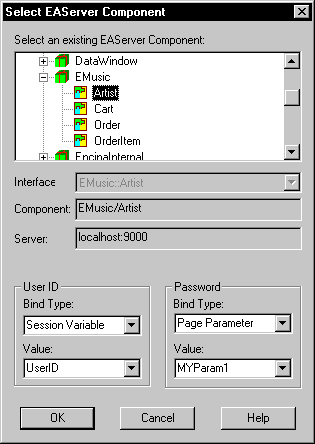
Component Name.The Select EAServer Component
dialog box displays. -
Specify the user ID (user name) and password for
the component, and the appropriate binding type for each value.You can bind the User ID and Password for the component to
a constant value, a page parameter, a page variable, or a session
variable.For more information about binding, see “About page navigation”.