About the Script view
You use the Script view to code functions and events, define
your own functions and events, and declare variables and external
functions.
Script
views are part of the default layout in the Application, Window,
User Object, Menu, and Function painters. In Application, Window,
and User Object painters the initial layout has one Script view
that displays the default event script for the object and a second
Script view set up for declaring instance variables. You can open
as many Script views as you need, or perform all coding tasks in
a single Script view.
Titlebar
The Script view’s titlebar shows the name and return
type of the current event or function, as well as the name of the
current control for events and the argument list for functions.
If the Script view is being used to declare variables or functions,
the titlebar shows the type of declaration.
Dropdown listboxes
There are three dropdown listboxes at the top of the Script
view:
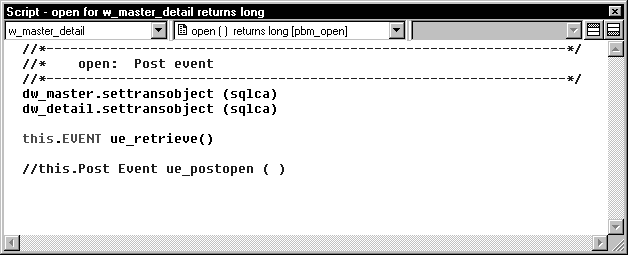
In the first listbox, you can select the object, control,
or menu item for which you want to write a script. You can also
select Functions to edit function scripts or Declare to declare
variables and external functions.
The second listbox lets you select the event or function you
want to edit or the kind of declaration you want to make. A script
icon next to an event name indicates there is a script for that
event, and the icon’s appearance tells you more about the
script:
| If there is a script | The script icon displays |
|---|---|
| For the current object or control | With text |
| In an ancestor object or control only | In color |
| In an ancestor as well as in the object or control you are working with |
Half in color |
The same script icons display in the Event List view.
The third listbox is available in descendent objects. It lists
the current object and all its ancestors so that you can view scripts
in the ancestor objects.
Toggle buttons for Prototype and Error windows
A Prototype window displays at the top of the Script view
when you define a new function or event. An Error window displays
at the bottom of the view when there are compilation errors. You
can toggle the display of these windows with the two toggle buttons
to the right of the listboxes:

For more information about the Prototype window, see Chapter 5, “Working with User-Defined Functions “ and Chapter 6, “Working with User Events “.