About the PowerBuilder extended attribute system tables
PowerBuilder uses a collection of five system tables (formerly
known as the Powersoft repository) to store extended attribute information
(such as display formats, validation rules, and font information)
about tables and columns in your database. You can also define extended
attributes when you create or modify a table in PowerBuilder.
This section tells you how to:
- Make sure the PowerBuilder extended attribute system tables
are created with the proper access rights when you log in to your
database for the first time - Display and open a PowerBuilder extended attribute
system table - Understand the kind of information stored in the PowerBuilder extended attribute
system tables - Control extended attribute system table access
Logging on to your database for the first time
By default, PowerBuilder creates the extended attribute system
tables the first time you connect to a database.
To ensure that PowerBuilder creates the extended attribute system
tables with the proper access rights to make them available to all
users, the first person to connect to the database with PowerBuilder must
log in with the proper authority.
 To ensure proper creation of the PowerBuilder extended
attribute system tables:
-
Make sure the first person to connect to
the database with PowerBuilder has sufficient authority to create
tables and grant permissions to PUBLIC.This means that the first person to connect to the database
should log in as the database owner, database administrator, system
user, system administrator, or system owner, as specified by your
DBMS.
 Creating the extended attribute system tables when
using the DirectConnect interface When you are using the DirectConnect interface, the PowerBuilder extended attribute
system tables are not created automatically
the first time you connect to a database. You must run the DB2SYSPB.SQL script
to create the system tables, as described in “Using the DB2SYSPB.SQL script”.
Displaying the PowerBuilder extended attribute system
tables
PowerBuilder updates the extended attribute system tables automatically whenever
you change the information for a table or column. The PowerBuilder extended
attribute system tables are different from the system tables provided by
your DBMS.
You can display and open PowerBuilder extended attribute system
tables in the Database painter just like other tables.
To display the PowerBuilder extended attribute system
tables:
-
In the Database painter, highlight Tables
in the list of database objects for the active connection and select
Show System Tables from the pop-up menu.
-
The PowerBuilder extended attribute system tables
and DBMS system tables display in the tables list, as follows:- PowerBuilder system
tables The five system tables are: pbcatcol, pbcatedt, pbcatfmt, pbcattbl,
and pbcatvld. - DBMS system tables The system tables supplied by the DBMS usually have a DBMS-specific
prefix (such as sys or dbo).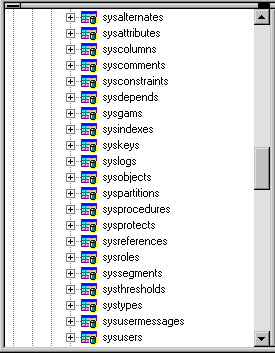
- PowerBuilder system
-
Display the contents of a PowerBuilder system table
in the Object Layout, Object Details, and/or Columns views.For instructions, see the User’s
Guide
. Do not edit the extended attribute system tables Do not change the values in the PowerBuilder extended attribute
system tables.
Contents of the extended attribute system tables
PowerBuilder stores five types of extended attribute information
in the system tables as described in Table 6-1.
| System table | Information about | Attributes |
|---|---|---|
| pbcatcol | Columns | Names, comments, headers, labels, case, initial value, and justification |
| pbcatedt | Edit styles | Edit style names and definitions |
| pbcatfmt | Display formats | Display format names and definitions |
| pbcattbl | Tables | Name, owner, default fonts (for data, headings and labels), and comments |
| pbcatvld | Validation rules | Validation rule names and definitions |
For more about the PowerBuilder system tables, see the Appendix
in the User’s Guide
.
Prefixes in system table names For some databases, PowerBuilder precedes the name of the system
table with a default DBMS-specific prefix. For example, the names
of PowerBuilder system tables have the prefix DBO in
a SQL Server database (such as DBO.pbcatcol),
or SYSTEM in an ORACLE database (such as SYSTEM.pbcatfmt).
The preceding table gives the base name of each system table
without the DBMS-specific prefix.
Controlling system table access
To control access to the PowerBuilder system tables at your
site, you can specify that PowerBuilder not create or update the system
tables or that the system tables be accessible only to certain users
or groups.
You can control system table access by doing any of the following:
- Setting Use Extended
Attributes Set the Use Extended Attributes database preference in the
Database Preferences property sheet in the Database painter. - Setting Read Only Set the Read Only database preference in the Database Preferences
property sheet in the Database painter. - Granting permissions on the system
tables Grant explicit permissions on the system tables to users or
groups at your site.
Setting Use Extended Attributes or Read Only to
control access
To control system table access by setting Use
Extended Attributes or Read Only:
-
Select Design>Options from the
menu bar.The Database Preferences dialog box displays. If necessary,
click the General tab to display the General property page.
-
Set values for Use Extended Attributes or Read
Only as follows:Preference What you do Effect Use Extended Attributes Clear the check box Does not create the PowerBuilder system tables
if they do not exist. Instead, the painter uses the appropriate
default values for extended attributes (such as headers, labels,
and text color).If the PowerBuilder system tables already exist, PowerBuilder does
not use them when you create a new DataWindow object.Read Only Select the check box If the PowerBuilder system tables already
exist, PowerBuilder uses them when you create a new DataWindow object, but
does not update them.You cannot modify (update) information in
the system tables or any other database tables in the DataWindow painter when the
Read Only check box is selected. -
Do one of the following:
- Click Apply to apply the preference settings to
the current connection and all future connections without closing
the Database Preferences property sheet. - Click OK to apply the preference settings to the
current connection and all future connections and close the Database
Preferences property sheet.
PowerBuilder saves your preference settings in the registry.
- Click Apply to apply the preference settings to
Granting permissions on system tables to control
access
If your DBMS supports SQL GRANT and REVOKE statements,
you can control access to the PowerBuilder system tables. The default
authorization for each repository table is:
|
1 |
GRANT SELECT, UPDATE, INSERT, DELETE ON <i>table</i> TO PUBLIC |
After the system tables are created, you can (for example)
control access to them by granting SELECT authority
to end users and SELECT, UPDATE, INSERT,
and DELETE authority to developers.This technique
offers security and flexibility that is enforced by the DBMS itself.