About libraries
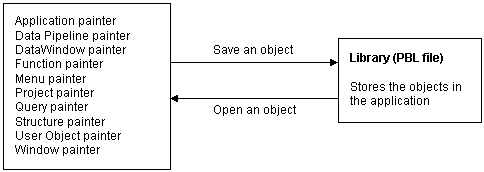
Whenever you save an object, such as a window or menu, in
a painter, PowerBuilder stores the object in a library (a PBL file).
Similarly, whenever you open an object in a painter, PowerBuilder retrieves
the object from the library.
Assigning libraries
Applications can use as many libraries as you want. Libraries
can be on your own PC or workstation or on a server. When you create
an application, you specify which libraries it uses. You can also
change the library search path for an application at any time during
development.
For information about specifying the library
search path, see “Specifying the application’s
library search path”.
How the information is saved
Every object is saved in two parts in a library:
- Source
form This is a syntactic representation of the object, including the
script code. - Object form This is a binary representation of the object, similar to
an object file in the C and C++ languages. PowerBuilder compiles
an object automatically every time you save it.
Using libraries
It is hard to predict the needs of a particular application,
so the organization of an application’s libraries will
probably evolve over the development cycle. PowerBuilder lets you
reorganize your libraries easily at any time.
For small applications, you might use only one library. But
for larger applications, you will want to split the application
into different libraries.
About library size
There are no limits to how large libraries can be, but for
performance and convenience, you should follow the guidelines below.
- Number of objects It is a good idea not to have more than 50 or 60 objects saved
in a library. This is strictly for your convenience; the number of
objects doesn’t affect performance. But if you have many
objects in a library, you will find that listboxes that list library
objects become unmanageable and that the Library painter becomes
more difficult to use. - Balance You don’t want to have to manage a large number of
libraries with only a few objects. That makes the library search
path too long and can slow performance by forcing PowerBuilder to
look through many libraries to find an object. So you should try
to maintain a balance between the size and number of libraries.
Organizing libraries
You can organize your libraries any way you want. For example,
you might want to put all objects of one type in their own library.
Or you might want to divide your application into subsystems and
place each subsystem in its own library.
A recommended organization
If you are working with other developers on a large application,
here is a setup that works well.
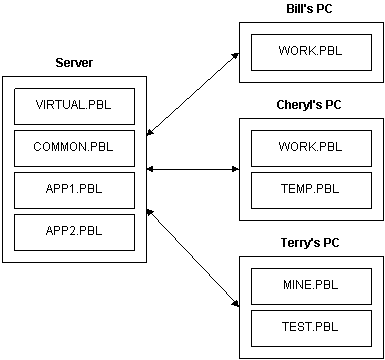
Put libraries containing objects that are shared by developers
on a server machine on the network. That way all developers have
direct access to them. Put objects that only you
are
working on in a library on your PC or workstation.
 If you are using a version control system If you are using a version control system that supports Add
Objects and Refresh Status, you can have your own local copy of
a shared library and keep it in sync with the source control system
using those supported features.
Here is an example. The following libraries would be publicly
available on a server:
| Library | Contents |
|---|---|
| VIRTUAL.PBL | This library contains all ancestor objects used in the application. For example, if all the windows in your application inherit from w_master, place w_master in this library |
| COMMON.PBL | This library contains all objects that are used across applications, such as user objects and functions |
| APP1.PBL | This library contains objects specific to application 1 |
| APP2.PBL | This library contains objects specific to application 2 |
Also, each developer would have one or more private work libraries
where they would keep the objects they are working on.
Sharing objects with others
PowerBuilder provides check-out/check-in facilities
that let you check an object out of one library, such as APP1.PBL,
and store a working copy in another library, such as your private
library. While you have the object checked out, no one else can
modify it. When you finish updating an object, you can check the
object back in to the public library.
Ordering the application’s library search
path
If you use the scenario described above with public and private
libraries, you should place the private libraries first in the library
search path. Then when you check an object out of a public library
and place it in your private library, PowerBuilder will find the private
one first when executing the application. When you check the object
back in to the public library, it is removed from the private library
and PowerBuilder finds the updated public version when executing the
application.
For more about check-out/check-in,
see “Using check-out and check-in”.
Specifying the library search path
You specify an application’s library search path
by clicking the Library List button in the PowerBar.
For information about specifying the library
search path, see “Specifying the application’s
library search path”.