About graphs
Often the best way to display information is graphically.
Instead of showing users a series of rows and columns of data, you
can present information as a graph in a DataWindow object or window. For
example, in a sales application, you might want to present summary
information in a column graph.
PowerBuilder provides many types of graphs and allows you to
customize your graphs in many ways. Probably
most of your use of graphs will be in a DataWindow object–the
source of the data for your graphs will be the database. You can
also use graphs as standalone controls in windows (and user objects)
and populate the graphs with data through scripts.
The way you define graphs is the same whether you are using
them in a DataWindow object or directly in a window. But the way you manipulate graphs
in a DataWindow object is different from the way you manipulate them in
a window.
Before using graphs in an application, you need to understand
the parts of a graph and the kinds of graphs that PowerBuilder provides.
Parts of a graph
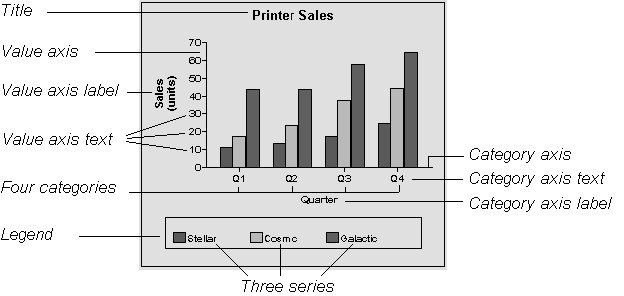
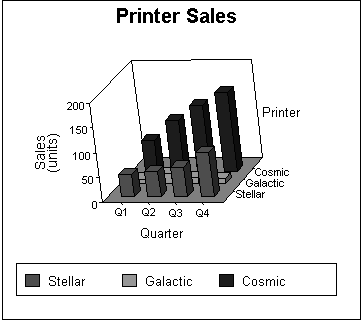
Here is a column graph created in PowerBuilder that contains
most major parts of a graph. It shows quarterly sales of three products:
Stellar, Cosmic, and Galactic printers:
How data is represented
Graphs display data points. To define graphs, you need to
know how the data is represented. PowerBuilder organizes data into
three components:
| Component | Meaning |
|---|---|
| Series |
A set of data points Each set of related data points makes up one series. In the |
| Categories |
The major divisions of the |
| Values | The values for the data points (dependent variables) |
Organization of a graph
The following table lists the parts of a typical graph:
| Part of graph | What it is |
|---|---|
| Title | An optional title for the graph. The title appears at the top of the graph |
| Value axis | The axis of the graph along which the values of the dependent variable(s) are plotted. In a column graph, as shown in the preceding graph, the Value axis corresponds to the y axis in an XY presentation. But in other types of graphs, such as a bar graph, the Value axis can be along the x dimension |
| Category axis | The axis along which are plotted the major divisions of the data, representing the independent variable(s). In the preceding graph, the Category axis corresponds to the x axis. It plots four categories: Q1, Q2, Q3, and Q4. These form the major divisions of data in the graph |
| Series | A set of data points. There are three series in the preceding graph: Stellar, Cosmic, and Galactic. In bar and column charts, each series is represented by bars or columns of one color or pattern |
| Series axis | The axis along which the series are plotted in three-dimensional (3D) graphs |
| Legend | An optional listing of the series. The preceding graph contains a legend that shows how each series is represented in the graph |
Types of graphs
PowerBuilder provides many types of graphs for you to choose
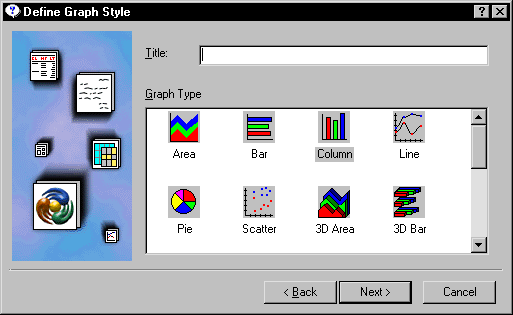
from. You choose the type in the Define Graph Style dialog box or
in the General page in the Properties view for the graph.
Area, bar, column, and line graphs
Area, bar, column, and line graphs are conceptually very similar.
They differ only in how they physically represent the data values–whether
they use areas, bars, columns, or lines to represent the values.
All other properties are the same. Typically you use area and line
graphs to display continuous data and use bar and column graphs
to display noncontinuous data.
The only difference between a bar graph and a column graph
is the orientation: in column graphs, values are plotted along the
y axis and categories are plotted along the x axis. In bar graphs,
values are plotted along the x axis and categories are plotted along
the y axis.
Pie graphs
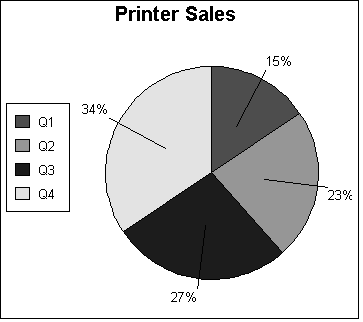
Pie graphs typically show one series of data points with each
data point shown as a percentage of a whole. The following pie graph
shows the sales for Stellar printers for each quarter. You can easily
see the relative values in each quarter. (PowerBuilder automatically
calculates the percentages of each slice of the pie.)
You can have pie graphs with more than one series if you want;
the series are shown in concentric circles. Multiseries pie graphs
can be useful in comparing series of data.
Scatter graphs
Scatter graphs show xy data points. Typically you use scatter
graphs to show the relationship between two sets of numeric values. Non-numeric values, such as string
and DateTime data types, do not display correctly.
Scatter graphs do not use categories. Instead, numeric values
are plotted along both axes–as opposed to other graphs,
which have values along one axis and categories along the other
axis.
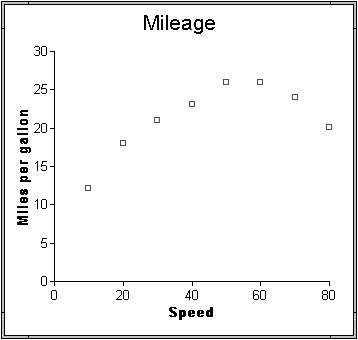
For example, the following data shows the effect of speed
on the mileage of a sedan:
| Speed | Mileage |
|---|---|
| 10 | 12 |
| 20 | 18 |
| 30 | 21 |
| 40 | 23 |
| 50 | 26 |
| 60 | 26 |
| 70 | 24 |
| 80 | 20 |
Here is the data in a scatter graph:
You can have multiple series of data in a scatter graph. In
the above example, you might want to plot mileage versus speed for
several makes of cars in the same graph.
Three-dimensional graphs
You can also create 3-dimensional (3D) graphs of area, bar,
column, line, and pie graphs. In 3D graphs (except for 3D pie graphs),
series are plotted along a third axis (the Series axis) instead
of along the Category axis. You can specify the perspective to use
to show the third dimension:
Stacked graphs
In bar and column graphs, you can choose to stack the bars
and columns. In stacked graphs, each category is represented as
one bar or column instead of as separate bars or columns for each
series:

Using graphs in applications
You can use graphs in DataWindow objects and in windows. You specify
the properties of a graph, such as its type and title, the same
way in a DataWindow object as in a window.
 Using graphs in user objects You can also use graphs in user objects. Everything in this
chapter about using graphs in windows also applies to using graphs
in user objects.
The major differences between using a graph in a DataWindow object and using
a graph in a window (or user object) are:
- Specifying the data for the graph
In DataWindow objects, you associate columns in the database with
the axes of a graph. In windows, you write scripts containing PowerScript functions
to populate a graph. - Specifying the location of the graph
In DataWindow objects, you can place a graph in the foreground and
allow users to move and resize the graph during execution or you
can place a graph in a band and prevent movement. In windows, graphs
are placed like all other window controls.