About DataWindow objects
A DataWindow object is an object that you use to retrieve,
present, and manipulate data from a relational database or other
data source (such as an Excel worksheet or dBASE file).
DataWindow objects have knowledge about the data they are
retrieving. You can specify display formats, presentation styles,
and other data properties so the data is used in the most meaningful
way by users.
DataWindow object examples
You can display the data in the format that will best present
the data to your users:
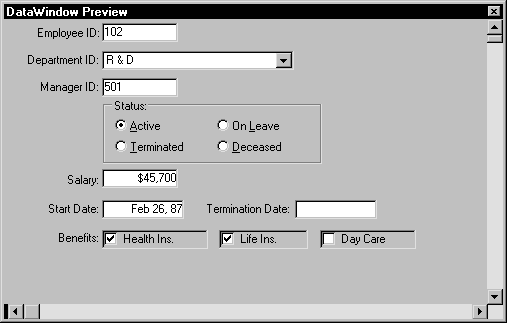
Edit styles
If a column can take only a small number of values, you can
have the data appear as radio buttons in a DataWindow object so
users know what their choices are.
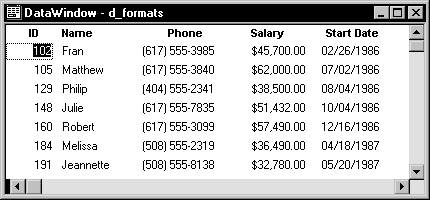
Display formats
If a column displays phone numbers, salaries, or dates, you
can specify the format appropriate to the data.
Validation rules
If a column can take numbers only in a specific range, you
can specify a simple validation rule for the data, without writing
any code, to make sure users enter valid data.
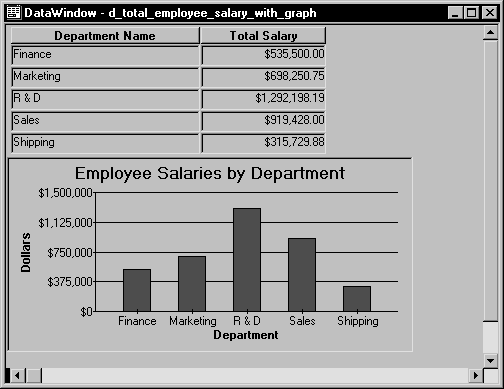
Enhancing DataWindow objects
If you want to enhance the presentation and manipulation of
data in a DataWindow object, you can include computed fields, pictures,
and graphs that are tied directly to the data retrieved by the object.
How to use DataWindow objects
Before you can use a DataWindow object in an application,
you need to build the object. To do that you can go to the DataWindow
painter, which lets you create and edit DataWindow objects. It also
lets you make PSR (Powersoft report) files,
which you may want to use in applications too. A PSR file contains
a report definition–essentially a nonupdatable DataWindow
object–as well as the data contained in that report when
the PSR file was created.
This section describes the overall process for creating and
using DataWindow objects.
 To use DataWindow objects:
-
Create the DataWindow object
(or
PSR file) in the DataWindow painter (File>New, DataWindow
tab).In this painter, you define the data source, presentation
style, and all other properties of the object, such as display formats,
validation rules, sorting and filtering criteria, and graphs.For more information about creating a DataWindow
object, see “Building a DataWindow object “. -
Place a DataWindow control
in
a window (or user object).It is through this control that your application communicates
with the DataWindow object you created in the DataWindow painter. -
Associate the DataWindow control with the DataWindow
object. -
Write scripts in the Window painter to manipulate
the DataWindow control and its contents.For example, you use the PowerScript Retrieve function to
retrieve data into the DataWindow control.You can write scripts for the DataWindow control to deal with
error handling, sharing data between DataWindow controls, and so
on.For more information about using DataWindow
objects, see DataWindow Programmer’s Guide
.