About data pipelines
The Data Pipeline painter gives you the ability to reproduce
data quickly within a database, across databases, or even across
DBMSs. To do that, you create a data pipeline which, when executed,
pipes the data as specified in the definition of the data pipeline.
What you can do
With the Data Pipeline painter, you can perform some tasks
that would otherwise be very time consuming. For example, you can:
- Pipe data (and extended attributes)
from one or more tables to a table in the same DBMS or a different
DBMS - Pipe an entire database, a table at a time, to another
DBMS (and if needed, pipe the database’s extended attribute
system tables) - Create a table with the same design as an existing
table but with no data - Pipe corporate data from a database server to an Adaptive Server Anywhere database
on your computer so you can work on the data and report on it without
needing access to the network - Upload local data that changes daily to a corporate
database - Create a new table when a change (such as allowing
or disallowing NULLs or changing primary key
or index assignments) is disallowed in the Database painter
 Piping data in applications You can also create applications that pipe data. For more
information, see Application Techniques
.
Source and destination databases
You can use the Data Pipeline painter to pipe data from one
or more tables in a source database to one table in a destination
database.
You can pipe all data or selected data in one or more tables.
For example, you can pipe a few columns of data from one table or
data selected from a multitable join. You can also pipe from a view
or a stored procedure result set to a table.
When you pipe data, the data in the source database remains
in the source database and is reproduced in a new or existing table
in the destination database.
Although the source and destination can be the same database,
they are usually different ones, and they can even have different
DBMSs. For example, you can pipe data from an Adaptive Server Enterprise
database to an Adaptive Server Anywhere database on your computer.
Defining a data pipeline
When you use the Data Pipeline painter to create a pipeline,
you define the:
- Source database
- Destination database
- Source of data
- Pipeline operation
- Destination table
After you create a pipeline, you can execute it immediately.
If you want, you can also save it as a named object to use and reuse. Saving a pipeline enables you to pipe
the data that might have changed since the last pipeline execution or
to pipe the data to other databases later.
Datatype support
Each DBMS supports certain datatypes. When you pipe data from
one DBMS to another, PowerBuilder makes a best guess at the appropriate
destination datatypes. You can correct PowerBuilder’s best
guess in your pipeline definition as needed.
The Data Pipeline painter supports the piping of columns of
any datatype, including columns with blob data. For information
about piping a column that has a blob datatype, see “Piping blob data”.
Piping extended attributes
The first time PowerBuilder connects to a database, it creates
five system tables called the extended attribute system tables.
These system tables initially contain default extended attribute
information for tables and columns. In PowerBuilder, you can create
extended attribute definitions such as column headers and labels,
edit styles, display formats, and validation rules.
For more information about the extended attribute
system tables, see Appendix A, “The Extended
Attribute System Tables”
Piping extended attributes automatically
When you pipe data, you can specify that you want to pipe
the extended attributes associated with the columns you are piping.
You do this by selecting the Extended Attributes check box in the
Data Pipeline painter workspace:
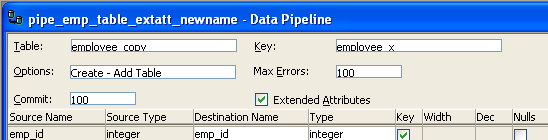
When the Extended Attributes check box is selected, the extended
attributes associated with the source database’s selected
columns automatically go into the extended attribute system tables
of the destination database, with one exception. When you pipe a
column that has an edit style, display format, or validation rule
associated with it, the style, rule, or format is not piped if one with
the same name exists in the extended attribute system tables of
the destination database. In this situation, the column uses the
style, rule, or format already present in the destination database.
For example, for the Phone column in
the Employee table, the display format with
the name Phone_format would be piped
unless a display format with the name Phone_format already
exists in the destination database. If such a display format exists,
the Phone column would use the Phone_format display
format in the destination database.
Piping the extended attribute system tables
Selecting the Extended Attributes check box never results
in the piping of named display formats, edit styles, and validation
rules that are stored in the extended attribute system tables but
are not associated with columns in tables you are piping. If you
want such extended attribute definitions from one database to exist
in another database, you can pipe the appropriate extended attribute
system table or a selected row or rows from the table.
Piping an entire database
If you want to reproduce an entire database, you can pipe
all database tables and extended attribute system tables, one table
at a time.