About creating database profiles
You work with two dialog boxes when you create a database profile
in PowerBuilder: the Database Profiles dialog box and the
interface-specific Database Profile Setup dialog box.
Using the Database painter to create database profiles
You can also create database profiles from the Database
painter’s Objects view.
Database Profiles dialog
box
The Database Profiles dialog box uses an easy-to-navigate tree
control format to display your installed database interfaces and defined
database profiles. You can create, edit, and delete database profiles
from this dialog box.
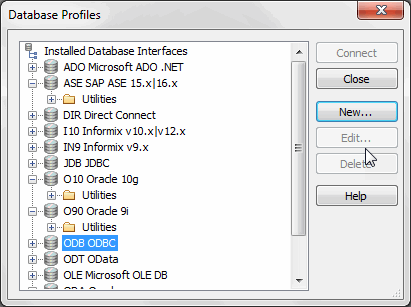
When you run the PowerBuilder Setup program, it updates the
Vendors list in the PowerBuilder section in the HKEY_LOCAL_MACHINE
registry key with the interfaces you install. The Database Profiles
dialog box displays the same interfaces that appear in the Vendors
list.
Where the Vendors list is stored
The SybasePowerBuilder18.0Vendors key in
HKEY_LOCAL_MACHINESOFTWARE is used for InfoMaker as well as
PowerBuilder.
For detailed instructions on using the Database Profiles dialog
box to connect to a database and manage your profiles, see Managing Database
Connections.
Database Profile Setup dialog
box
Each database interface has its own Database Profile Setup dialog
box where you can set interface-specific connection parameters. For
example, if you install the Adaptive Server Enterprise ASE interface and
then select it and click New in the Database Profiles dialog box, the
Database Profile Setup – Adaptive Server Enterprise dialog box displays,
containing settings for the connection options that apply to this
interface.
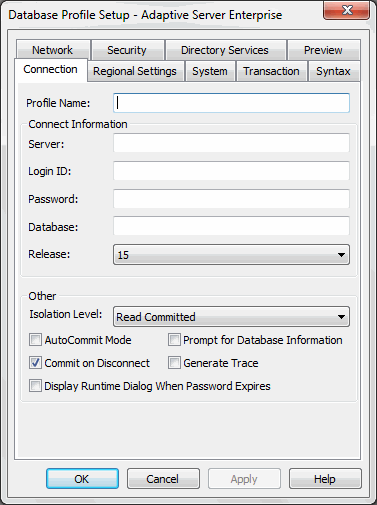
The Database Profile Setup dialog box groups similar connection
parameters on the same tab page and lets you easily set their values by
using check boxes, drop-down lists, and text boxes. Basic (required)
connection parameters are on the Connection tab page, and additional
connection options (DBParm parameters and SQLCA properties) are on the
other tab pages.
As you complete the Database Profile Setup dialog box in
PowerBuilder, the correct PowerScript connection syntax for each
selected option is generated on the Preview tab. You can copy the syntax
you want from the Preview tab into a PowerBuilder application
script.
Supplying sufficient information in the
Database Profile Setup dialog box
For some database interfaces, you might not need to supply values
for all boxes in the Database Profile Setup dialog box. If you supply
the profile name and click OK, PowerBuilder displays a series of dialog
boxes to prompt you for additional information when you connect to the
database.
This information can include:
| User ID or login ID |
| Password or login password |
| Database name |
| Server name |
For some databases, supplying only the profile name does not give
PowerBuilder enough information to prompt you for additional connection
values. For these interfaces, you must supply values for all applicable
boxes in the Database Profile Setup dialog box.
For information about the values you should supply for your
connection, click Help in the Database Profile Setup dialog box for your
interface.