About edit styles
You can define edit styles for columns. Edit styles specify
how column data is presented in DataWindow objects. Unlike display formats,
edit styles do not only affect the display of data; they also affect
how users interact with the data at runtime. Once you define
an edit style, it can be used by any column of the appropriate datatype
in the database.
When edit styles are used
If both a display format and an edit style have been assigned
to a column, the edit style is always used, with one exception.
When you assign an EditMask edit style to a column, you can check
the Use Format check box on the Format property page for the column
to use the edit mask format when focus is on the column, and the
display format mask when focus is off the column.
Edit styles
Table 22-8 shows
the available edit styles.
| Edit style | What the edit style does | Example |
|---|---|---|
| Edit box (default) | Displays a value in the box
For data entry, type a value |

|
| DropDownListBox | Displays a value from the drop-down list For data entry, select or enter a value |
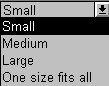
|
| CheckBox | Displays a check box selected or cleared
For data entry, select or clear the check box |

|
| RadioButtons | Displays radio buttons, one of which is selected For data entry, select one of the radio buttons |

|
| EditMask | Displays formatted data
For data entry, type a value |

|
| DropDownDataWindow | Displays a value from a drop-down DataWindow For data entry, select a value |

|
| InkEdit | On Tablet PCs, displays an InkEdit control so the user can enter data with the stylus. |
For example, suppose you have a column Status that
takes one of three values: the letters A, T, and L, each representing
a status (Active, Terminated, or On Leave). If you assign it the
RadioButton edit style, userscan simply click a button instead
of having to type A, T, or L. You do not have to create a validation
rule to validate typed input.